
| Sv translation | |||||||||||||||||||||||||||||||
|---|---|---|---|---|---|---|---|---|---|---|---|---|---|---|---|---|---|---|---|---|---|---|---|---|---|---|---|---|---|---|---|
| |||||||||||||||||||||||||||||||
IntroductionHave you ever thought about how you can reduce the workload of your employees and still achieve a high level of customer satisfaction? Self services are the answer! These can help you automate processes and enable customer service even out of normal hours. As an example, we show you how to build a self service application for recording electricity meter readings. Neccesary promptsFirst of all, the necessary prompts are created. The following table shows the prompts required.
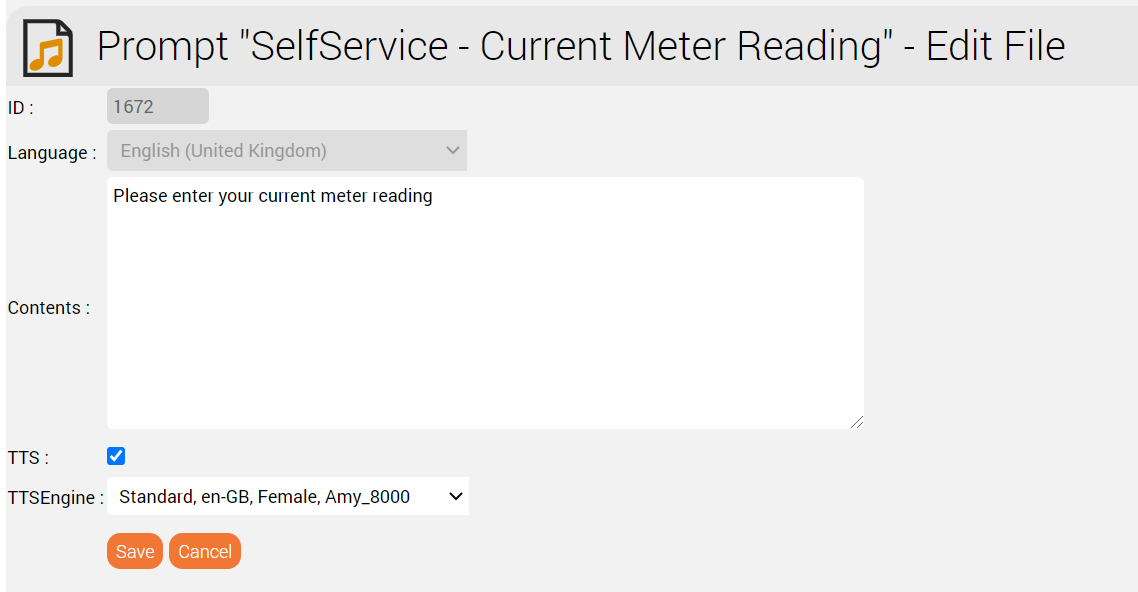
TTSYou can create the prompts quickly and easily using a TTS engine if you have subscribed to our TTS service. This is shown in the screenshot below.
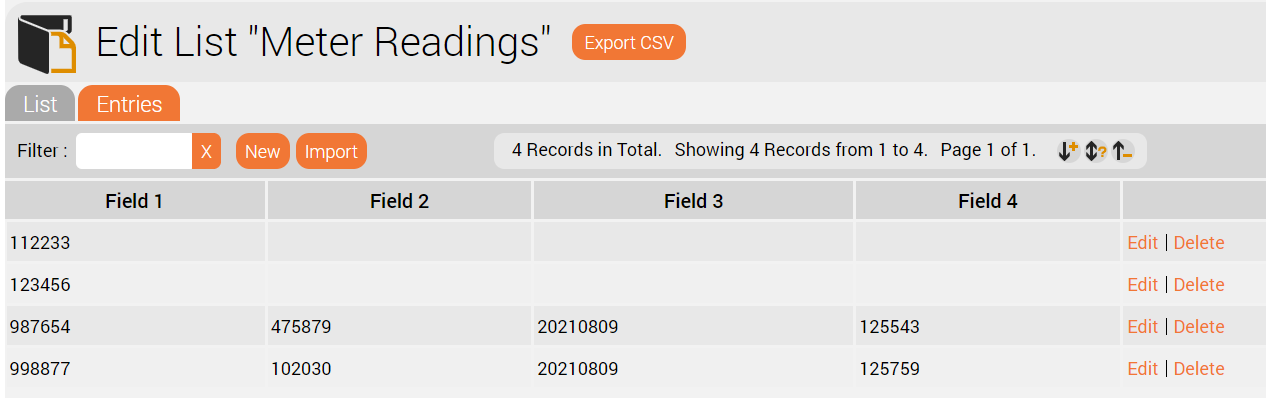
List - Checking Meter Numbers and Recording ResultsA list is used to check the meter numbers and store the results. The list is pre-loaded with all existing meter numbers. This can, for example, be manually loaded into the system, or imported using an FTP job. The results in the list list could be automatically processed by exporting the list to an FTP server. The fields in the list are as follows:
This is shown in the screenshot below.
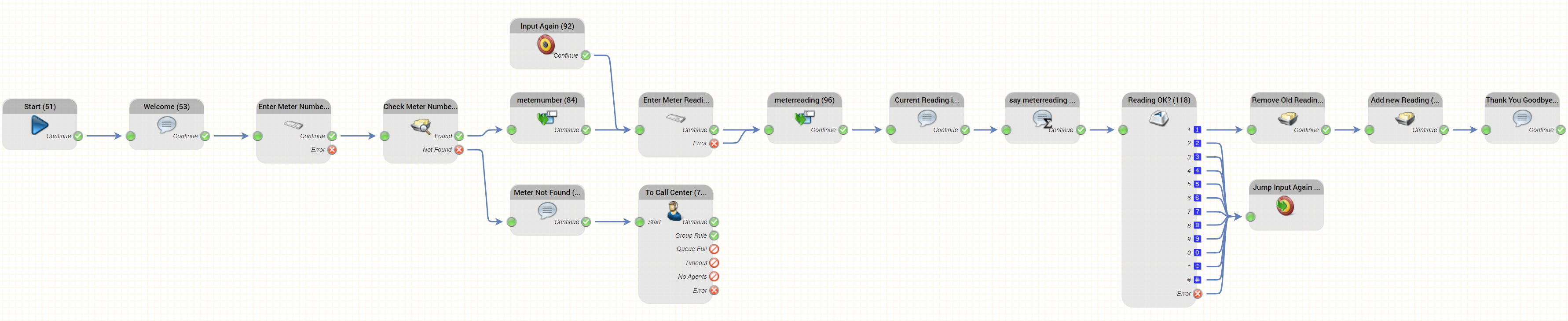
Possible Call-Flow for the Self ServiceThe call flow for the self service might look like this:
An Explanation of the Important Objects UsedIn this section we explain the key objects used in the call flow above and how it works. Note - not all objects are explained - a basic familiarity with the jtel IVR is assumed. Enter Meter Number / Enter Meter ReadingThese use Input Digits DTMF objects to ask the customer to enter the meter number and the meter reading. Here is the parameterisation for entering the meter number.
An audio beep is played after the prompt, to inform the caller that now is the time to start typing in the meter number (Play Tone). However, Barge-In is also selected so the announcement does not have to be listened to completely, but can be interrupted by starting to type in the meter number. The minimum and maximum number of digits can be used for a plausibility check, for example, if the meter number may have a maximum of 10 digits then this can be specified as the upper limit. Further details on this object can be found here: Input Digits DTMF Check Meter NumberThe meter number is checked for validity by looking up the value - $input - in the List "Meter Readings". All meter numbers should be loaded into this list in order that the service may work as built here.
This object has two outputs.
Further details on this object can be found here: List Lookup Remember the inputs: meternumber / meterreadingIf the meter number is found, we need to remember this for later. This is achieved by saving $input to a variable $meternumber using the Declare Variable object meternumber in the call flow above.
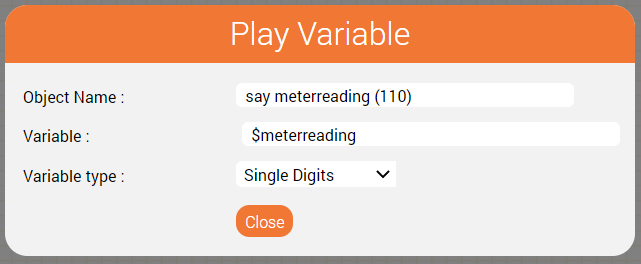
Similarly, when the meter reading is entered, this is saved to a variable $meterreading in the Declare Variable object meterreading. Further details on this object can be found here: Declare Variable Saying the Current Meterreading: say meterreadingThis object is used to output the current meter reading as a concatenation of single digits. It is used after the "Current Reading is" prompt is played. It is parameterised like this:
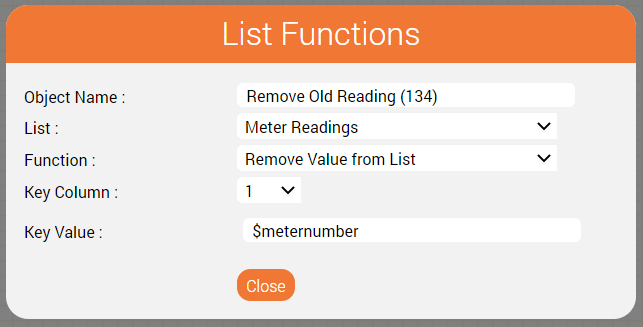
Further details on this object can be found here: Play Variable. Saving the result: Remove old Reading / Add new ReadingThe meter reading is saved to the same list in our example call flow. This involves deleting the old entry and adding a new entry with the same meter number using two instances of the List Functions object. Removing the old entry is performed like this:
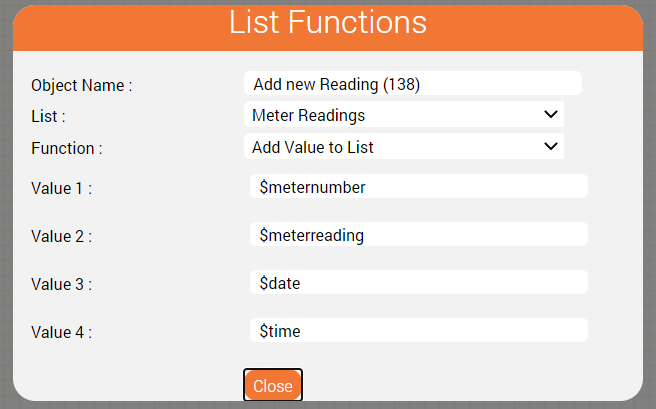
And the new reading is added like this:
Keeping it Tidy: Jump Input Again / Input AgainThese two objects are used to define a point in the routing, to which the call flow can jump, and to perform the actual jump from the end of the call flow to the middle. Of course, one could just connect the two objects directly together, but the number of connectors involved will mean the end result might look somewhat untidy. Further details on these two objects are found on the following pages: Jump to Target, Target ConclusionWe hope this tutorial has given you some insight as to how a simple self service can be built using the jtel system. The logic can be changed and adapted as the use case requires. Here are some examples:
|
| Sv translation | ||||||||||||||||
|---|---|---|---|---|---|---|---|---|---|---|---|---|---|---|---|---|
| ||||||||||||||||
EinführungHaben Sie schon einmal darüber nachgedacht, wie Sie die Arbeitsbelastung Ihrer Mitarbeiter reduzieren und trotzdem eine hohe Kundenzufriedenheit erreichen können? Self Services sind die Antwort! Diese können Ihnen helfen, Prozesse zu automatisieren und einen Kundenservice auch außerhalb der normalen Geschäftszeiten zu ermöglichen. Als Beispiel zeigen wir Ihnen, wie Sie eine Self-Service-Anwendung für die Erfassung von Stromzählerständen erstellen können. Notwendige AnsagenZunächst werden die notwendigen Ansagen erstellt. Die folgende Tabelle zeigt die benötigten Ansagen.
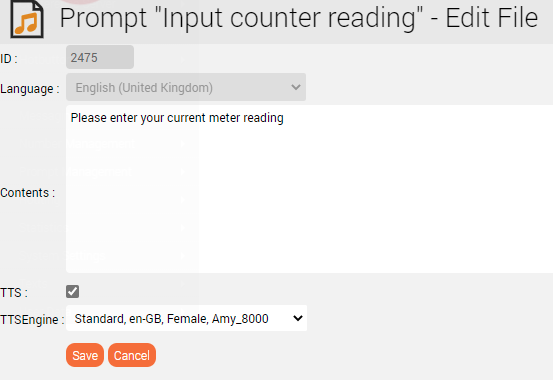
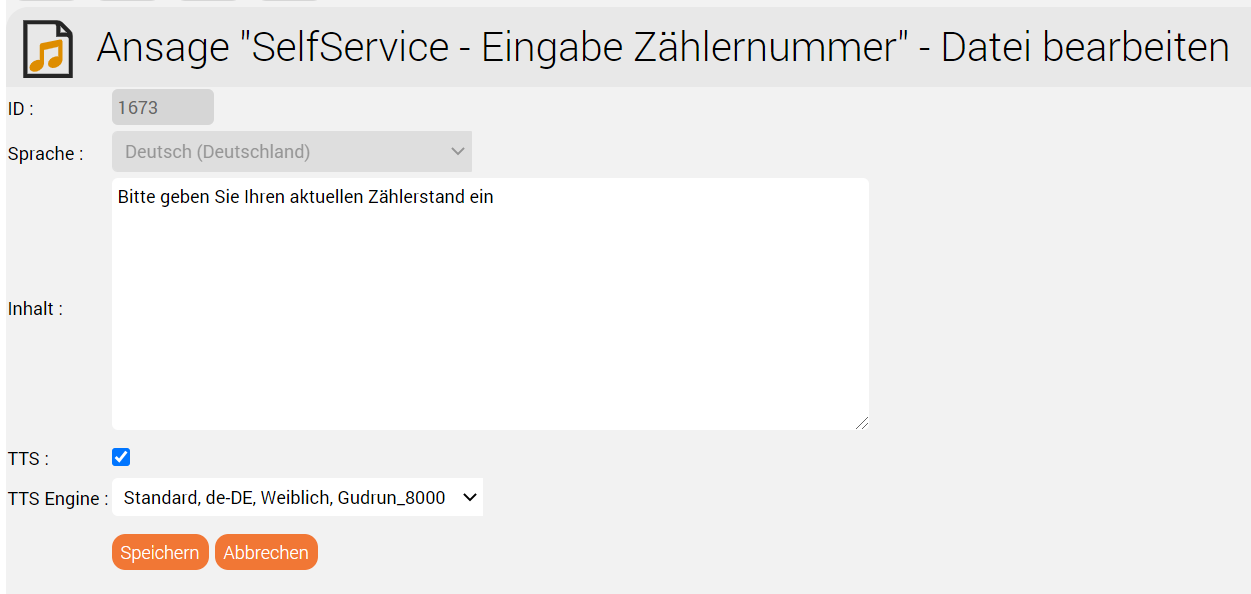
TTSSie können die Prompts schnell und einfach mit einer TTS-Engine erstellen, wenn Sie unseren TTS-Service abonniert haben. Dies ist auf dem folgenden Screenshot zu sehen.
List - Checking Meter Numbers and Recording ResultsA list is used to check the meter numbers and store the results. The list is pre-loaded with all existing meter numbers. This can, for example, be manually loaded into the system, or imported using an FTP job. The results in the list list could be automatically processed by exporting the list to an FTP server. The fields in the list are as follows: | ||||||||||||||||
| Field | Meaning | Comments | ||||||||||||||
| Field 1 | Meter Number | This is the only field which contains data when the meter numbers are loaded into the system. | ||||||||||||||
| Field 2 | Meter Reading | This field only contains a value, if a meter reading has been made using the automated service. | ||||||||||||||
| Field 3 | Date of Meter Reading | This field only contains a value, if a meter reading has been made using the automated service. | ||||||||||||||
| Field 4 | Time of Meter Reading | This field only contains a value, if a meter reading has been made using the automated service. |
| Feld | Bedeutung | Kommentare |
|---|---|---|
| Feld 1 | Zählernummer | Dieses Feld enthält die Zählernummer und ist als einziges Feld befüllt. |
| Feld 2 | Zählerstand | Dieses Feld enthält nur dann einen Wert, wenn eine Erfassung über den automatisierten Dienst erfolgt ist. |
| Feld 3 | Datum der Erfassung | Dieses Feld enthält nur dann einen Wert, wenn eine Erfassung über den automatisierten Dienst erfolgt ist. |
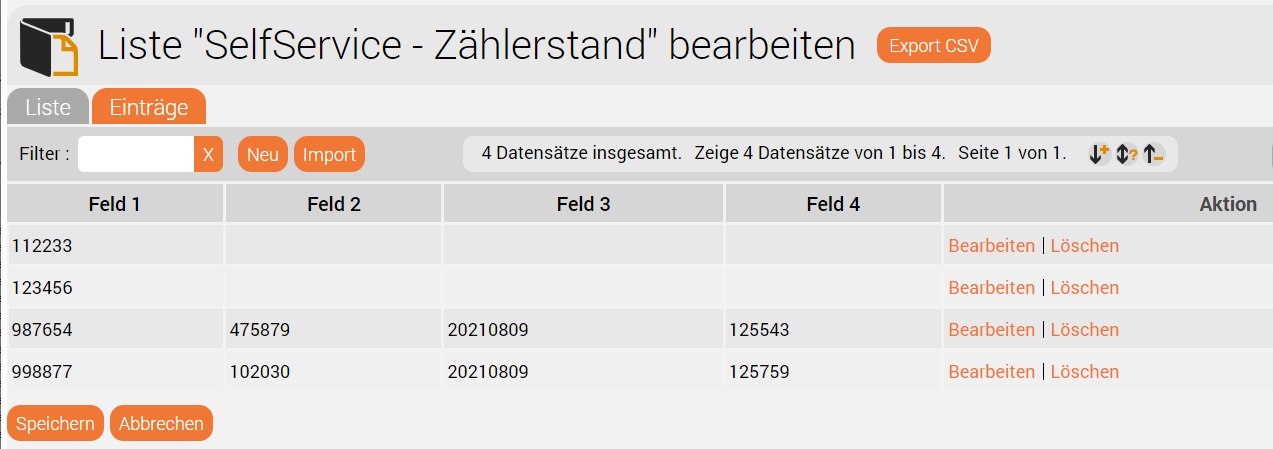
| Feld 4 | Uhrzeit der Erfassung | Dieses Feld enthält nur dann einen Wert, wenn eine Erfassung über den automatisierten Dienst erfolgt ist. |
Dies ist in der nachstehenden Abbildung dargestellt.
Möglicher Call-Flow für den Self-Service
Der Ablauf für den Self-Service könnte wie folgt aussehen:
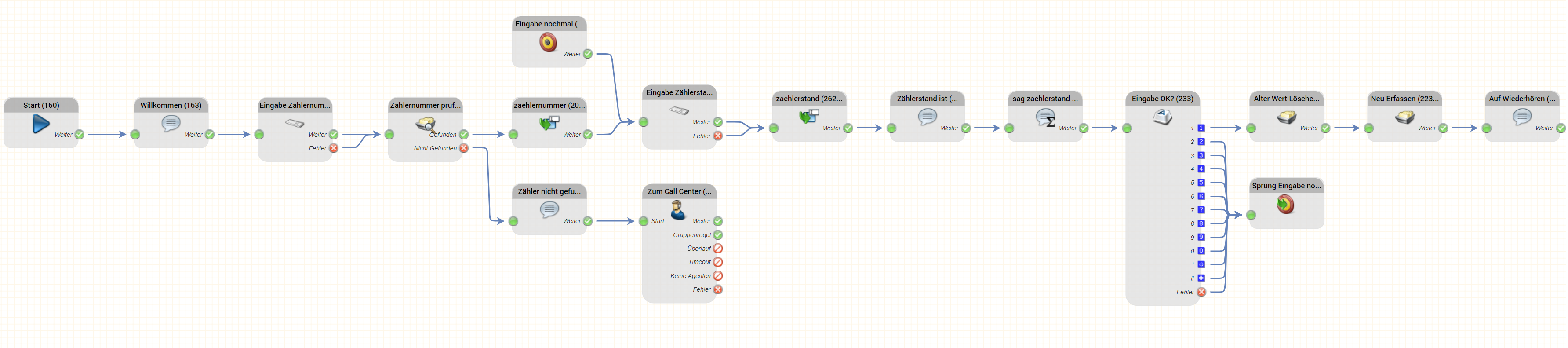
Erläuterung der wichtigsten verwendeten Objekte
In diesem Abschnitt erklären wir die wichtigsten Objekte, die im obigen Ablauf verwendet werden, und wie er funktioniert.
Hinweis: Es werden nicht alle Objekte erklärt - eine grundlegende Vertrautheit mit der jtel IVR wird vorausgesetzt.
Eingabe Zählernummer / Eingabe Zählerstand
Diese verwenden Eingabe Ziffern MFV Objekte, um den Kunden aufzufordern, die Zählernummer und den Zählerstand einzugeben.
Hier ist die Parametrierung für die Eingabe der Zählernummer.
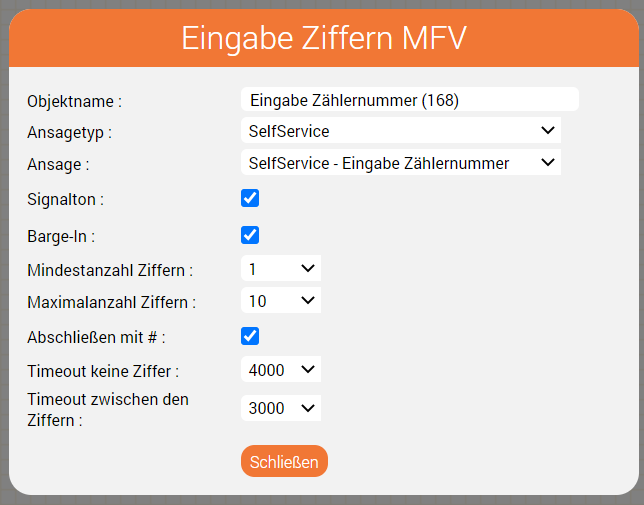
Nach der Aufforderung zur Eingabe der Zählernummer ertönt ein Signalton, um den Anrufer darauf hinzuweisen, dass es nun an der Zeit ist, die Zählernummer einzugeben (Signalton). Allerdings ist auch Barge-In ausgewählt, so dass die Ansage nicht vollständig angehört werden muss, sondern durch die Eingabe der Zählernummer unterbrochen werden kann.
Die Mindest- und Maximalzahl der Ziffern kann für eine Plausibilitätsprüfung verwendet werden, z.B. wenn die Zählernummer maximal 10 Ziffern haben darf, kann dies als Obergrenze angegeben werden.
Weitere Details zu diesem Objekt finden Sie hier: EIngabe Ziffern MFV
Zählernummer prüfen
Die Zählernummer wird auf ihre Gültigkeit geprüft, indem der Wert - $input - in der Liste "SelfService - Zählerstand" nachgeschlagen wird. Alle Zählernummern sollten in diese Liste geladen werden, damit der Dienst so funktionieren kann, wie er hier aufgebaut ist.
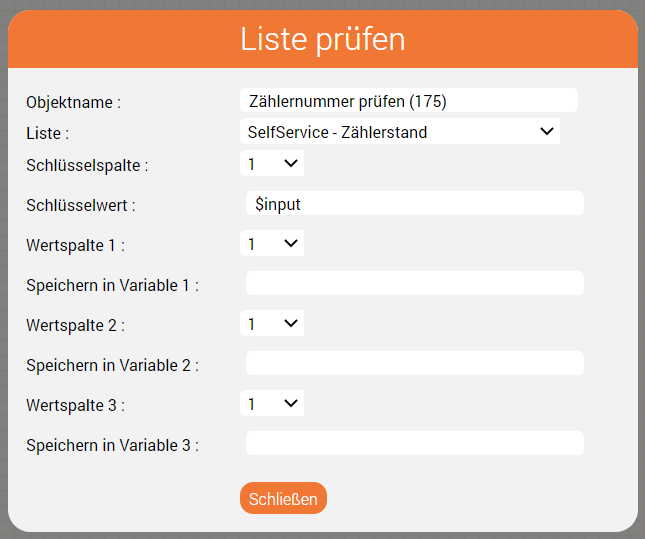
Dieses Objekt hat zwei Ausgaben.
- Gefunden - $input wurde erfolgreich in der Liste der Zählernummern gefunden.
- Nicht gefunden - $input wurde nicht in der Liste gefunden. In diesem Fall ist kein Self-Service verfügbar und der Anrufer könnte mit einem Agenten verbunden werden.
Weitere Einzelheiten zu diesem Objekt finden Sie hier: Listenoperationen.
Eingaben speichern: zaehlernummer / zaehlerstand
Wenn die Zählernummer gefunden wird, müssen wir uns diese für später merken. Dies wird erreicht, indem $input in einer Variablen $zaehlernummer gespeichert wird, indem das Objekt Variablendeklaration im obigen Aufrufablauf an der Stelle "zaehlernummer" verwendet wird.
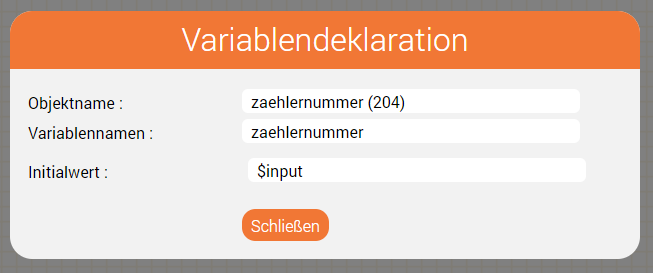
Ebenso wird bei der Eingabe des Zählerstands dieser in einer Variablen $zaehlerstand in der Variablendeklaration "zaehlerstand" gespeichert.
Weitere Einzelheiten zu diesem Objekt finden Sie hier: Variablendeklaration.
Ausgabe aktueller Zählerstand: sag zählerstand
Mit diesem Objekt wird der aktuelle Zählerstand als Verkettung von Einzelziffern ausgegeben. Es wird verwendet, nachdem die Ansage "Zählerstand ist" ausgegeben wurde.
Es wird wie folgt parametriert:
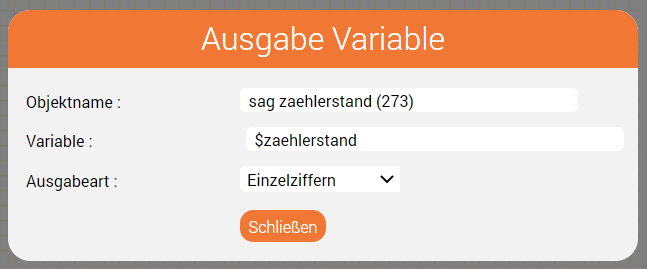
Einzelheiten zu diesem Objekt finden Sie hier: Ausgabe Variable
Speichern des Ergebnisses: Alter Wert Löschen / Neu Erfassen
Der Zählerstand wird in unserem Beispiel-Aufrufablauf in derselben Liste gespeichert.
Dazu wird der alte Eintrag gelöscht und ein neuer Eintrag mit der gleichen Zählernummer hinzugefügt, wobei zwei Instanzen des Objekts Listenoperation verwendet werden.
Das Entfernen des alten Eintrags wird wie folgt durchgeführt:
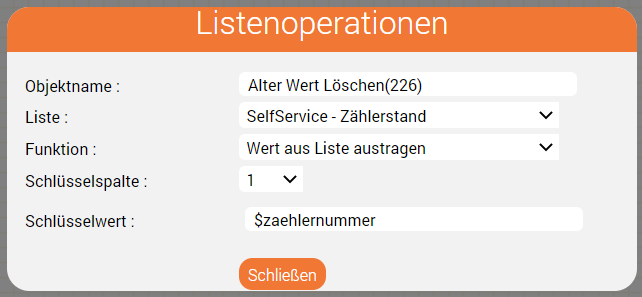
Und der neue Eintrag wird wie folgt hinzugefügt:
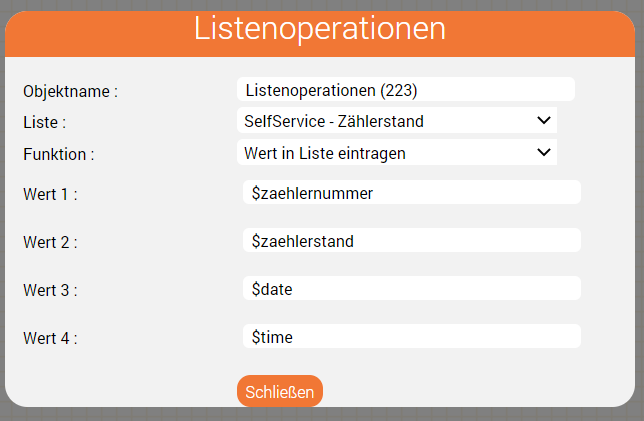
Für Ordnung sorgen: Sprung Eingabe nochmal / Eingabe nochmal
Diese beiden Objekte werden verwendet, um einen Punkt im Routing zu definieren, zu dem der Anruffluss springen kann, und um den eigentlichen Sprung vom Ende des Anrufflusses zur Mitte durchzuführen.
Natürlich könnte man die beiden Objekte auch einfach direkt miteinander verbinden, aber die Anzahl der beteiligten Konnektoren führt dazu, dass das Endergebnis etwas unordentlich aussehen könnte.
Weitere Einzelheiten zu diesen beiden Objekten finden Sie auf den folgenden Seiten: Zielobjekt, Sprung zu Zielobjekt.
Schlussfolgerung
Wir hoffen, dass dieses Tutorial Ihnen einen Einblick gegeben hat, wie ein einfacher Selbstbedienungsdienst mit dem jtel System erstellt werden kann.
Die Logik kann je nach Anwendungsfall geändert und angepasst werden.
Hier sind einige Beispiele:
- Speichern der Zählerstände in einer neuen Liste, die nur die erfassten Zählerstände enthält
- Prüfen der Zählernummer mit Hilfe eines Prüfsummenalgorithmus, falls vorhanden
- Abfrage eines Backend-Systems per REST zur Überprüfung der Zählernummer und direkte Aufzeichnung der Ergebnisse
This is shown in the screenshot below.
Possible Call-Flow for the Self Service
The call flow for the self service might look like this:
An Explanation of the Important Objects Used
In this section we explain the key objects used in the call flow above and how it works.
Note - not all objects are explained - a basic familiarity with the jtel IVR is assumed.
Enter Meter Number / Enter Meter Reading
These use Input Digits DTMF objects to ask the customer to enter the meter number and the meter reading.
Here is the parameterisation for entering the meter number.
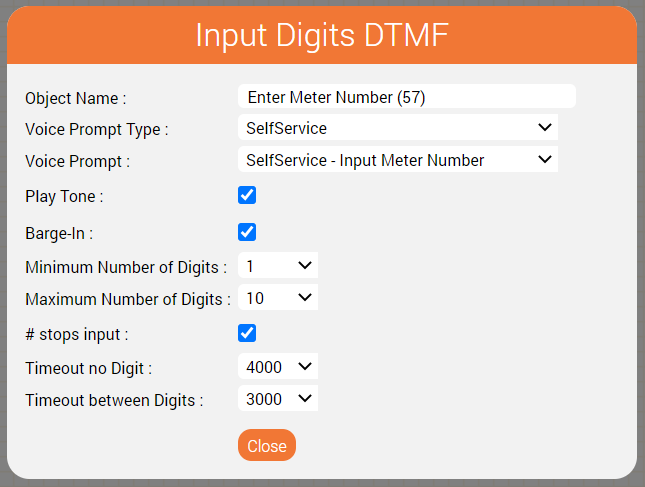
An audio beep is played after the prompt, to inform the caller that now is the time to start typing in the meter number (Play Tone). However, Barge-In is also selected so the announcement does not have to be listened to completely, but can be interrupted by starting to type in the meter number.
The minimum and maximum number of digits can be used for a plausibility check, for example, if the meter number may have a maximum of 10 digits then this can be specified as the upper limit.
Further details on this object can be found here: Input Digits DTMF
Check Meter Number
The meter number is checked for validity by looking up the value - $input - in the List "Meter Readings". All meter numbers should be loaded into this list in order that the service may work as built here.
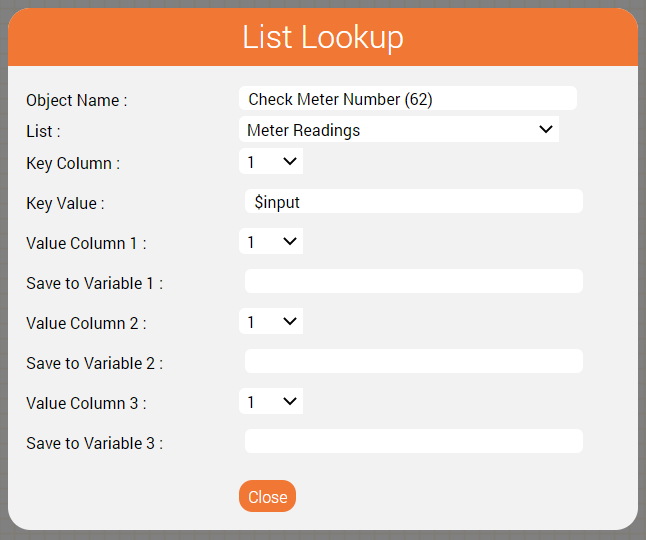
This object has two outputs.
- Found - $input was successfully found in the list of meter numbers.
- Not found - $input was not found in the list. In this case, no self service is available and the caller could be connected to an agent.
Further details on this object can be found here: List Lookup
Remember the inputs: meternumber / meterreading
If the meter number is found, we need to remember this for later. This is achieved by saving $input to a variable $meternumber using the Declare Variable object meternumber in the call flow above.
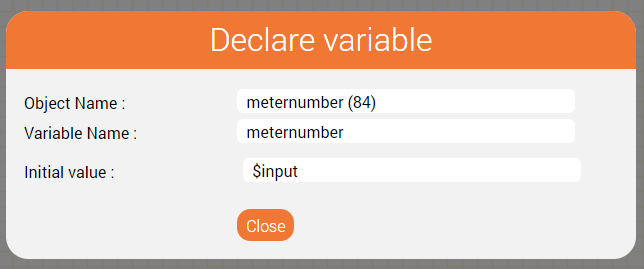
Similarly, when the meter reading is entered, this is saved to a variable $meterreading in the Declare Variable object meterreading.
Further details on this object can be found here: Declare Variable
Saying the Current Meterreading: say meterreading
This object is used to output the current meter reading as a concatenation of single digits. It is used after the "Current Reading is" prompt is played.
It is parameterised like this:
Saving the result: Remove old Reading / Add new Reading
The meter reading is saved to the same list in our example call flow.
This involves deleting the old entry and adding a new entry with the same meter number using two instances of the List Functions object.
Removing the old entry is performed like this:
And the new reading is added like this:
Keeping it Tidy: Jump Input Again / Input Again
These two objects are used to define a point in the routing, to which the call flow can jump, and to perform the actual jump from the end of the call flow to the middle.
Of course, one could just connect the two objects directly together, but the number of connectors involved will mean the end result might look somewhat untidy.
Further details on these two objects are found on the following pages: Jump to Target, Target
Conclusion
We hope this tutorial has given you some insight as to how a simple self service can be built using the jtel system.
The logic can be changed and adapted as the use case requires.
Here are some examples:
- Save the readings to a new list only containing the readings recorded
- Check the meter number using a checksum algorithm if available
- Query a backend system by REST to check the meter number and record the results directly