
| Sv translation | |||||||||||||||||||||||||||||||||||||||||||||||||||||||||||||||||||||||||||||||||||
|---|---|---|---|---|---|---|---|---|---|---|---|---|---|---|---|---|---|---|---|---|---|---|---|---|---|---|---|---|---|---|---|---|---|---|---|---|---|---|---|---|---|---|---|---|---|---|---|---|---|---|---|---|---|---|---|---|---|---|---|---|---|---|---|---|---|---|---|---|---|---|---|---|---|---|---|---|---|---|---|---|---|---|---|
| |||||||||||||||||||||||||||||||||||||||||||||||||||||||||||||||||||||||||||||||||||
The Supervisor Grid provides a way to display some items in a grid layout. See the Supported Browsers page at "Grid" for a list of compatible browsers. The first time you call the Supervisor Grid, the layout is blank. By clicking Layout 1, Layout 2 and Layout 3, you can choose a layout and the settings will be created. The settings themselves can be made either in the Users - User master data (current user) or for each user in the "Settings" tab, then simply filter by "Grid". From release 3.31: The supervisor grid loading process has been enhanced to deliver a more personalized and consistent user experience. When the supervisor grid is accessed, the system first checks for any saved user-specific grid layout and loads it if available. If no user settings are found, it applies the default Grid 1 settings from the client parameters. If neither user settings nor client parameters exist, the standard Grid 1 layout is automatically saved to both the client and user settings. Additionally, when users switch between different grid layouts using the Grid 1 to Grid 3 buttons, the system will load the corresponding settings from the client parameters if they exist; otherwise, it will load and save the default settings for the selected grid. These improvements ensure that users have a seamless experience when managing supervisor grids. Authorization This feature requires the permission portal.Acd.AcdSupervisor.Grid Layout Principle The elements are arranged in a grid. The width corresponds to 100% of the page width, and can be divided into a number of columns. The height of the grid corresponds to a number of lines with a certain height. If you specify more lines than fit on the page, a scroll bar is rendered. The following settings can be made:
Elements
Elements Indication The elements are easily set with the setting AcdSupervisor.Grid.1, AcdSupervisor.Grid.2 and continuously defined. The numbers must be continuous, if there is a gap, no further elements are drawn. The following syntax is used to specify the element: ElementName, X, Y, Width, Height, Scaling The following table is helpful when specifying the X / Y coordinate. The zero point is left above.
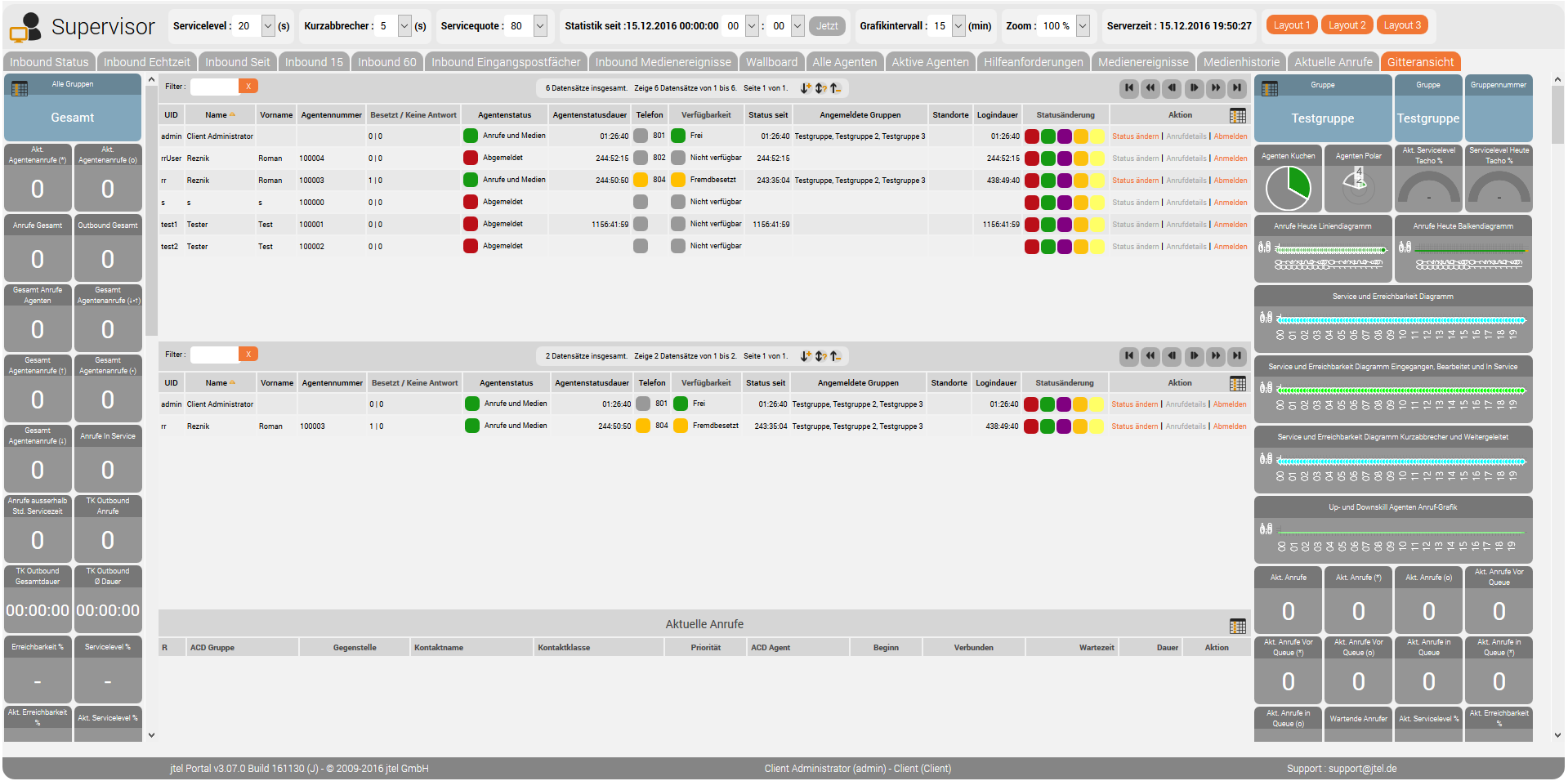
ElementName Name of the item from the list of items. X Specify the X coordinate in the virtual grid where the element is to be drawn. Y Specify the Y coordinate in the virtual grid where the element is to be drawn. Width The width of the element, as the number of virtual columns. Height The height of the element, as the number of virtual rows. Scaling The scaling of the element, as floating-point number with point (no comma use!). For example, if you specify 0.1, the element is drawn in a tenth of its normal size. If you specify 5, the element is drawn five times as large. Example The following layout is the screenshot below.
|
| Sv translation | |||||||||||||||||||||||||||||||||||||||||||||||||||||||||||||||||||||||||||||||||||
|---|---|---|---|---|---|---|---|---|---|---|---|---|---|---|---|---|---|---|---|---|---|---|---|---|---|---|---|---|---|---|---|---|---|---|---|---|---|---|---|---|---|---|---|---|---|---|---|---|---|---|---|---|---|---|---|---|---|---|---|---|---|---|---|---|---|---|---|---|---|---|---|---|---|---|---|---|---|---|---|---|---|---|---|
| |||||||||||||||||||||||||||||||||||||||||||||||||||||||||||||||||||||||||||||||||||
Der Supervisor Grid bietet eine Möglichkeit, einige Elemente in einem Gitter-Layout anzuzeigen. Siehe der Seite Unterstützte Browser / Supported Browsers bei "Grid" für eine Liste der kompatibelen Browser. Wenn Sie das erste Mal den Supervisor Grid aufrufen, ist das Layout leer. Durck Klicken von Layout 1, Layout 2 und Layout 3 kann man ein entsprechendes Layout wählen. Die Einstellungen selbst werden entweder bei den Usern – Stammdaten Benutzer (aktueller Benutzer) oder bei jedem Benutzer selbst im Reiter „Einstellungen“ getätigt, hier dann einfach nach „Grid“ filtern. Man kann das Layout vollständig anpassen. Auch ist es möglich, das Layout von Grund auf selbst zu erstellen. Lediglich die Einstellungen müssen eingetragen werden BerechtigungDieses Feature benötigt die Berechtigung portal.Acd.AcdSupervisor.Grid Layout PrinzipDie Elemente werden in ein Gitter angeordnet. Das Breite entspricht 100% der Seitenbreite, und kann in eine Anzahl von Spalten logisch aufgeteilt werden. Die Höhe des Gitters entspricht eine Anzahl an Zeilen mit einer gewissen Höhe. Gibt man mehr Zeilen an als auf die Seite passen, so wird eine Scroll-Leiste gerendert. Folgende Einstellungen können getätigt werden:
ElementeFolgende Elemente können eingefügt werden:
Angabe der ElementeDie Elemente werden einfach mit der Einstellung AcdSupervisor.Grid.1, AcdSupervisor.Grid.2 und fortlaufend definiert. Die Zahlen müssen fortlaufend sein, entsteht eine Lücke, so werden keine weiteren Elemente gezeichnet. Folgender Syntax gilt für die Angabe des Elements: ElementName,X,Y,Breite,Höhe,SkalierungBei der Angabe des X/Y Koordinats, hilft folgende Tabelle. Der Null-Punkt ist oben Links.
ElementNameName des Elements aus der Liste der Elemente. XDie Angabe des X-Koordinats im virtuellen Gitter, wo das Element gezeichnet werden soll. YDie Angabe des Y-Koordinats im virtuellen Gitter, wo das Element gezeichnet werden soll. BreiteDie Breite des Elements, als Anzahl der virtuellen Spalten. HöheDie Höhe des Elements, als Anzahl der virtuellen Zeilen. SkalierungDie Skalierung des Elements, als Fließkommazahl mit Punkt (kein Komma verwenden!). Wenn Sie 0.1 beispielsweise angeben, wird das Element in einer zehntel seiner Normalgröße gezeichnet. Wenn Sie 5 angeben, wird das Element fünf fach so groß gezeichnet. BeispielFolgendes Layout entspricht das Screenshot unten.
|