
Introduction
This page explains the configuration of Oauth2 methods in any azure tenant to allow a jtel ACD E-Mail Inbox to receive mails from a Office365 Mail User.
Create an application
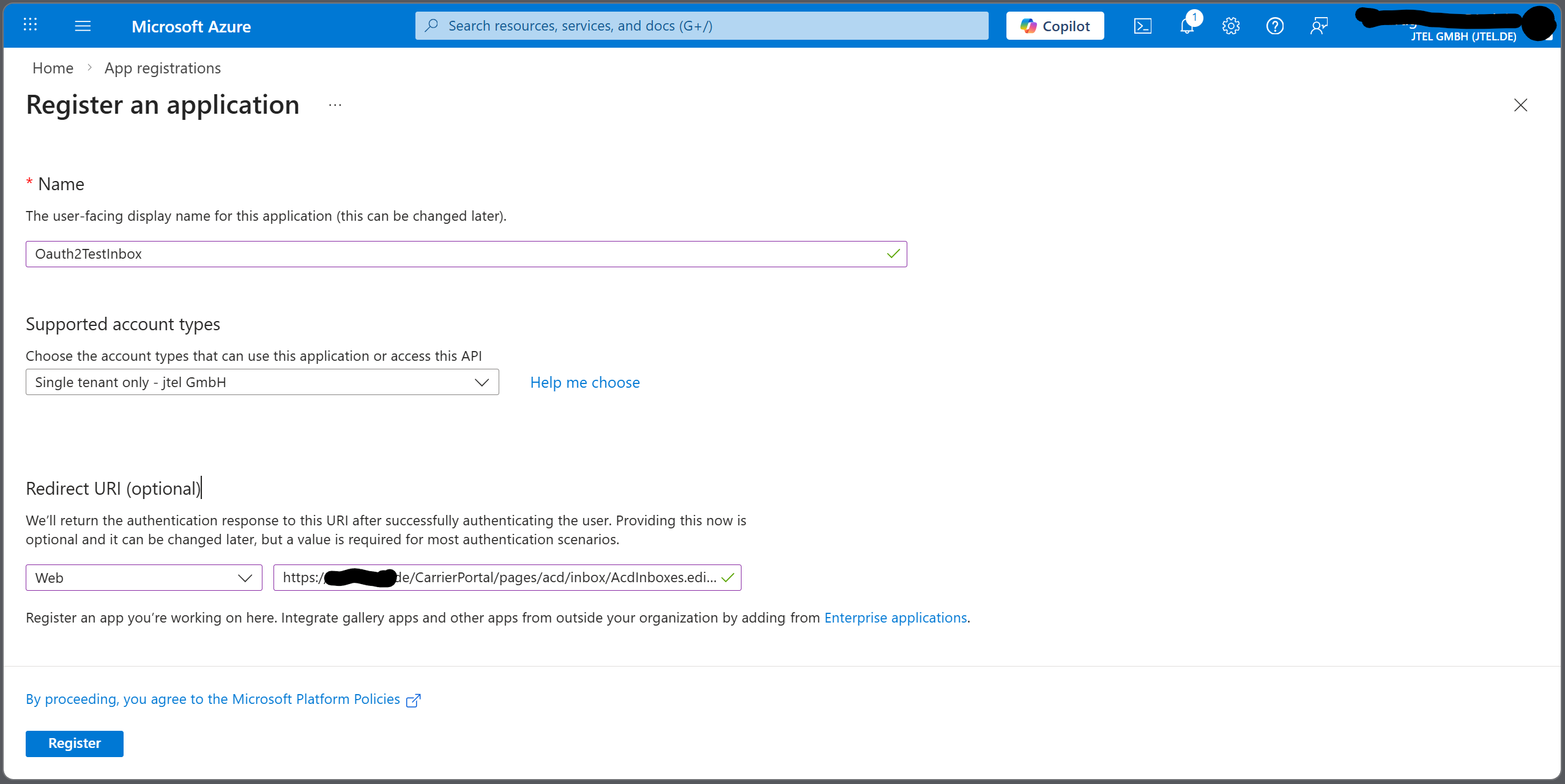
Redirect URL
The redirect URL should point to your instance.
https://<Jtel Portal Host>/CarrierPortal/pages/acd/inbox/AcdInboxes.edit.xhtml
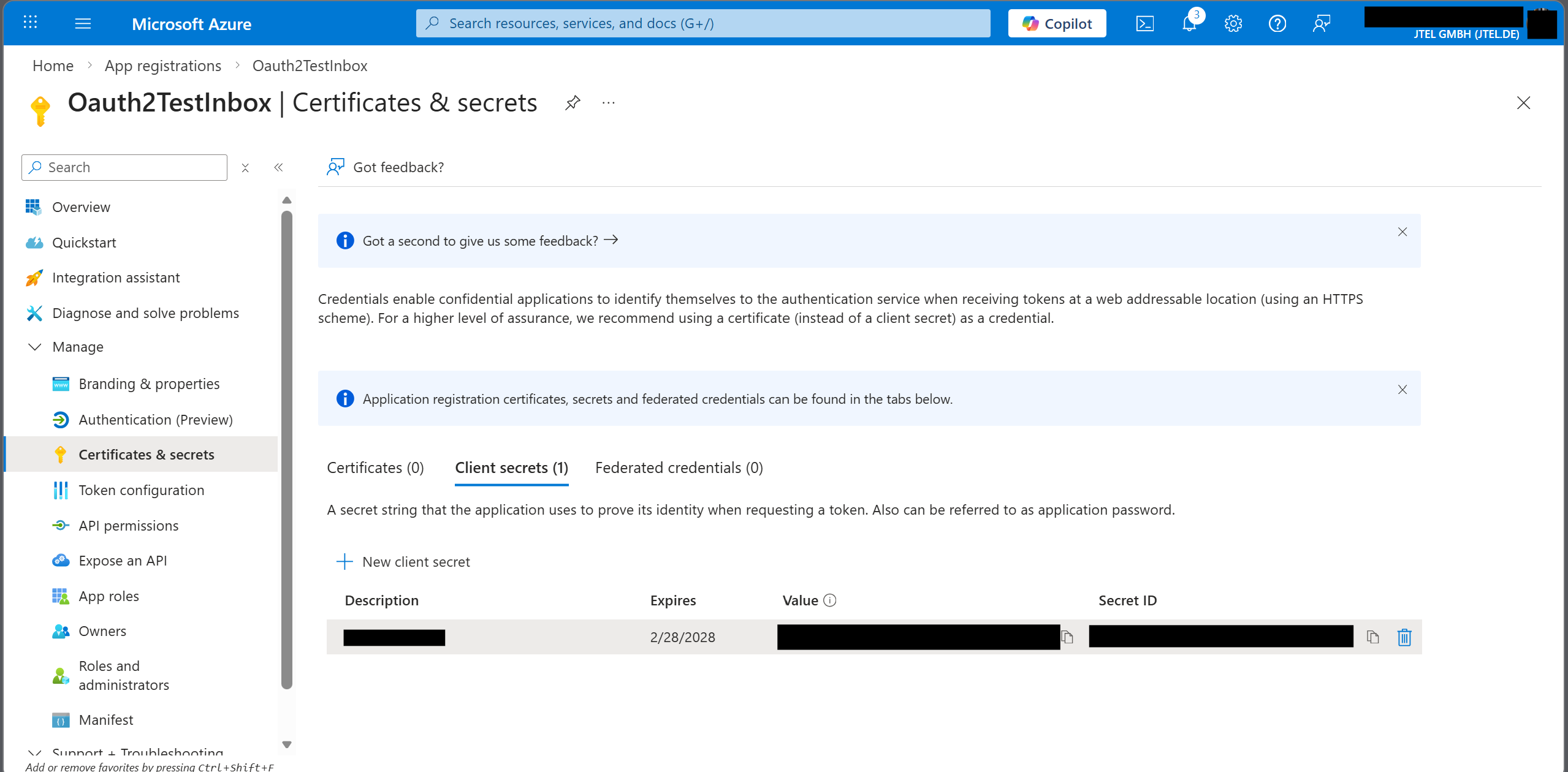
Client Secret
Create a client secret and store it in a secure place.
The secret can only be copied once, so make sure you save it before exiting the view for the last time.
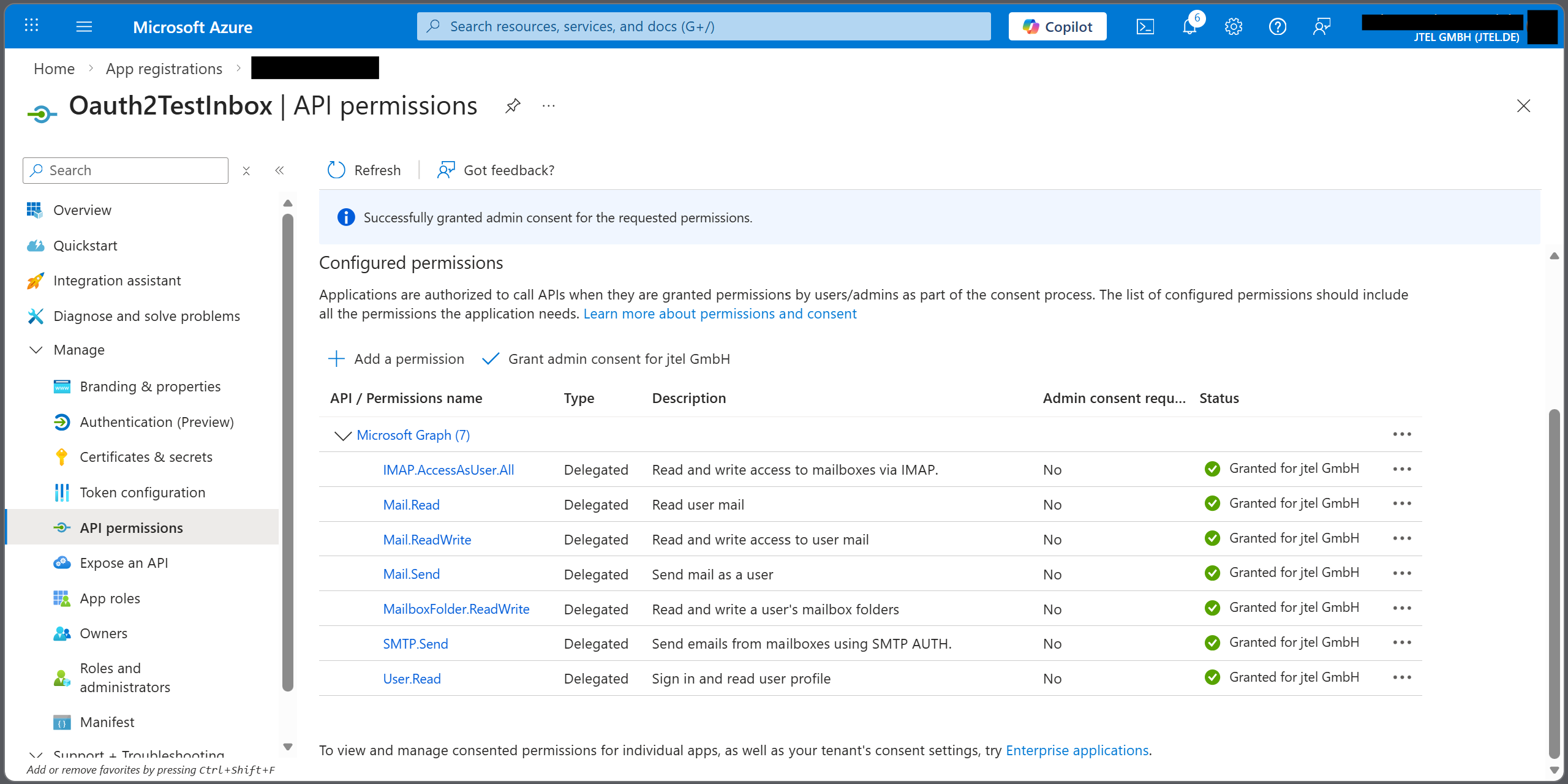
API permissions
Add the following permissions to the App and authorize this as admin.
| API / Permissions name | Type | Description | Admin consent required | Status |
|---|---|---|---|---|
IMAP.AccessAsUser.All | Delegated | Read and write access to mailboxes via IMAP. | No | |
Mail.Read | Delegated | Read user mail | No | |
Mail.ReadWrite | Delegated | Read and write access to user mail | No | |
Mail.Send | Delegated | Send mail as a user | No | |
MailboxFolder.ReadWrite | Delegated | Read and write a user's mailbox folders | No | |
SMTP.Send | Delegated | Send emails from mailboxes using SMTP AUTH. | No | |
User.Read | Delegated | Sign in and read user profile | No |
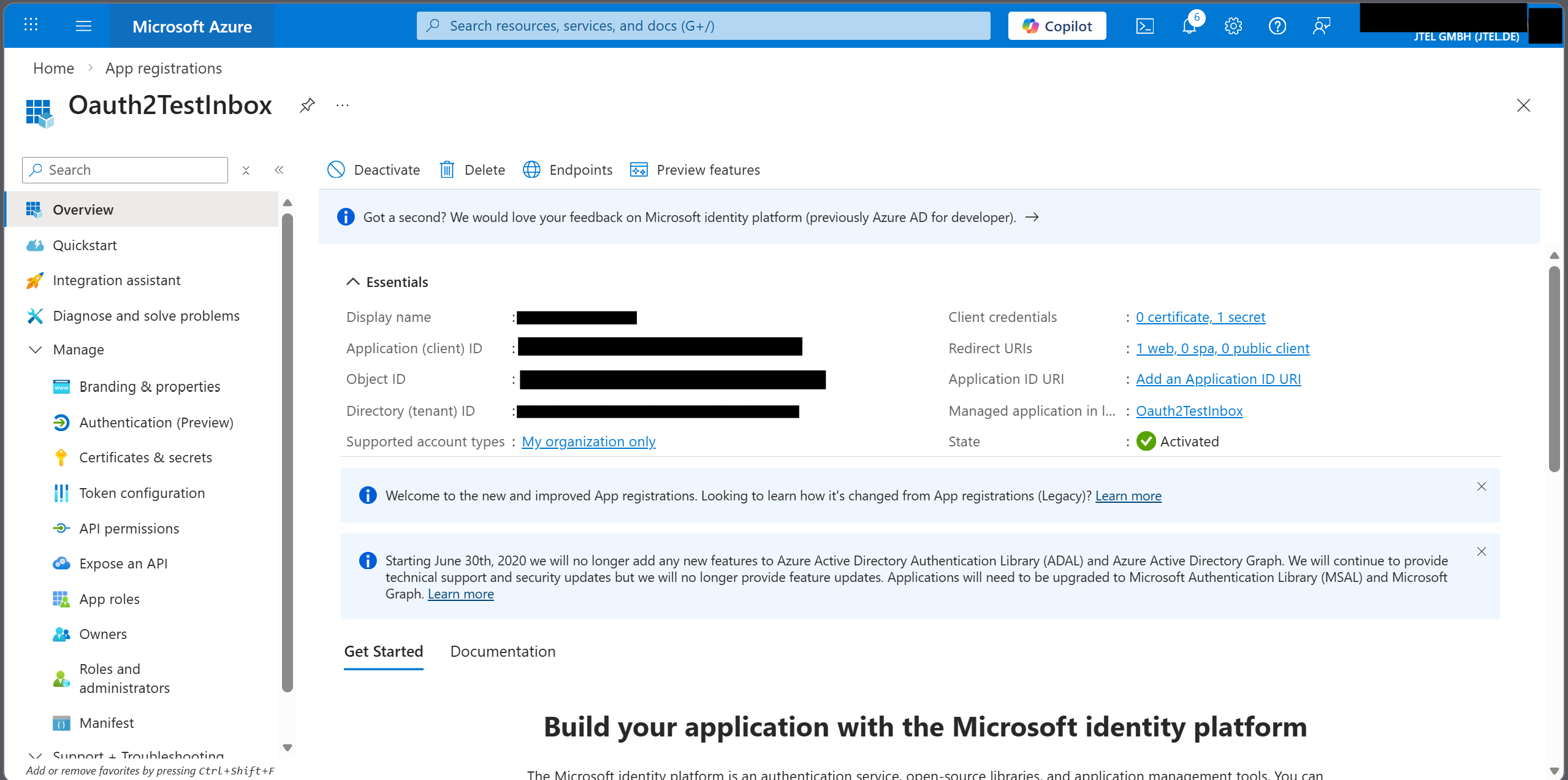
Configure mail box in portal.
First, collect and write down clientID and tenantID from the overview.
Then configure the data in the portal as follows in any existing inbox. If you need to create a new inbox, do that and save it first. After editing it again, the options to set the token will appear.
Existing Inbox
If you are editing an existing inbox, make sure to remove existing passwords to ensure that Oauth2 is used. If there are any passwords left in the configuration, the system will use Base Authentication
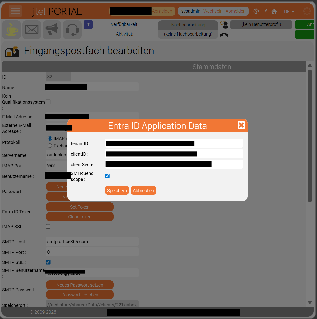
| Feld | Value example | Explanation |
|---|---|---|
| ID | 1 | Set automatically by the system |
| Name | E-Mail Address | The name of the ACD Inbox |
| Email Address | support@jtel.de | The E-Mail address of this inbox |
| External Email Address | support@jtel.de | The E-Mail address of this inbox which will be visible to external parties. |
| Binding Protocol | IMAP / IMAPS | The protocol used. |
| Server Name | outlook.office365.com | Microsoft mail server |
| IMAP Port | 993 | Port for IMAP mail. |
| User name | support@jtel.de | Authentication credentials for the Office 365 user. |
| Entra ID token | Options Set token and Clear Token to update the Azure credentials | |
| IMAP SSL | Off | SSL not required. |
| SMTP Host | smtp.office365.com | Office 365 SMTP server |
| SMTP Port | 587 | |
| SMTP SSL | Off | SSL not required. |
| SMTP User Name | support@jtel.de | Authentication credentials for the Office 365 user. |
| SMTP Password | Set password or clear password |
The rest of the settings can be viewed here Inboxes and edit e-mails
Press Save
You will be prompted to login to grant access to the mail box. After this, you can activate the Inbox and send a test email. Explanation of a test-case can be found Testing IMAP Inbox Extended Mail Client