
| Sv translation | |||
|---|---|---|---|
| |||
|
Introduction
...
|
...
|
...
|
...
|
...
|
...
|
...
|
...
jtel STARFACE v62 Service - LinuxThe jtel STARFACE v62 |
jtel STARFACE v6.2 Service
...
Service must be installed on one of the telephony server machines. |
...
Configure FirewallIf the windows firewall is active, add a rule to allow http traffic into the web service. Use the following in a cmd window as administrator:
Note, if the STARFACE is in a different network, you will need to change to edge=yes and configure a public remote IP-Adress in the SIP and RTP firewall rules to provide access. Trunk and Trunk Group ConfigurationLogin as sysadmin to the jtel Portal. Configure TrunksUse System Settings ... Trunks to configure a trunk for each 8-Server machine. Note, the machine ID is set in the 8-Server configuration (usually the last part of the IP address of the machine).
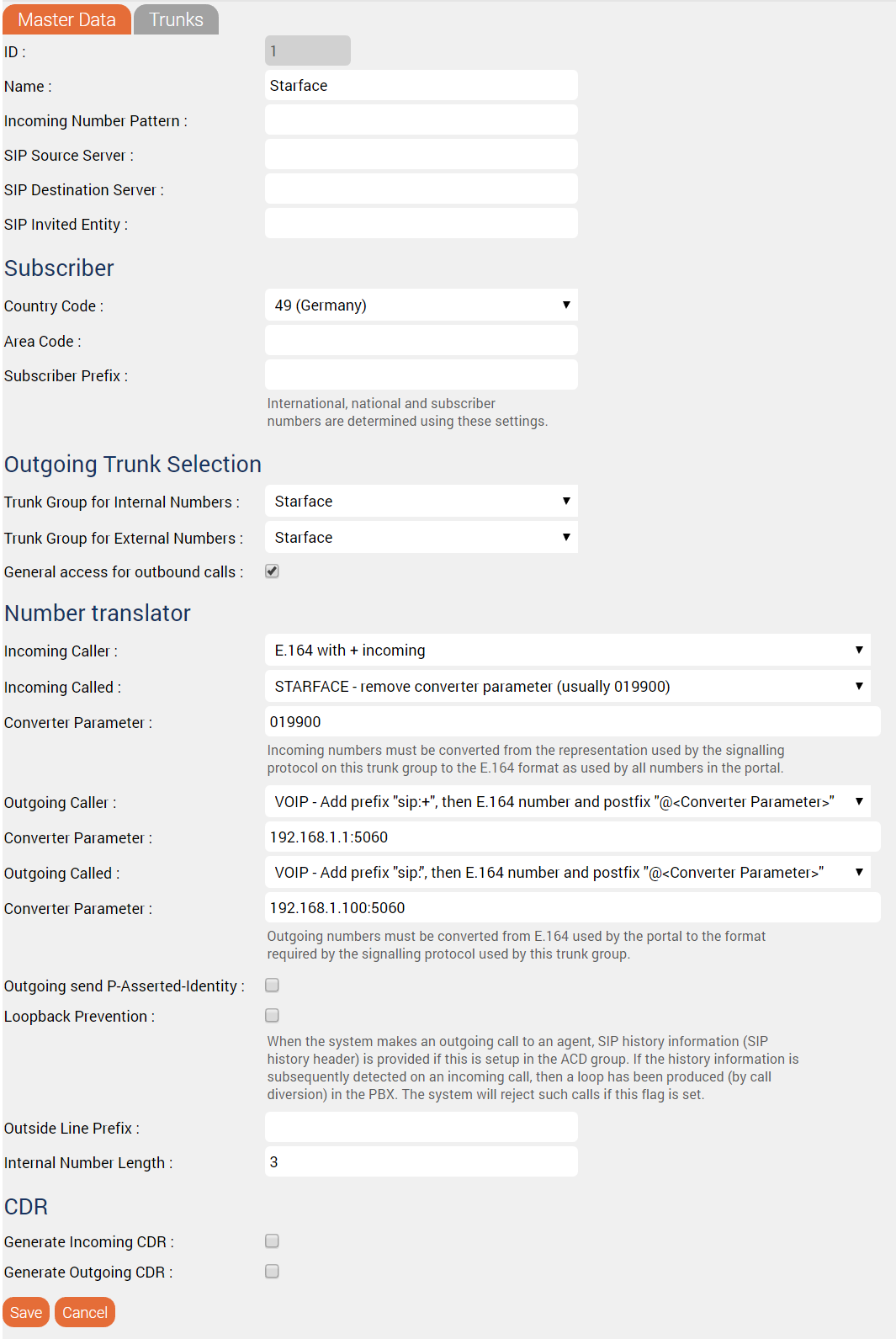
Configure Trunk GroupsCreate a new trunk group for each STARFACE PBX. The following parameters are required.
Add the trunk created above for the PBX to the Trunks page. DO NOT FORGET THIS, OR IT WILL NOT WORK! See the screenshot below for an example configuration:
Configure Service NumbersService-Numbers are configured as fully qualified E.164 numbers. Agent Telephone Numbers / PBX Internal DestinationsAgent telephone numbers are configured only with the number of the internal extension, not as fully qualified E.164 numbers. Configure SOAP UserCreate the SOAP User as an agent in jtel and give the username and password to the starface provider for Module configuration Old - WindowsCopy FilesCopy the following directory to the telephony server:
Check ConfigurationCheck the configuration file jtelStarface6v2SOAPWindowsService.exe.config if any changes are required. The most likely changes would be to the sections:
| |||||||||||||||||||||||||||||||||||||||||||||||||||

Configure Firewall - Starface Located In Local Network
Add a rule to allow http traffic into the web service.
...
Install as ServiceUsing a command window, as Administrator:
|
Configure Firewall - Starface Located At External Network
...
|
...
| Sv translation | ||||||||||||||||
|---|---|---|---|---|---|---|---|---|---|---|---|---|---|---|---|---|
| ||||||||||||||||
jtel STARFACE v6.2 DienstDer jtel STARFACE v6.2 Service muss auf einem der Telefonie-Server-Maschinen installiert sein. Dateien KopierenKopieren Sie das folgende Verzeichnis auf den Telefonieserver:
KonfigurationÜberprüfen Sie die Konfigurationsdatei jtelStarface6v2SOAPWindowsService.exe.config, ob Änderungen erforderlich sind. Am wahrscheinlichsten sind Änderungen an den Abschnitten:
Firewall KonfigurierenWenn die Windows-Firewall aktiv ist, fügen Sie eine Regel hinzu, die http-Verkehr für den Webdienst zulässt. Verwenden Sie in einem cmd-Fenster als Administrator den folgenden Befehl:
Wenn sich das STARFACE in einem anderen Netzwerk befindet, müssen Sie auf edge=yes |
Install as Service
umstellen und eine öffentliche Remote-IP-Adresse in den SIP- und RTP-Firewall-Regeln konfigurieren, um den Zugang zu ermöglichen. Als Dienst installierenVerwenden Sie ein Befehlsfenster als |
Administrator:
Trunk |
...
Login as sysadmin to the jtel Portal.
Configure Trunks
Use System Settings ... Trunks to configure a trunk for each 8-Server machine.
...
und Trunk-Gruppen KonfigurationMelden Sie sich als Systemadministrator am jtel Portal an. Trunks KonfigurierenVerwenden Sie Systemeinstellungen → Trunks, um eine Leitung für jeden 8-Server-Rechner zu konfigurieren. Beachten Sie, dass die MachineID in der 8-Server-Konfiguration festgelegt wird (normalerweise der letzte Teil der IP-Adresse des Rechners).
Configure Trunk Groups |
Create a new trunk group for each STARFACE PBX.
Legen Sie für jede STARFACE Telefonanlage eine neue Leitungsgruppe an. Die folgenden Parameter sind erforderlich |
...
.
| ||
...
| ||||||
...
|
...
|
...
|
...
|
...
Add the trunk created above for the PBX to the Trunks page. DO NOT FORGET THIS, OR IT WILL NOT WORK! See the screenshot below for an example configuration:
Configure Service NumbersService-Numbers are configured as fully qualified E.164 numbers. Agent Telephone Numbers / PBX Internal DestinationsAgent telephone numbers are configured only with the number of the internal extension, not as fully qualified E.164 numbers. |