| Sv translation |
|---|
|
IntroductionThe statistics report subscriptions feature is used to subscribe to a specific report so that the system will execute and push this automatically to your e-mail according to a defined period.
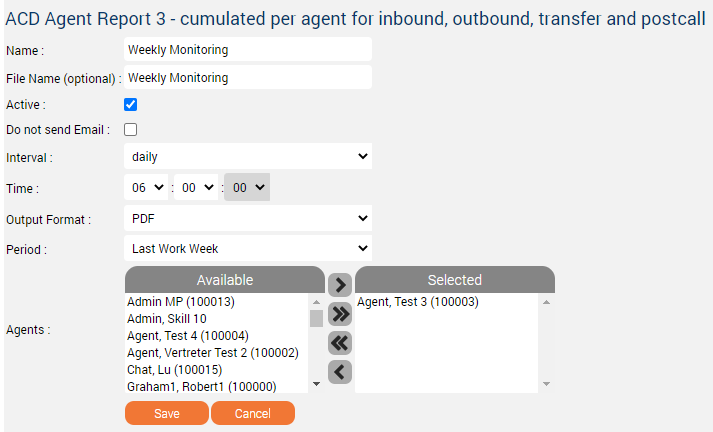
Case ExampleLet's assume you are the supervisor of a call center and you want to monitor the performance of the agent name "Agent, Test 3 (100003)" weekly on Monday at 06:00 am, in PDF format. But you don't want to do it manually each Friday for example or you don't want to miss a monitoring day. You can process as follow: ConfigurationPage: Statistics - Reports > Statistics > Reports > Statistics > Reports
| Parameter | Description |
|---|
| Name | Name of the report subscription job. | | File name (optional) | Name of the generated output file if you wish another one as the report name. A time format can be defined by using variables and must be enclosed in square brackets, for example [yyyy]. A list of the available variables can be found here: https://docs.oracle.com/javase/7/docs/api/java/text/SimpleDateFormat.html Testreport jtel_Test_123_[yyyy-MM] Example output:Testreport jtel_Test_123_2020-09.xls The square brackets are removed on output. The output directory is relative to Clients/<ClientsID>/reportsOut Date calculations:To add or subtract from the current date, use the following syntax: Testreport jtel_Test_123_[yyyy-MM-dd|-1] This would cause the filename to be dated with yesterday's date. This is particularly useful when running reports for the previous day as a subscription. | | Active | To activate (check mark set) and deactivate (checkmark not set) the subscription job. | | Do not send Email | When selected the report will be automatically generated, stored into the appropriate destination folder but not pushed to the subscriber e-mail address. | | Interval | Interval into which the output report will be displayed. | | Output format | The drop-down list of desired output formats. The formats PDF, EXCEL, CSV, HTML are available. | | Period | Periodic value in which the system will generate and/or push the report to your e-mail address. | | Agents | Available agents (left) and selected agents (right). Elements of the list right are those who will be taken into consideration in the output report. > move the selected available agent(s) to the list right. >> move all available agent(s) to the list right. >> move back all selected agent(s) to the list left. > move back the selected agent(s) to the list left. | | Cancel | Click "Cancel" to discard your changes. | | Save | Click "Save" to save your subscription into the list of Report Subscriptions. |
Page: Statistics - Report Subscriptions > Statistics > Report Subscription 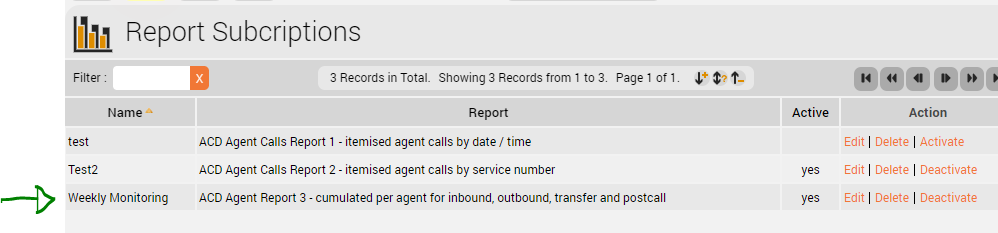
Yeah! The subscription job is listed in the pipeline, ready to be generated and pushed to your e-mail - in case your e-mail address is correctly configured in your > User Data > Users page - tomorrowat 06:00 am. | Info |
|---|
| In order for the Report Subscription to be sent via email, the SMTP Server must be configured on the either the sysadmin level or the client. See page. |
| Parameter | Description |
|---|
| Name | Name of the report subscription job. | | Report | Name of the subscribed report. | | Active | Yes if your subscription job is active and empty otherwise. | | Action | "Edit" to modify the parameters of your subscription. "Delete" to delete your subscription job. "Activate" or "Deactivate" to activate or deactivate the job. |
|
| Sv translation |
|---|
|
EinführungDie Funktion zum Abonnieren von Statistikberichten dient dazu, einen bestimmten Bericht zu abonnieren, so dass das System diesen automatisch ausführt und nach einem festgelegten Zeitraum an Ihre E-Mail sendet. FallbeispielNehmen wir an, Sie sind der Leiter eines Call-Centers und möchten die Leistung des Agenten "Agent, Test 3 (100003)" wöchentlich am Montag um 06:00 Uhr morgens im PDF-Format überwachen. Sie möchten dies aber nicht z.B. jeden Freitag manuell durchführen oder Sie möchten keinen Überwachungstag verpassen. Sie können wie folgt vorgehen: KonfigurationSeite: Statistik - Berichte > Statistik > Berichte 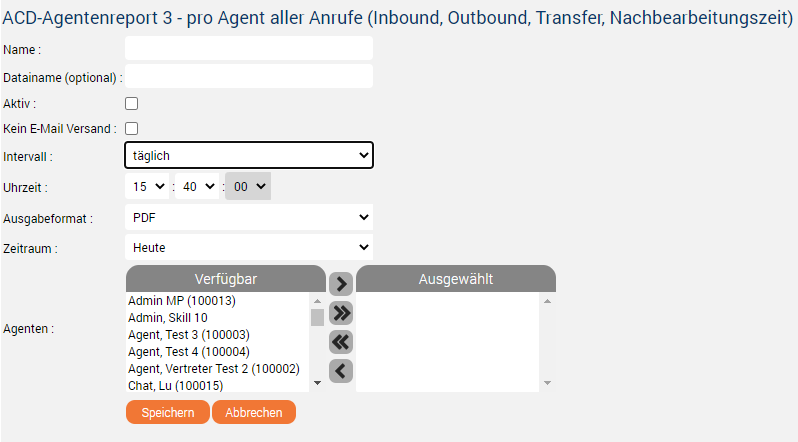
Parameter | Beschreibung |
|---|
| Name | Name des Berichtsabonnements. | | Dateiname (optional) | Name der generierten Ausgabedatei, falls Sie eine andere als den Berichtsnamen wünschen. Ein Zeitformat kann mit Hilfe von Variablen definiert werden und muss in eckige Klammern eingeschlossen werden, zum Beispiel [yyyy]. Eine Liste der verfügbaren Variablen finden Sie hier: https://docs.oracle.com/javase/7/docs/api/java/text/SimpleDateFormat.html Beispiel Eingabe:Testbericht jtel_Test_123_[yyyy-MM] Beispiel Ausgabe:Testbericht jtel_Test_123_2020-09.xls Die eckigen Klammern werden bei der Ausgabe entfernt. Das Ausgabeverzeichnis ist relativ zu Clients/<ClientsID>/reportsOut.  Bitte beachten Sie, dass die optionale Änderung des Dateinamens nur Auswirkungen auf die Dateien hat, die in das Ausgabeverzeichnis geschrieben werden, und nicht auf die Dateien, die per E-Mail übertragen werden. Bitte beachten Sie, dass die optionale Änderung des Dateinamens nur Auswirkungen auf die Dateien hat, die in das Ausgabeverzeichnis geschrieben werden, und nicht auf die Dateien, die per E-Mail übertragen werden.
| | Aktiv | Zum Aktivieren (Häkchen gesetzt) und Deaktivieren (Häkchen nicht gesetzt) des Abonnementsauftrags. | | Kein E-Mail Versand | Wenn Sie diese Option wählen, wird der Bericht automatisch generiert und im entsprechenden Zielordner gespeichert, aber nicht an die E-Mail-Adresse des Abonnenten weitergeleitet. | | Intervall | Intervall, in dem der Ausgabebericht angezeigt wird. | | Ausgabeformat | Die Dropdown-Liste der gewünschten Ausgabeformate. Es stehen die Formate PDF, EXCEL, CSV, HTML zur Verfügung. | | Zeitraum | Periodischer Wert, in dem das System den Bericht generiert und/oder an Ihre E-Mail-Adresse weitergibt. | | Agenten | Verfügbare Agenten (links) und ausgewählte Agenten (rechts). Elemente der rechten Liste sind diejenigen, die im Ausgabebericht berücksichtigt werden. > den/die ausgewählten verfügbaren Agenten in die Liste nach rechts verschieben. >> alle verfügbaren Agenten in die Liste rechts verschieben. << alle ausgewählten Agenten auf die Liste links zurückschieben. < den/die ausgewählten Agenten auf die Liste links zurückschieben. | | Abbrechen | Klicken Sie auf "Abbrechen", um Ihre Änderungen zu verwerfen. | | Speichern | Klicken Sie auf "Speichern", um Ihr Abonnement in der Liste der Berichtsabonnements zu speichern. |
Seite: Statistik - Abbonierte Berichte > Statistik >Abbonierte Berichte 
Ja! Der Abonnementauftrag ist in der Pipeline aufgelistet, kann generiert und an Ihre E-Mail gesendet werden. - für den Fall, dass Ihre E-Mail-Adresse auf Ihrer Seite > Benutzerdaten > Benutzer korrekt konfiguriert ist - morgen um 15:40 Uhr. | Info |
|---|
| Damit der abonnierte Bericht per E-Mail versendet werden kann, muss der SMTP-Server entweder auf der Systemadministrator-Ebene oder auf dem Client konfiguriert werden. Siehe hier. |
Parameter | Beschreibung |
|---|
| Name | Name des Berichtsabonnements. | | Bericht | Name des abonnierten Berichts. | | Aktib | Yes if your subscription job is active and empty otherwise. | | Aktion | "Bearbeiten" um die Parameter Ihres Abonnements zu ändern. "Löschen" um Ihren Abonnementsauftrag zu löschen. "Aktivieren" oder "Deaktivieren" um die Aufgabe zu aktivieren oder zu deaktivieren. |
|
| Sv translation |
|---|
|
IntroductionLa fonction d'abonnement aux rapports statistiques est utilisée pour s'abonner à un rapport spécifique afin que le système l'exécute et le transmette automatiquement à votre adresse électronique selon une période définie. Cas ExempleSupposons que vous soyez le superviseur d'un centre d'appel et que vous souhaitiez contrôler la performance du nom de l'agent "Agent, Test 3 (100003)" chaque semaine le lundi à h00, en format PDF. Mais vous ne voulez pas le faire manuellement chaque vendredi par exemple ou vous ne voulez pas manquer un jour de contrôle. Vous pouvez procéder comme suit : ConfigurationPage: Statistiques - RapportsImage Removed > Statistiques > Rapports Image Removed |
| Paramètre | Description |
|---|
| Nom | Nom de la fonction d'abonnement au rapport. |
| Nom du fichier (facultatif) | Nom du fichier de sortie généré si vous en souhaitez un autre comme nom de rapport. Un format de temps peut être défini en utilisant des variables et doit être mis entre crochets, par exemple [yyyy]. Une liste des variables disponibles peut être trouvée ici : https://docs.oracle.com/javase/7/docs/api/java/text/SimpleDateFormat.html Exemple de saisie :Testreport jtel_Test_123_[yyyy-MM] Exemple de sortie :Testreport jtel_Test_123_2020-09.xls Les crochets sont supprimés à la sortie. Le répertoire de sortie est relatif à Clients/<ClientsID>/reportsOut |
| Actif | Pour activer (case cochée) et désactiver (case non cochée) la fonction d'abonnement. |
| Ne pas envoyer email | Une fois sélectionné, le rapport sera automatiquement généré, stocké dans le dossier de destination approprié mais ne sera pas envoyé à lemail de l'abonné. |
| Intervalle | Intervalle dans lequel le rapport de sortie sera affiché. |
| Format de Sortie | La liste déroulante des formats de sortie souhaités. Les formats PDF, EXCEL, CSV, HTML sont disponibles. |
| Période | Valeur périodique à laquelle le système va générer et/ou pousser le rapport vers votre email |
| Agents | Agents disponibles (à gauche) et agents sélectionnés (à droite). Les éléments de la liste de droite sont ceux qui seront pris en considération dans le rapport de sortie. > déplacer le(s) agent(s) disponible(s) sélectionné(s) vers la droite de la liste. >> déplacer tous les agents disponibles vers la liste de droite. >> ramener tous les agents sélectionnés vers la liste de gauche. > ramener le(s) agent(s) sélectionné(s) dans la liste de gauche. |
| Annuler | Cliquez sur "Annuler" pour annuler vos modifications. |
| Enregistrer | Cliquez sur "Sauvegarder" pour enregistrer votre abonnement dans la liste des abonnements aux rapports. |
Page: Statistiques - Abonnements aux rapports
Image Removed > Statistiques > Abonnement aux rapports
Image Removed
Ouais ! L'offre d'abonnement est répertoriée dans le pipeline, prête à être générée et poussée vers votre e-mail - au cas où votre adresse e-mail serait correctement configurée dans votre Image Removed> Données sur les utilisateurs > Page des utilisateurs - demain à 06:00
| Paramètre | Description |
|---|
| Nom | Nom de la fonction d'abonnement au rapport. |
| Rapport | Nom du rapport souscrit. |
| Actif | Oui si votre abonnement est actif et vide sinon. |
| Action | " Modifier " pour modifier les paramètres de votre abonnement.
"Supprimer" pour supprimer votre abonnement.
"Supprimer" pour supprimer votre abonnement. |
