Versions Compared

Key

  • This line was added.
  • This line was removed.
  • Formatting was changed.
Comment: Removed translated content for 'fr'
Sv translation
languageen

The jtel MiniClient EXE provides APIs which can be used to integrate external systems.

These cover the following use-cases:

  • Automatically calling a REST service from the mini-client when an incoming call is received
  • Automatically calling a windows executable (.EXE) when an incoming call is received
  • Making an outbound call by calling the mini client .EXE using parameters

See also MiniClient Settings for all required settings.

Automatic REST Call

An automatic REST call can be made by the Mini-Client when an incoming call is received. 

To use this feature, the CRM URL must be passed via the standard ACD features (CRM URL in the ACD Group, or via an IVR Application, using the IVR Object "Save additional info and user data".

The following must be configured in the MiniClient configuration:

  • AutomaticRESTCRMUrl - Set to True
  • CurlRESTCommand - if necessary, alter this command as required. The parameters which are influenced by the ACD, i.e. the $crmurl variable, must be passed by GET (i.e. in the URL). 
  • Additional parameters can be added after $crmurl as necessary, or passed as additional POST parameters (a lot, but not all REST services will accept a combination of GET and POST parameters).

Automatic .EXE Call

Status
colourGreen
titleMini Client Release 3

...

,31

...

OR HIGHER

The following parameters must be set:

  • AutomaticEXECallCommand - Set this to the name of the executable to be called.

  • AutomaticEXECallParameters - Set these to the parameters to be passed to the executable. The following variables are available:

    • $ANumber - the called number
    • $GroupName - the name of the ACD group
    • $CRMLink - the complete CRM link provided by the ACD
    • $ServiceNumber - the service number called
    • $ServiceName - the name of the service number called
    • $CallID - the jtel CallID (currently not supported, will be supported in a future release)
    • $UsersUID - the ID of the User logged into the jtel system

Outbound Call

...

- Start Mini-Client with Dial Parameter

To request the MiniClient to dial a number, call it as follows

...

from the command line. 

Translations Ignore

AcdAgentMiniClient.exe --dial <number>

Note: an instance of the mini client must already be running for a logged in ACD user.

Mini Cllient Start with REST Call

When the mini client EXE is started, it may be desirable to communicate information from the local workstation to the jtel system, such as:

  • The Name of the workstation 
  • The IP Address of the workstation
  • A terminal server session ID
  • ...

Use Case

The first use case for this is a specific CRM integration where it is desired to have a screen popup on the local workstation when the agent receives an incoming call.

  • The CRM system in question requires that a REST call be made to the local workstation of the agent to implement this functionality.
  • This means, that the IP Address of the workstation must be saved in the Users jtel Portal data when the agent logs into the workstation.
  • To achieve this, the IP address of the workstation is communicated via the REST API to the jtel system and saved in the user's "NickName" field.
  • Then, when incoming calls are received, the information is available so a REST call can be made to the user's workstation to indicate the incoming call. 
Info

Note: this requires a license for the jtel REST API and the API to be installed.

How it Works

Starting the MiniClient EXE

The MiniClient EXE is no longer started using a shortcut or a link directly to the .EXE itself, but is started using a .cmd file, which in turn calls a powershell script to perform the REST operation. The following scripts can be used:

CMD Script

Create this script, to call the powershell script. 

Code Block
powershell -NoProfile -ExecutionPolicy Bypass -File start_mini_client_with_rest_call.ps1

You can create a shortcut for autostart or as a link which can be used to call this script.

Warning

Note: calling the powershell script below may not be possible on most standard windows installations due to an execution policy restriction.

Powershell Script

You will need to modify the following script when you create it.

Particularly, the following lines must be modified:

The URI should go through the load balancer. If you have setup an FQDN for this, then use that, otherwise you can also use the IP address of the load balancer. 

Also, the ID of the routing application must be provided in the URI. Swap the 1234 in the example script with the actual ID of the routing application you want to use (see below).

The API_TOKEN should be retrieved from Client Master Data.

Code Block
languagepowershell
# How to run this command from a normal .cmd shell:
# powershell -NoProfile -ExecutionPolicy Bypass -File start_mini_client.ps1

# The URI for the REST API
$Uri = 'https://acd-lb/rest/v1.0/1/routingApplications/run/1234'

# The REST API Token.
# This could also be set from somewhere else and not here. 
# For example using: setx API_TOKEN "f336162fb5daeefa4c312a23285d5395d8ecf0c211332e0055406dda16b2f077" from another process or an admin tool.
$env:API_TOKEN = "xxxxxxxxxxxxxxxxxxxxxxxxxxxxxxxxxxxxxxxxxxxxxx"

# Build request body for the run routing application API.
$body = @{
  WindowsLoginName = $env:USERNAME
  ComputerName     = $env:COMPUTERNAME
  IPAddress        = (Get-NetIPAddress -AddressFamily IPv4 -PrefixOrigin Dhcp,Manual |
                      Where-Object { $_.IPAddress -ne '127.0.0.1' -and $_.IPAddress -notlike '169.*' } |
                      Select-Object -First 1 -ExpandProperty IPAddress)
}

# Add the required headers
$headers = @{
  'Authorization' = "Bearer $($env:API_TOKEN)"
  'Content-Type'  = 'application/json'
}

# Make the REST call
$response = Invoke-RestMethod -Method Post -Uri $Uri -Headers $headers -Body ($body | ConvertTo-Json -Compress)

# Show the response for debugging
$response

# Build absolute path to the EXE (which should be in the same directory as the script)
$exe = Join-Path $PSScriptRoot 'ACDMiniClient.exe'

$exe

# If SmartScreen/Zone marking is present, unblock (first run only)
try { Unblock-File -LiteralPath $exe } catch { }

# Start detached, with the correct working directory
Start-Process -FilePath $exe -WorkingDirectory $PSScriptRoot

# Close this Shell window if it was launched from explorer
$ppid = (Get-CimInstance Win32_Process -Filter "ProcessId=$PID").ParentProcessId
$parent = Get-Process -Id $ppid -ErrorAction SilentlyContinue

if ($parent.ProcessName -ieq 'explorer') {
    exit   # double-click case
}


Info

This script does the following:

  • Builds a $body object which contains the Windows Login Name, the Computer Name and the IPAddress of the workstation
  • Builds a $headers object which contains the authorization for the jtel REST API
  • Invokes a REST API call to the function routingApplications/run (see this page for details: Routing Applications REST API - Functions), providing the $body object as information to the process which is started
  • Starts the ACDMiniClient.exe
  • Closes the shell window, if it was launched via explorer

Consuming the Provided Information

The next step, is to write a routing application to "consume" the provided information in the jtel system. 

This is a standard Routing Application written in the jtel Workflow GUI - so here you can do ... anything you can do in a jtel workflow (which is just about anything).

In our example, we will update the user's NickName to the provided Workstation Name.

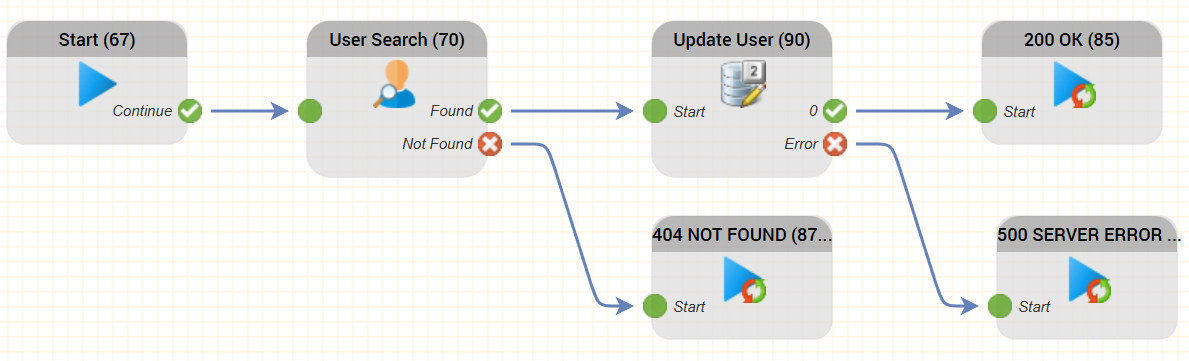
The routing application required to do this could look as follows.

Image Added

Note, when a routing application is started by the REST function routingApplications/run, any JSON data received will be parsed to variables prefixed with $workData.

In our example, we are posting the JSON body created by this part of the script:

Code Block
$body = @{
  WindowsLoginName = $env:USERNAME
  ComputerName     = $env:COMPUTERNAME
  IPAddress        = (Get-NetIPAddress -AddressFamily IPv4 -PrefixOrigin Dhcp,Manual |
                      Where-Object { $_.IPAddress -ne '127.0.0.1' -and $_.IPAddress -notlike '169.*' } |
                      Select-Object -First 1 -ExpandProperty IPAddress)
}

This will result in a JSON object which looks something like this:

Code Block
{
  "WindowsLoginName" : "MyUserName",
  "ComputerName" : "MyComputerName",
  "IPAddress" : "10.1.2.3"
}

And in turn, this will be parsed to the following variables:

Code Block
$workData.WindowsLoginName
$workData.ComputerName
$workData.IPAddress

These variables will be immediately available to use in the routing application.

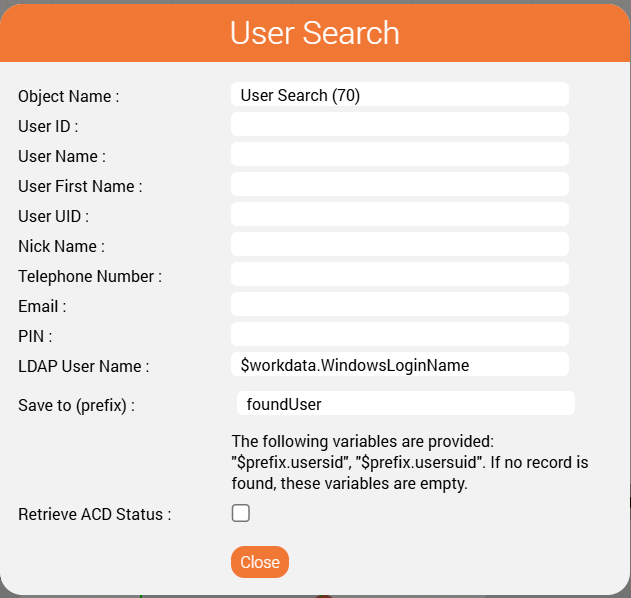
The User Search object looks like this:

Image Added

This will search for the User who has the LDAP User Name configured in the jtel portal which is the same as what the powershell script determined when it was started. I.e. the local user name stored in the environment variable USERNAME.

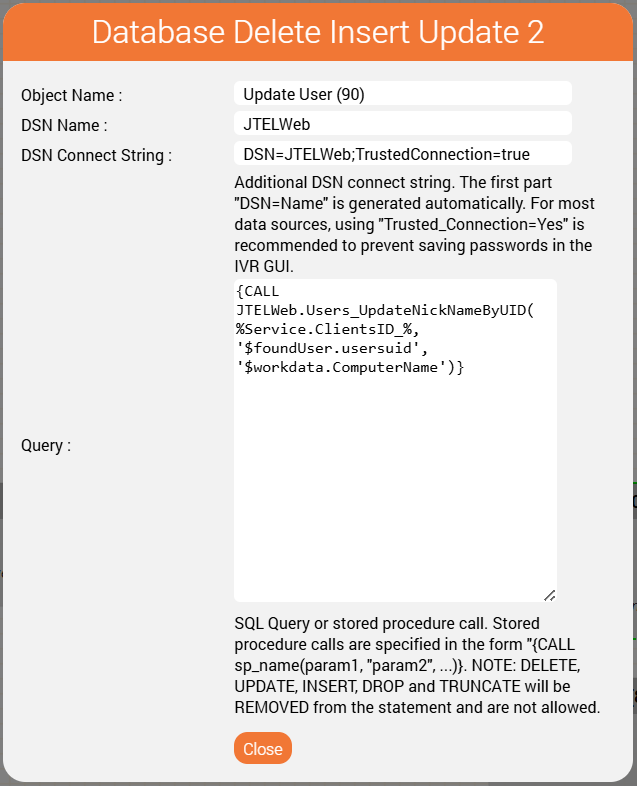
If found, we want to update the user:

Image Added

Note the call to a stored procedure to achieve this:

Code Block
{CALL JTELWeb.Users_UpdateNickNameByUID( %Service.ClientsID_%, '$foundUser.usersuid', '$workdata.ComputerName')}

The parameters are provided using variables:

  • %Service.ClientsID_% will contain the current ClientsID
  • $foundUser.usersuid is the UsersUID returned by the User Search
  • $workdata.ComputerName is the name of the computer determined by the PowerShell script


Warning

This routing object will NOT BE AVAILABLE ON A MULTI-TENANT SYSTEM.

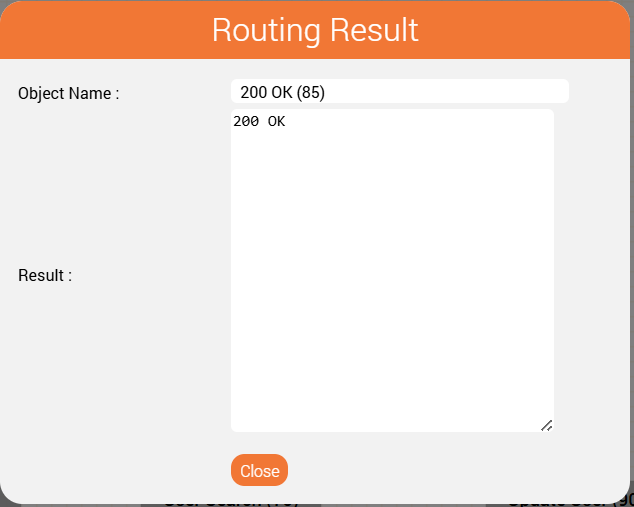
Finally, we return a result to the REST API, which in turn will be returned to the PowerShell script:

Image Added

Since the powershell script does not check the result, it doesn't really matter what we return.

Warning

Note: it is important to return something even for the cases where the user was not found, or the DB update fails. This will stop the PowerShell script from timing out (which might take up to 30 seconds).


Sv translation
languagede


Mini Client APIs

Der jtel MiniClient EXE bietet APIs, die zur Integration externer Systeme verwendet werden können.

Diese decken die folgenden Anwendungsfälle ab:

  • Automatischer Aufruf eines REST-Dienstes vom Mini-Client aus, wenn ein eingehender Anruf empfangen wird
  • Automatischer Aufruf einer ausführbaren Windows-Datei (.EXE), wenn ein eingehender Anruf empfangen wird
  • Outbound Anruf durch Aufruf des Mini-Clients .EXE mit Parametern

Sehen Sie auch Mini Client Einstellungen für alle erforderlichen Einstellungen.

Automatischer REST-Anruf

Ein automatischer REST-Anruf kann durch den Mini-Client erfolgen, wenn ein eingehender Anruf empfangen wird. 

Um diese Funktion nutzen zu können, muss die CRM-URL über die Standard-ACD-Funktionen (CRM-URL in der ACD-Gruppe) oder über eine IVR-Anwendung mit dem IVR-Objekt "Speichern Zusatzinfo. und Benutzerdaten" übergeben werden.

In der MiniClient-Konfiguration muss Folgendes konfiguriert werden:

  • AutomaticRESTCRMUrl - Auf True setzen
  • CurlRESTCommand - Falls erforderlich, ändern Sie diesen Befehl nach Bedarf. Die Parameter, die von der ACD beeinflusst werden, d.h. die Variable $crmurl, müssen per GET (d.h. in der URL) übergeben werden. 
  • Zusätzliche Parameter können bei Bedarf nach $crmurl hinzugefügt oder als zusätzliche POST-Parameter übergeben werden (eine Menge, aber nicht alle REST-Dienste akzeptieren eine Kombination von GET- und POST-Parametern).

Automatischer .EXE Call

Status
colourGreen
titleMini Client Release 3,31 OR HIGHER

Die folgenden Parameter müssen eingestellt werden:

  • AutomaticEXECallCommand - Set this to the name of the executable to be called.

  • AutomaticEXECallParameters - Set these to the parameters to be passed to the executable. The following variables are available:

    • $ANumber - the called number
    • $GroupName - the name of the ACD group
    • $CRMLink - the complete CRM link provided by the ACD
    • $ServiceNumber - the service number called
    • $ServiceName - the name of the service number called
    • $CallID - the jtel CallID (currently not supported, will be supported in a future release)
    • $UsersUID - the ID of the User logged into the jtel system

Abgehend Telefonieren - Aufruf vom Mini-Client mit Dial Parameter

Um mit dem MiniClient einen Anruf zu tätigen, rufen Sie den Mini-Client mit folgende Kommandozeile auf.

Translations Ignore

AcdAgentMiniClient.exe --dial <number>

Voraussetzung ist, für den angemeldeten ACD-Benutzer läuft bereits eine Instanz vom Mini-Client.

Mini-Client mit REST-Aufruf starten

Beim Start der Mini-Client-EXE kann es wünschenswert sein, Informationen von der lokalen Workstation an das jtel-System zu übermitteln, beispielsweise:

  • Der Name der Workstation
  • Die IP-Adresse der Workstation
  • Eine Terminalserver-Sitzungs-ID
  • ...

Anwendungsfall

Der erste Anwendungsfall hierfür ist eine spezifische CRM-Integration, bei der ein Popup-Fenster auf dem lokalen Arbeitsplatzrechner angezeigt werden soll, wenn der Agent einen eingehenden Anruf erhält.

  • Das betreffende CRM-System erfordert einen REST-Aufruf an den lokalen Arbeitsplatz des Agenten, um diese Funktionalität zu implementieren.

  • Das bedeutet, dass die IP-Adresse des Arbeitsplatzes in den Daten des jtel-Portals gespeichert werden muss, wenn sich der Agent am Arbeitsplatz anmeldet.

  • Zu diesem Zweck wird die IP-Adresse der Workstation über die REST-API an das jtel-System übermittelt und im Feld „NickName” des Benutzers gespeichert.

  • Wenn dann eingehende Anrufe eingehen, stehen die Informationen zur Verfügung, sodass ein REST-Aufruf an die Workstation des Benutzers gesendet werden kann, um den eingehenden Anruf anzuzeigen. 


Info

Hinweis: Hierfür ist eine Lizenz für die jtel REST API erforderlich, und die API muss installiert sein.

So funktioniert es

Starten der MiniClient-EXE-Datei

Der MiniClient EXE wird nicht mehr über eine Verknüpfung oder einen Link direkt zur EXE-Datei selbst gestartet, sondern über eine CMD-Datei, die wiederum ein PowerShell-Skript aufruft, um die REST-Operation auszuführen. Die folgenden Skripte können verwendet werden:

CMD Skript

Erstellen Sie dieses Skript, um das PowerShell-Skript aufzurufen. 

Code Block
powershell -NoProfile -ExecutionPolicy Bypass -File start_mini_client_with_rest_call.ps1

Sie können eine Verknüpfung für den Autostart oder als Link erstellen, über den dieses Skript aufgerufen werden kann.

Warning

Hinweis: Das direkte Aufrufen des folgenden PowerShell-Skripts ist aufgrund einer Einschränkung der Ausführungsrichtlinie auf den meisten Standard-Windows-Installationen üblicherweise nicht möglich.

Powershell Script

Sie müssen das folgende Skript beim Erstellen entsprechend anpassen.

Insbesondere müssen die folgenden Zeilen geändert werden:

Die URI sollte über den Load Balancer laufen. Wenn Sie hierfür einen FQDN eingerichtet haben, verwenden Sie diesen, andernfalls können Sie auch die IP-Adresse des Load Balancers verwenden. 

Außerdem muss die ID der Routing-Anwendung in der URI angegeben werden. Ersetzen Sie die 1234 im Beispielskript durch die tatsächliche ID der Routing-Anwendung, die Sie verwenden möchten (siehe unten).

Der API_TOKEN sollte aus den Client Master Data abgerufen werden.

Code Block
languagepowershell
# How to run this command from a normal .cmd shell:
# powershell -NoProfile -ExecutionPolicy Bypass -File start_mini_client.ps1

# The URI for the REST API
$Uri = 'https://acd-lb/rest/v1.0/1/routingApplications/run/1234'

# The REST API Token.
# This could also be set from somewhere else and not here. 
# For example using: setx API_TOKEN "f336162fb5daeefa4c312a23285d5395d8ecf0c211332e0055406dda16b2f077" from another process or an admin tool.
$env:API_TOKEN = "xxxxxxxxxxxxxxxxxxxxxxxxxxxxxxxxxxxxxxxxxxxxxx"

# Build request body for the run routing application API.
$body = @{
  WindowsLoginName = $env:USERNAME
  ComputerName     = $env:COMPUTERNAME
  IPAddress        = (Get-NetIPAddress -AddressFamily IPv4 -PrefixOrigin Dhcp,Manual |
                      Where-Object { $_.IPAddress -ne '127.0.0.1' -and $_.IPAddress -notlike '169.*' } |
                      Select-Object -First 1 -ExpandProperty IPAddress)
}

# Add the required headers
$headers = @{
  'Authorization' = "Bearer $($env:API_TOKEN)"
  'Content-Type'  = 'application/json'
}

# Make the REST call
$response = Invoke-RestMethod -Method Post -Uri $Uri -Headers $headers -Body ($body | ConvertTo-Json -Compress)

# Show the response for debugging
$response

# Build absolute path to the EXE (which should be in the same directory as the script)
$exe = Join-Path $PSScriptRoot 'ACDMiniClient.exe'

$exe

# If SmartScreen/Zone marking is present, unblock (first run only)
try { Unblock-File -LiteralPath $exe } catch { }

# Start detached, with the correct working directory
Start-Process -FilePath $exe -WorkingDirectory $PSScriptRoot

# Close this Shell window if it was launched from explorer
$ppid = (Get-CimInstance Win32_Process -Filter "ProcessId=$PID").ParentProcessId
$parent = Get-Process -Id $ppid -ErrorAction SilentlyContinue

if ($parent.ProcessName -ieq 'explorer') {
    exit   # double-click case
}


Info

Dieses Skript führt Folgendes aus:

  • Erstellt ein $body-Objekt, das den Windows-Anmeldenamen, den Computernamen und die IP-Adresse der Workstation enthält
  • Erstellt ein $headers-Objekt, das die Autorisierung für die jtel-REST-API enthält
  • Ruft einen REST-API-Aufruf an die Funktion routingApplications/run auf (weitere Informationen finden Sie auf dieser Seite: Routing Applications REST API – Functions) und übergibt das $body-Objekt als Information an den gestarteten Prozess
  • Startet die Datei ACDMiniClient.exe
  • Schließt das Shell-Fenster, wenn es über den Explorer gestartet wurde

Verwendung der bereitgestellten Informationen

Der nächste Schritt besteht darin, eine Routing-Anwendung zu schreiben, um die im jtel-System bereitgestellten Informationen zu „verbrauchen“. 

Dies ist eine Standard-Routing-Anwendung, die in der jtel Workflow-GUI geschrieben wurde – hier können Sie also alles tun, was Sie in einem jtel-Workflow tun können (also so ziemlich alles).

In unserem Beispiel aktualisieren wir den Nicknamen des Benutzers auf den angegebenen Workstation-Namen.

Die dafür erforderliche Routing-Anwendung könnte wie folgt aussehen.

Image Added

Beachten Sie, dass beim Starten einer Routing-Anwendung durch die REST-Funktion routingApplications/run alle empfangenen JSON-Daten in Variablen mit dem Präfix $workData geparst werden.

In unserem Beispiel veröffentlichen wir den JSON-Body, der von diesem Teil des Skripts erstellt wurde:

Code Block
$body = @{
  WindowsLoginName = $env:USERNAME
  ComputerName     = $env:COMPUTERNAME
  IPAddress        = (Get-NetIPAddress -AddressFamily IPv4 -PrefixOrigin Dhcp,Manual |
                      Where-Object { $_.IPAddress -ne '127.0.0.1' -and $_.IPAddress -notlike '169.*' } |
                      Select-Object -First 1 -ExpandProperty IPAddress)
}

Dies führt zu einem JSON-Objekt, das in etwa so aussieht:

Code Block
{
  "WindowsLoginName" : "MyUserName",
  "ComputerName" : "MyComputerName",
  "IPAddress" : "10.1.2.3"
}

Dies wird wiederum in die folgenden Variablen zerlegt:

Code Block
$workData.WindowsLoginName
$workData.ComputerName
$workData.IPAddress

Diese Variablen stehen sofort in der Routing-Anwendung zur Verfügung.

Das Objekt „Benutzersuche“ sieht wie folgt aus:

Image Added

Dadurch wird nach dem Benutzer gesucht, dessen LDAP-Benutzername im jtel-Portal konfiguriert ist und mit dem übereinstimmt, den das PowerShell-Skript beim Start ermittelt hat. Das heißt, der lokale Benutzername, der in der Umgebungsvariablen USERNAME gespeichert ist.

Wenn gefunden, möchten wir den Benutzer aktualisieren:

Image Added

Beachten Sie dazu den Aufruf einer gespeicherten Prozedur:

Code Block
{CALL JTELWeb.Users_UpdateNickNameByUID( %Service.ClientsID_%, '$foundUser.usersuid', '$workdata.ComputerName')}

Die Parameter werden mithilfe von Variablen bereitgestellt:

  • %Service.ClientsID_% enthält die aktuelle ClientsID.
  • $foundUser.usersuid ist die von der Benutzersuche zurückgegebene UsersUID.
  • $workdata.ComputerName ist der Name des Computers, der vom PowerShell-Skript ermittelt wurde.
Warning

Dieses Routing-Objekt ist auf einem Multi-Mandanten-System NICHT VERFÜGBAR.

Schließlich geben wir ein Ergebnis an die REST-API zurück, das wiederum an das PowerShell-Skript zurückgegeben wird:

Image Added

Da das PowerShell-Skript das Ergebnis nicht überprüft, spielt es keine Rolle, was wir zurückgeben.

Warning

Hinweis: Es ist wichtig, auch in Fällen, in denen der Benutzer nicht gefunden wurde oder die DB-Aktualisierung fehlgeschlagen ist, etwas zurückzugeben. Dadurch wird verhindert, dass das PowerShell-Skript eine Zeitüberschreitung verursacht (die bis zu 30 Sekunden dauern kann).

...