
Introduction
This page provides a guide to the required configuration to activate the jtel Teams Presence API in your jtel system.
The API functions are described in detail at this page.
Azure Configuration - Prerequisites
The configuration should be done by a Azure AD Tenant Administrator. The configuring user must have access to the following:
- Active Directory Administration
- API permission Administration
Azure Configuration - Step by Step Guide
Microsoft Documentation
Information on this page was extracted from Microsoft and is subject to changes from Microsoft. Please refer to the following Microsoft documentation page if you are having any issues with the described steps:
https://learn.microsoft.com/en-us/graph/auth-register-app-v2
Create App Registration
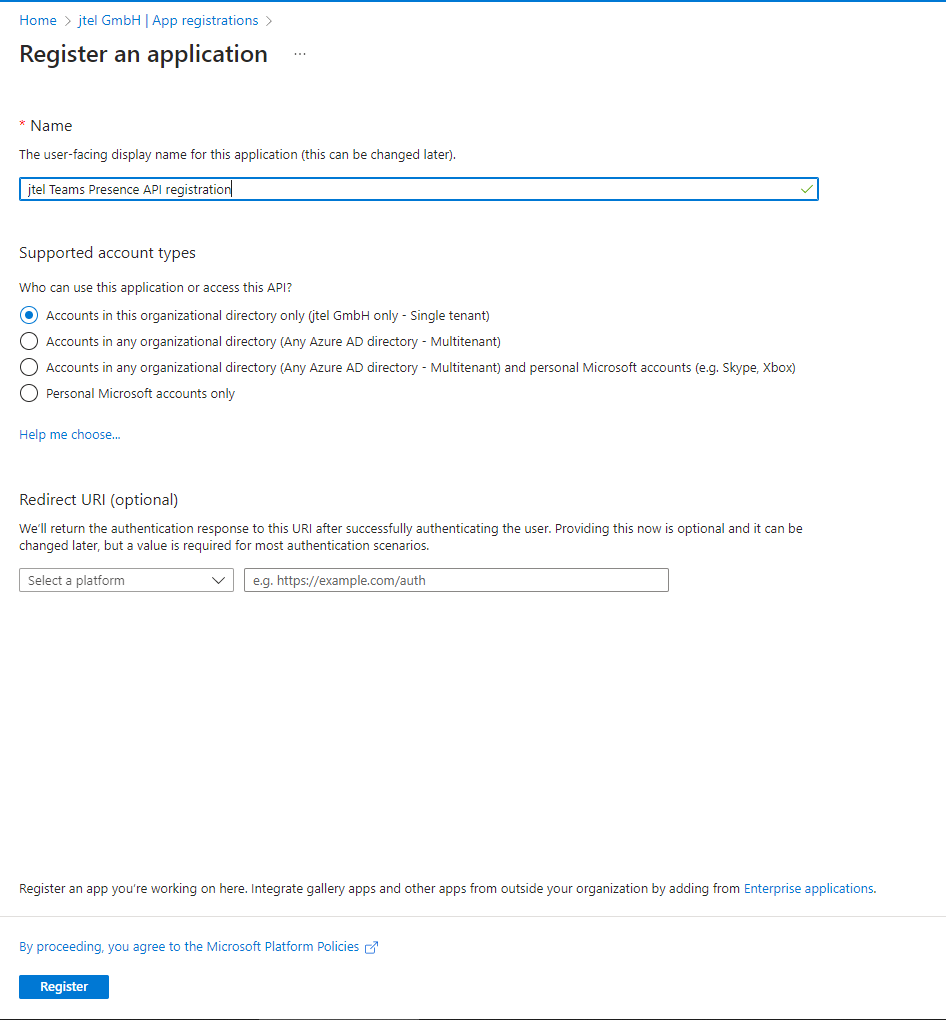
In the Azure Active Directory of your Tenant, navigate to App registrations and create a New registration. Choose a name and select "Register".
Grant Permissions
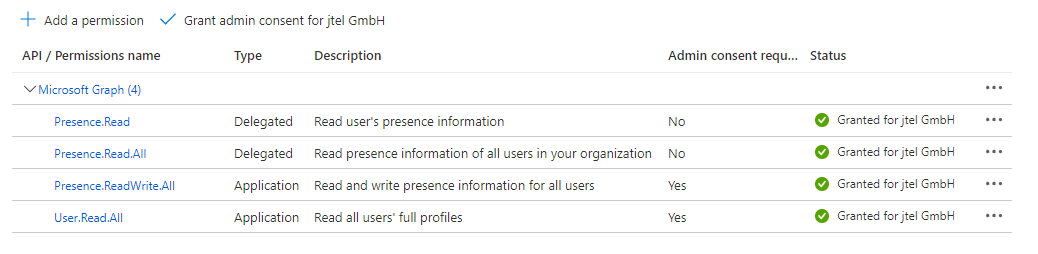
The Presence Connector requires permissions to read the users presence status. Configure the following permissions with "Add a permission" and grant the permssions by clicking on "Grant admin consent for <Tenant Name>".
Create a Client Secret
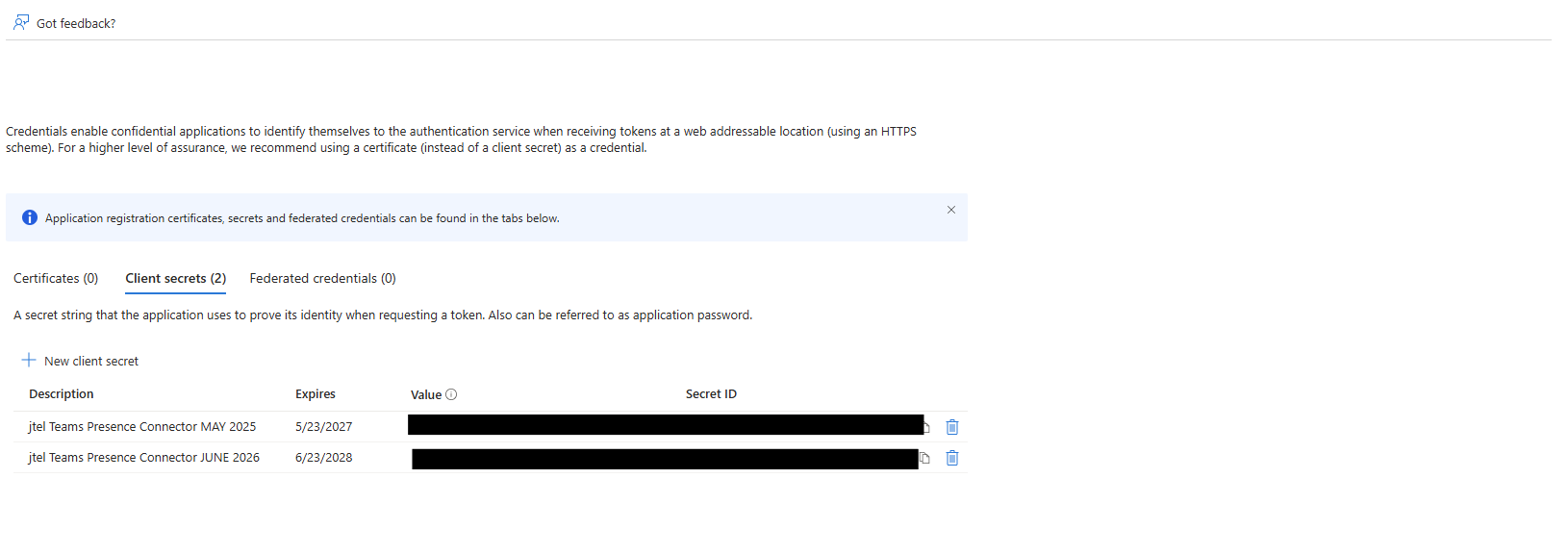
Navigate to Certificates and Secrets and click on "New client secret" to add a new secret.
Expiry
As this secret will expire after the configured amount of time, please make note of this because it must be changed in the jtel Teams Presence Aggregator after being renewed in the Azure AD.
Gather all Information
Please provide all information on the following table to the contact who will be configuring the jtel Teams Presence Connector in your jtel ACD:
Note: The Secret Value is required, not the Secret ID.
| Data | Value |
|---|---|
| Application (client) ID | |
| Directory (tenant) ID | |
| Secret Value |