| Sv translation |
|---|
|
Connecting the PBX - PBX Side ConfigurationConnecting the Innovaphone PBX to the jtel System is described here: http://wiki.innovaphone.com/index.php?title=Howto:Jtel_ACD_-_jtel_GmbH_-_3rd_Party_Product Note, that this is one possible configuration. With innovaphone, it is recommended that ALL numbers to and from jtel are routed in E.164 format without a plus prefix. This configuration guide uses E.164 numbers. If these are not being used, then some parameters recommended below will not apply and will have to be changed. Connecting the PBX - jtel Side ConfigurationPrerequisites- Users are configured in the jtel System fully qualified with E.164 telephone numbers
- Service Numbers are configured in the jtel System fully qualified with E.164 telephone numbers
Required DataThe following data will be required: - The IP Adress of the innovaphone PBX
- The head number of the PBX
- The maximum length of extensions in the PBX
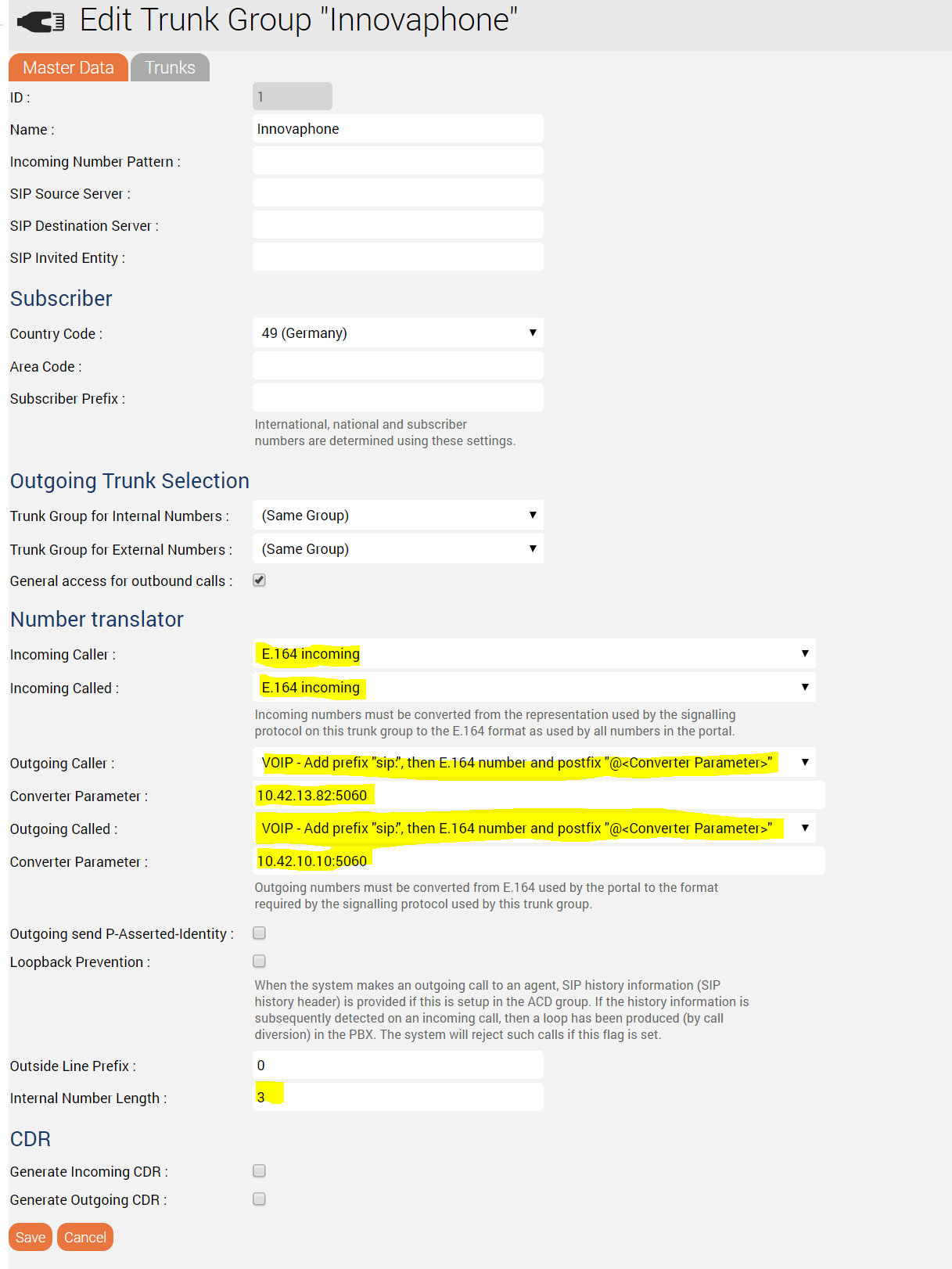
Master DataThe important settings are shown in the screenshot below: - Incoming caller and called are set to E.164 incoming
- Outgoing caller and called are set to VOIP - Add prefix "sip:", then the E.164 number and postfix "@<Converter Parameter>"
- The converter parameter for caller is set to the IP address and port of the jtel 8-Server machine
- The converter parameter for called is set to the IP address and port of the PBX
- Set the maximum length of internal numbers
TrunksCreate a trunk for the 8-Server machine, and add this to the trunk group on the "Trunks" tab. PBX ConnectorInstall the PBX ConnectorCopy the files from \\acd-store\shared\JTELCarrierPortal_dev\WebServices\Install\Innovaphone\ServiceV11 to the 8-Server machine, for example to c:\JTELInnovaphoneServiceV11 Create a jtel SOAP UserThe SOAP user is created as a normal user in the jtel System, with client administrator privileges. The client admin account can be used if desired, or a special account is created. The Innovaphone PBX connector connects to one PBX and one jtel Client. If more are required, it must be installed and configured multiple times. The configuration file for the PBX connector is in JTELInnovaphonePBXService.exe.config Usually, only the following settings will need to be changed. |
| Setting | Value |
|---|
pbxEndpointConfiguration | Set <IP_ADDRESS_PBX> to the IP address of the PBX. |
pbxUserName | Set <PBX_SOAP_USER_NAME_PBX> to the SOAP user name configured in the PBX. |
pbxUserPassword | Set <PBX_SOAP_USER_PASSWORD> to the SOAP password configured in the PBX. |
resellersUID | The UID of the reseller for the jtel SOAP user account. |
clientsUID | The UID of the client for the jtel SOAP user account. |
usersUID | The users UID of the jtel SOAP user account. |
password | The password of the jtel SOAP user account. |
dbConnect | Change <MYSQL_DB_MASTER_PASSWORD> to the password for the MySQL master database.
Usually the alias acd-dbm will be fine and need not be changed. |
monitoring_useNumberFormatMonitoring | Set to true. This will cause the prefix numberFormatMonitoring_PrefixPBXNumbers to be prepended to all numbers as reported from the innovpahone PBX. Usually, the numbers are reported non E.164 qualified.
Note, that if the node number is configured to the head number of the PBX, then monitoring_useNodeNum can be used instead. |
numberFormatMonitoring_PrefixPBXNumbers | Set this to the head number of the PBX. This will be prepended to all numbers reported by the innovaphone PBX when used for monitoring. |
monitoring_updateUserAlways | Set to true. |
| Status |
|---|
| |
|---|
| colour | Blue |
|---|
| title | From Release 3.33 |
|---|
|
Copy the directory from \\acd-store\shared\JTELCarrierPortal\WebServices\Install\Innovaphone\JTELInnovaphonePBXConnectorV11Windows\JTELInnovaphonePBXConnectorV11 to the 8-Server machine, for example to c:\innovaphone
If you will install the innovaphone service in debian machine, then run the following commands:
| Code Block |
|---|
| title | Install Innovaphone On Debian |
|---|
|
cp -r /home/jtel/shared/JTELCarrierPortal/WebServices/Install/Innovaphone/JTELInnovaphonePBXConnectorV11Linux/ /home/jtel/innovaphone
mkdir  /home/jtel/innovaphone/log
cd /home/jtel/innovaphone
sudo ./check.net.sh
sudo ./install.sh
sudo systemctl start jtel-innovaphone
sudo systemctl status jtel-innovaphone |
Create a jtel SOAP User
The SOAP user is created as a normal user in the jtel System, with client administrator privileges. The client admin account can be used if desired, or a special account is created.
Innovaphone Connector Portal Configuration
The following shows an excerpt from the XML configuration file for the PBX connector JTELInnovaphonePBXService.exe.config
| Translations Ignore |
|---|
| Code Block |
|---|
    <add key="pbxEndpointConfiguration" value="https://<IP_ADDRESS_PBX>/PBX0/user.soap"/>
	<add key="pbxUserName" value="<PBX_SOAP_USER_NAME_PBX>"/>
	<add key="pbxUserPassword" value="<PBX_SOAP_USER_PASSWORD"/>
	<add key="resellersUID" value="<JTEL_RESELLER_UID>"/>
	<add key="clientsUID" value="<JTEL_CLIENT_UID>"/>
<add key="usersUID" value="<JTEL_SOAP_USER_UID> |
|
The following shows an excerpt from the XML configuration file for the PBX connector JTELInnovaphonePBXService.exe.config
| Code Block |
|---|
<add key="pbxEndpointConfiguration" value="https://<IP_ADDRESS_PBX>/PBX0/user.soappbxUserName<PBXNAME_PBX>pbxUserPassword<PBX_SOAP_USER_PASSWORDserver=acd-dbm;user=root;database=JTELWeb;port=3306;password=<MYSQL_DB_MASTER_PASSWORD>;"/>
<add key=" |
resellersUID<JTEL_RESELLER_UID> clientsUID<JTEL_CLIENT_UID> usersUIDacdDaemonUdpAddress" value=" |
<JTEL_SOAP_USER_UID> passwordacdDaemonUdpPort" value=" |
<JTEL_SOAP_USER_PASSWORD>dbConnectserver=acd-dbm;user=root;database=JTELWeb;port=3306;password=<MYSQL_DB_MASTER_PASSWORD>;udpAddressacd-tel1 udpPortnumberFormatOutdial_OutsideLinePrefix" value=" |
40406acdDaemonUdpAddressnumberFormatOutdial_InternalNumberLength" value=" |
acd-tel1acdDaemonUdpPortnumberFormatOutdial_CountryCode" value=" |
2064549"/>
<add key="numberFormatOutdial_ |
OutsideLinePrefix0 <add key="numberFormatOutdial_ |
InternalNumberLength3 numberFormatOutdialCountryCode49numberFormatOutdialAreaCodeuseNumberFormatMonitoring" value="true"/>
|
numberFormatOutdialSubscriberCodeupdateUserAlways" value="true" />
|
<add key="monitoring_useNodeNum" value="false"/>
monitoringuseNumberFormatMonitoringPrefixPBXNumbers" value=" |
true<PBX_HEAD_NUMBER>" />
<add key=" |
monitoring_updateUserAlwaystrue numberFormatMonitoring_PrefixPBXNumberspbxReconnectTimeout" value=" |
<PBX_HEAD_NUMBER> <add key="wcfTimeout" value="300"/>
<add key="pbxReconnectTimeout" value="10"/>
</appSettings>
</configuration></appSettings>
</configuration> |
|
P.S: teamsUdpAddress and teamsUdpPort are valid from release 3.27.
Start Connector
Start the connector and make sure it is receiving the required data from the PBX.
Note - a proxy server connection should NOT be used between the jtel Innovaphone PBX connector and the PBX, and this network configuration should be changed if present. This is due to most proxy servers not being able to correctly handle the long polling requests required by the SOAP connector.
System Parameters
| Setting | Value |
|---|
| dialler.8Servers.IPs | Set this to the real computername of the 8-Server machine. Setting this to acd-tel1 for example, will not work. |
Client Settings
The following settings should be made in the client account on the jtel System:
| Setting | Value |
|---|
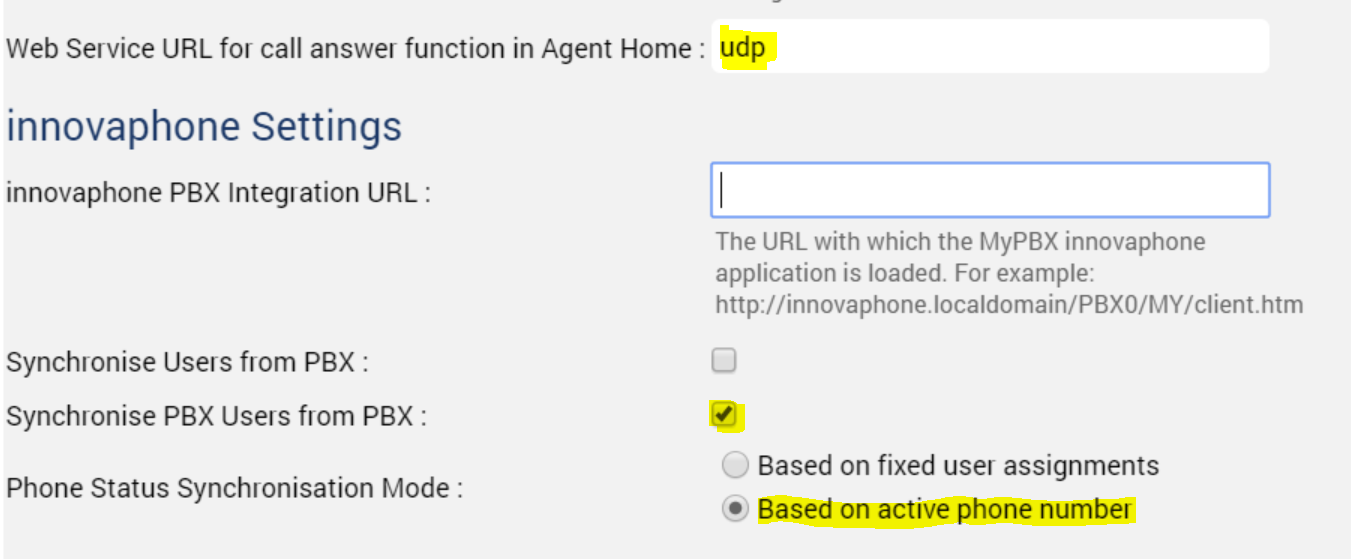
Web Service URL for call answer function in Agent Home | Set to udp |
Synchronise PBX Users from PBX | Set to on |
| Phone Status Synchronisation Mode | Set to Based on active phone number |
See screenshot below:
Recommended Tests
- Incoming call
- Caller and Called Party Number are E.164?
- Service starts?
- Audio OK?
- DTMF detected OK?
- Incoming call connected to agent
- Agent telephone rings OK?
- Telephone display reports correct number?
- Agent can answer phone using "Answer" button in agent home?
- Audio end to end from caller to agent OK?
- Number can be called back from agent telephone?
- Telephone call from agent telephone to any (non jtel) number
- Status change in jtel supervisor for agent visible (changes to busy / free after call)
- Outbound call using jtel Agent Home to outside destination
- Outbound call made OK?
- Signalled calling party number OK? (Should be the service number)
- End to End Audio OK?
Troubleshooting
Use this guide from Innovaphone to isolate the problem:
http://wiki.innovaphone.com/index.php?title=Reference:Device_Health_Check
Softphone Calls Dropping / Softphone Audio Quality
Use this guide from Innovaphone to configure the system:
http://wiki.innovaphone.com/index.php?title=Howto:Set_Type_of_Service_(ToS)_DiffServ_DSCP_Values_for_innovaphone_Windows_Applications_(SoftwarePhone,_myPBX_Video)
| Sv translation |
|---|
|
Connecting the Anschließen der TK-Anlage - PBX- PBX Side Configurationseitige KonfigurationDer Anschluss der Innovaphone TK-Anlage an das jtel-System wird hier beschriebenConnecting the Innovaphone PBX to the jtel System is described here: http://wiki.innovaphone.com/index.php?title=Howto:Jtel_ACD_-_jtel_GmbH_-_3rd_Party_Product Note, that this is one possible configurationBeachten Sie, dass dies eine mögliche Konfiguration ist. With Bei innovaphone , it is recommended that ALL numbers to and from jtel are routed in E.164 format without a plus prefix. This configuration guide uses E.164 numbers. If these are not being used, then some parameters recommended below will not apply and will have to be changed. Connecting the PBX - jtel Side ConfigurationPrerequisites- Users are configured in the jtel System fully qualified with E.164 telephone numbers
- Service Numbers are configured in the jtel System fully qualified with E.164 telephone numbers
Required DataThe following data will be required: - The IP Adress of the innovaphone PBX
- The head number of the PBX
- The maximum length of extensions in the PBX
Master DataThe important settings are shown in the screenshot below: wird empfohlen, dass ALLE Nummern von und zu jtel im E.164-Format ohne Plus-Präfix geroutet werden. Dieser Konfigurationsleitfaden verwendet E.164-Nummern. Wenn diese nicht verwendet werden, dann gelten einige der unten empfohlenen Parameter nicht und müssen geändert werden. Anschließen der TK-Anlage - Konfiguration der jtel-SeiteVoraussetzungen- Benutzer werden im jtel-System voll qualifiziert mit E.164-Telefonnummern konfiguriert
- Service-Nummern werden im jtel-System voll qualifiziert mit E.164-Telefonnummern konfiguriert
Erforderliche DatenDie folgenden Daten werden benötigt: - Die IP-Adresse der innovaphone TK-Anlage
- Die Kopfnummer der TK-Anlage.
- Die maximale Länge der Erweiterungen in der TK-Anlage.
Konfigurieren Sie den PBX Trunk in jtelStammdatenDie wichtigen Einstellungen sind in der Abbildung unten dargestellt: - Eingehend Anrufer- und Angerufene Nummer werden auf E.164 incoming gesetzt
- Abgehend Anrufer- Angerufene Nummer wird auf VOIP -
- Incoming caller and called are set to E.164 incoming
- Outgoing caller and called are set to VOIP - Add prefix "sip:", then the E.164 number and postfix "@<Converter Parameter>" gesetzt
- Der Konverter-Parameter für den Anrufer wird auf die IP-Adresse und den Port des The converter parameter for caller is set to the IP address and port of the jtel 8-Server machine
- The converter parameter for called is set to the IP address and port of the PBX
- Set the maximum length of internal numbers
Image Removed Trunks- -Rechners eingestellt
- Der Konverter-Parameter für den Angerufenen ist auf die IP-Adresse und den Port der Nebenstellenanlage eingestellt
- Legen Sie die maximale Länge der internen Nummer fest
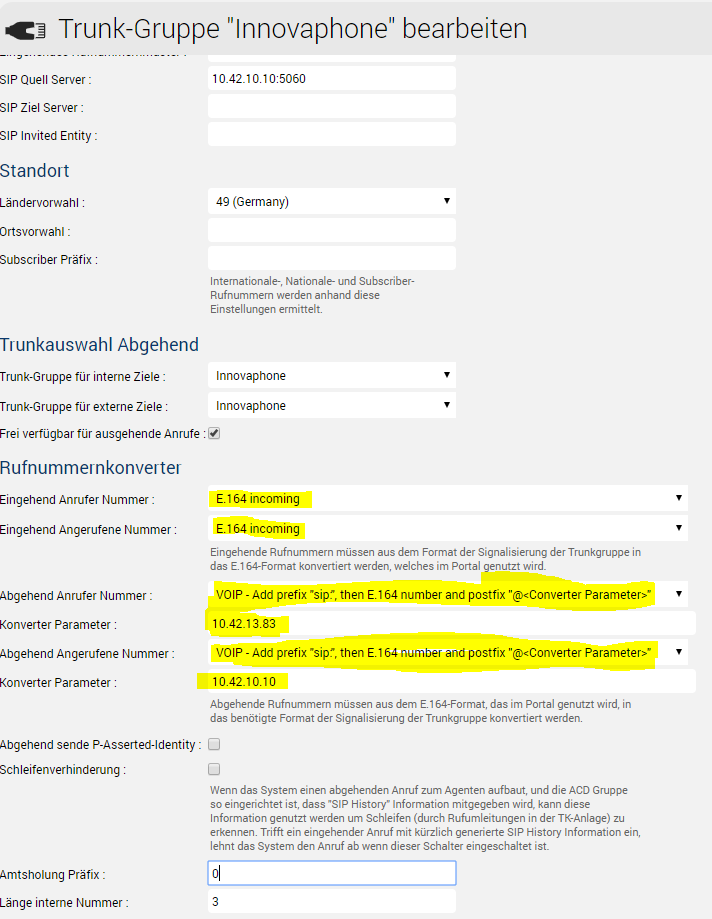 Image Added Image Added
TrunksErstellen Sie einen Trunk für den 8-Server-Rechner, und fügen Sie diesen der Trunk-Gruppe auf der Registerkarte "Trunks" hinzuCreate a trunk for the 8-Server machine, and add this to the trunk group on the "Trunks" tab. PBX ConnectorInstall the PBX ConnectorInstallieren des PBX-ConnectorsKopieren Sie die Dateien ausCopy the files from \\acd-store\shared\JTELCarrierPortal_dev\WebServices\Install\Innovaphone\ServiceV11 to the ServiceV11 auf den 8-Server machine, for example to-Rechner, zum Beispiel auf c:\JTELInnovaphoneServiceV11 Create a jtel SOAP UserThe SOAP user is created as a normal user in the jtel System, with client administrator privileges. The client admin account can be used if desired, or a special account is created. The Innovaphone PBX connector connects to one PBX and one jtel Client. If more are required, it must be installed and configured multiple times. The configuration file for the PBX connector is in JTELInnovaphonePBXService.exe.config Usually, only the following settings will need to be changed. |
| Setting | Value |
|---|
pbxEndpointConfiguration | Set <IP_ADDRESS_PBX> to the IP address of the PBX. |
pbxUserName | Set <PBX_SOAP_USER_NAME_PBX> to the SOAP user name configured in the PBX. |
pbxUserPassword | Set <PBX_SOAP_USER_PASSWORD> to the SOAP password configured in the PBX. |
resellersUID | The UID of the reseller for the jtel SOAP user account. |
clientsUID | The UID of the client for the jtel SOAP user account. |
usersUID | The users UID of the jtel SOAP user account. |
password | The password of the jtel SOAP user account. |
dbConnect | Change <MYSQL_DB_MASTER_PASSWORD> to the password for the MySQL master database.
Usually the alias acd-dbm will be fine and need not be changed. |
monitoring_useNumberFormatMonitoring | Set to true. This will cause the prefix numberFormatMonitoring_PrefixPBXNumbers to be prepended to all numbers as reported from the innovpahone PBX. Usually, the numbers are reported non E.164 qualified.
Note, that if the node number is configured to the head number of the PBX, then monitoring_useNodeNum can be used instead. |
numberFormatMonitoring_PrefixPBXNumbers | Set this to the head number of the PBX. This will be prepended to all numbers reported by the innovaphone PBX when used for monitoring. |
monitoring_updateUserAlways | Set to true. |
| Status |
|---|
| |
|---|
| colour | Blue |
|---|
| title | AB Release 3.33 |
|---|
|
Kopieren Sie das Verzeichnis von \\acd-store\shared\JTELCarrierPortal\WebServices\Install\Innovaphone\JTELInnovaphonePBXConnectorV11Windows\JTELInnovaphonePBXConnectorV11 auf den 8-Server-Rechner, beispielsweise nach c:\innovaphone
Wenn Sie den innovaphone-Dienst auf einem Debian-Rechner installieren möchten, führen Sie die folgenden Befehle aus:
| Code Block |
|---|
| title | Innovaphone auf Debian installieren |
|---|
|
cp -r /home/jtel/shared/JTELCarrierPortal/WebServices/Install/Innovaphone/JTELInnovaphonePBXConnectorV11Linux/ /home/jtel/innovaphone
mkdir  /home/jtel/innovaphone/log
cd /home/jtel/innovaphone
sudo ./check.net.sh
sudo ./install.sh
sudo systemctl start jtel-innovaphone
sudo systemctl status jtel-innovaphone |
Erstellen eines jtel-SOAP-Benutzers
Der SOAP-Benutzer wird als normaler Benutzer im jtel-System mit Client-Administrator-Rechten angelegt. Falls gewünscht, kann das Client-Administrator-Konto verwendet werden, oder es wird ein spezielles Konto erstellt.
Konfigurieren des PBX-Connectors
Portalkonfiguration des Innovaphone Connector
Nachfolgend sehen Sie einen Auszug aus der XML-Konfigurationsdatei für den PBX-Connektor JTELInnovaphonePBXService.exe.config
The following shows an excerpt from the XML configuration file for the PBX connector JTELInnovaphonePBXService.exe.config |
|---|
| Code Block |
|---|
    <add key="pbxEndpointConfiguration" value="https://<IP_ADDRESS_PBX>/PBX0/user.soap"/>
	<add key="pbxUserName" value="<PBX_SOAP_USER_NAME_PBX>"/>
	<add key="pbxUserPassword" value="<PBX_SOAP_USER_PASSWORD"/>
	<add key="resellersUID" value="<JTEL_RESELLER_UID>"/>
	<add key="clientsUID" value="<JTEL_CLIENT_UID>"/>
	<add key="usersUID" value="<JTEL_SOAP_USER_UID>"/>
	<add key="password" value="<JTEL_SOAP_USER_PASSWORD>"/>
	<add key="dbConnect" value="server=acd-dbm;user=root;database=JTELWeb;port=3306;password=<MYSQL_DB_MASTER_PASSWORD>;"/>
	<add key="udpAddress" value="acd-tel1"/>
    <add key="udpPort" value="40406"/>
    <add key="acdDaemonUdpAddress" value="acd-tel1"/>
|
 <add key="acdDaemonUdpPort" value="20645"/>
	<add key="teamsUdpAddress" value="acd-tel1"/>
<add key=" |
acdDaemonUdpPort20645 <add key="numberFormatOutdial_OutsideLinePrefix" value="0"/>
<add key="numberFormatOutdial_InternalNumberLength" value="3"/>
<add key="numberFormatOutdial_CountryCode" value="49"/>
<add key="numberFormatOutdial_AreaCode" value=""/>
<add key="numberFormatOutdial_SubscriberCode" value=""/>
<add key="monitoring_useNodeNum" value="false"/>
<add key="monitoring_useNumberFormatMonitoring" value="true"/>
<add key="monitoring_updateUserAlways" value="true" />
<add key="numberFormatMonitoring_PrefixPBXNumbers" value="<PBX_HEAD_NUMBER>" />
<add key="wcfTimeout" value="300"/>
<add key="pbxReconnectTimeout" value="10"/>
</appSettings>
</configuration> |
|
Start Connector
Start the connector and make sure it is receiving the required data from the PBX.
Note - a proxy server connection should NOT be used between the jtel Innovaphone PBX connector and the PBX, and this network configuration should be changed if present. This is due to most proxy servers not being able to correctly handle the long polling requests required by the SOAP connector.
System Parameters
P.S: teamsUdpAddress und teamsUdpPort sind ab Version 3.27 gültig.
Connector starten
Starten Sie den Konnektor und stellen Sie sicher, dass er die erforderlichen Daten von der TK-Anlage empfängt.
Hinweis - eine Proxy-Server-Verbindung sollte NICHT zwischen dem jtel Innovaphone PBX-Anschluss und der PBX verwendet werden, und diese Netzwerkkonfiguration sollte, falls vorhanden, geändert werden. Dies ist darauf zurückzuführen, dass die meisten Proxy-Server nicht in der Lage sind, die vom SOAP-Konnektor benötigten langen Polling-Anforderungen korrekt zu verarbeiten.
System Parameter
| Einstellung | Wert | Setting | Value |
|---|
| dialler.8Servers.IPs | Set this to the real computername of the Setzen Sie dies auf den realen Computernamen des 8-Server machine. Setting this to -Rechners. Wenn Sie dies beispielsweise auf acd-tel1 for example, will not work. |
Client Settings
The following settings should be made in the client account on the jtel System:
| setzen, wird dies nicht funktionieren. |
Mandant Einstellungen
Die folgenden Einstellungen sollten im Mandantenkonto auf dem jtel-System vorgenommen werden:
| Einstellung | Wert | Setting | Value |
|---|
Web Service URL for call answer function in Agent Home | Set to Auf udp setzen |
Synchronise PBX Users from PBX | Set to Auf on setzen |
| Phone Status Synchronisation Mode | Set to Auf Based on active phone number Setzen |
Siehe Screenshot untenSee screenshot below:
Image Removed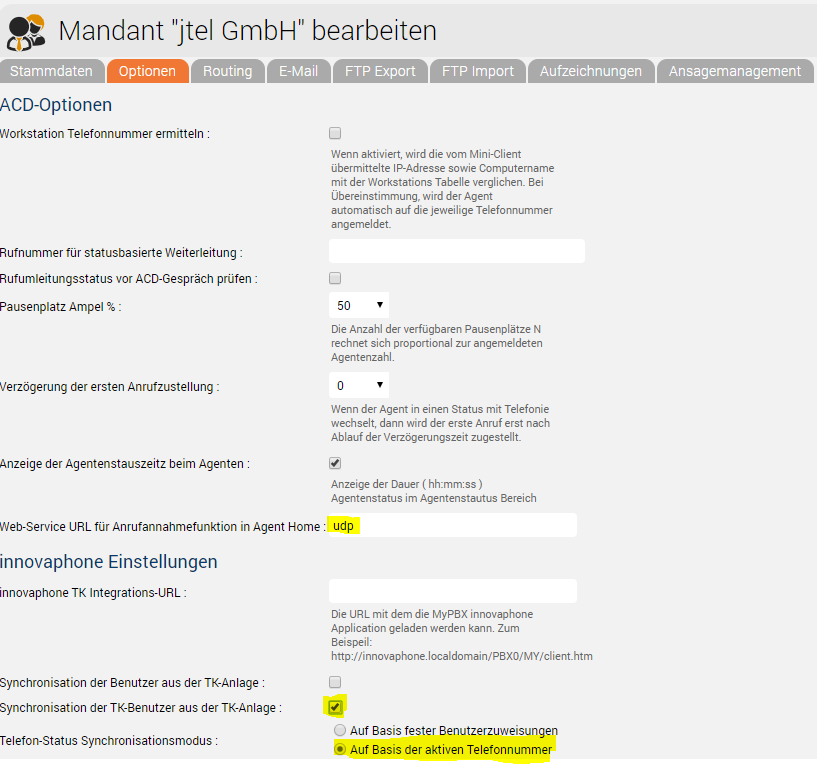 Image Added
Recommended Empfohlene Tests
- Eingehender Anruf
- Anrufer und Nummer des Angerufenen sind
Incoming call - Caller and Called Party Number are E.164?
- Service startsbeginnt?
- Audio OK?
- DTMF detected OK?
- Eingehender Anruf ist mit dem Agenten verbunden
- Agent Telefon klingelt OK?
- Telefondisplay meldet korrekte Nummer?
- Der Agent kann das Telefon über die Schaltfläche "Antworten" im Agent home beantworten
Incoming call connected to agent- Agent telephone rings OK?
- Telephone display reports correct number?
- Agent can answer phone using "Answer" button in agent home?
- Audio end to end from caller to agent vom Anrufer zum Agenten OK?
- Number can be called back from agent telephone?
- Telephone call from agent telephone to any (non jtel) number
- Status change in jtel supervisor for agent visible (changes to busy / free after call)
- Nummer kann vom Agententelefon zurückgerufen werden?
- Telefonanruf vom Agententelefon an eine beliebige (nicht jtel) Nummer
- Statusänderung im Jtel-Supervisor für Agenten sichtbar (Änderungen auf besetzt / frei nach Anruf)
- Abgehender Anruf mit jtel Agent Home nach externem Ziel
- Abgehender Anruf in Ordnung?
- Nummer des signalisierten Anrufers OK? (Sollte die Servicerufnummer sein
Outbound call using jtel Agent Home to outside destination- Outbound call made OK?
- Signalled calling party number OK? (Should be the service number)
- End to End Audio OK?
TroubleshootingFehlerbehebung
IssuesVerwenden Sie diesen Guide von Innovaphone, um das Problem zu isolierenUse this guide from Innovaphone to isolate the problem:
http://wiki.innovaphone.com/index.php?title=Reference:Device_Health_Check
Softphone Calls Dropping / Softphone Audio Quality
Use this guide from Innovaphone to configure the systemVerwenden Sie diesen Guide von Innovaphone zur Konfiguration des Systems:
http://wiki.innovaphone.com/index.php?title=Howto:Set_Type_of_Service_(ToS)_DiffServ_DSCP_Values_for_innovaphone_Windows_Applications_(SoftwarePhone,_myPBX_Video)
