| Sv translation | ||||||||||||||||||
|---|---|---|---|---|---|---|---|---|---|---|---|---|---|---|---|---|---|---|
| ||||||||||||||||||
Teams Rules and Routing via the IVR or an ACD Group – how does it work?In today's HowTo, we want towill explain how Teams rules affect routing and delivery of calls to agents and PBX users. Status AggregationThe jtel system is connected to the following systems to read and aggregate status:
Furthermore, the jtel system, for ACD agents, is party to the following additional information:
The jtel system performs an aggregation of the status from each application to make a decision about the availability of the PBX users and ACD agents. This is shown in the following table:
* This state can exist, for example, when the agent receives a call on a cell phone. His cell phone is not monitored via the PBX or via teams. Targeted addressingIt is also advantageous to be able to address the end device specifically - for example, to decide on the basis of the status whether a call is routed to the Teams client or the cell phone. To ensure that the Teams client can be addressed individually, a routing prefix is often used in the session border controller. This is used to route calls that are to be routed specifically to Teams clients. The "normal" phone number can be used to address the phone in the PBX or the cell phone. Now we should explain how the rules are created in teams.Exposition:How are the team integration rules created?BackgroundTeams rules are designed to look at certain processes and states in an automated way.Teams Rules are designed to automate certain processes.
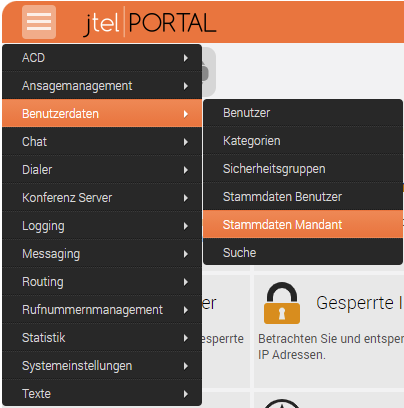
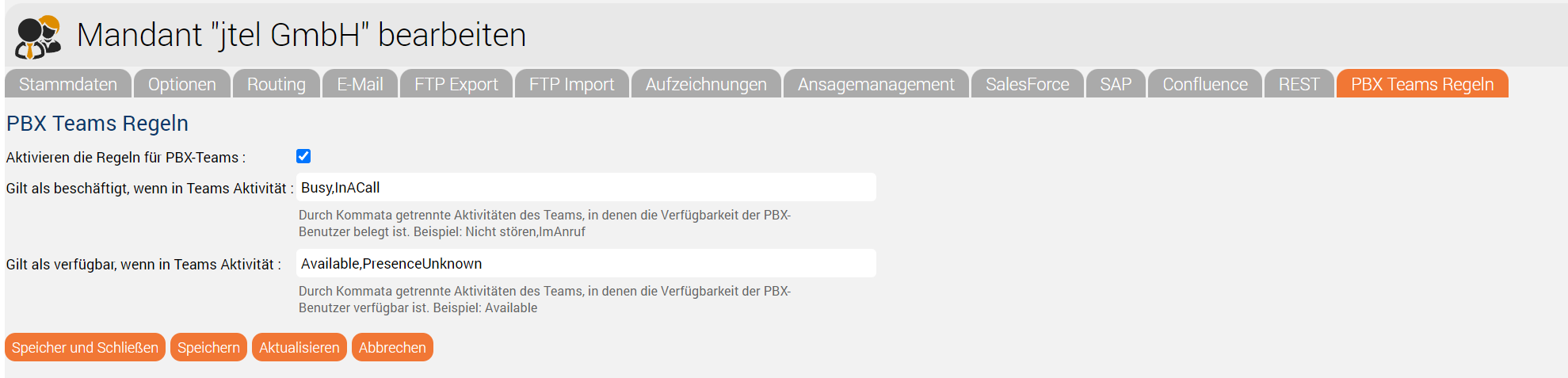
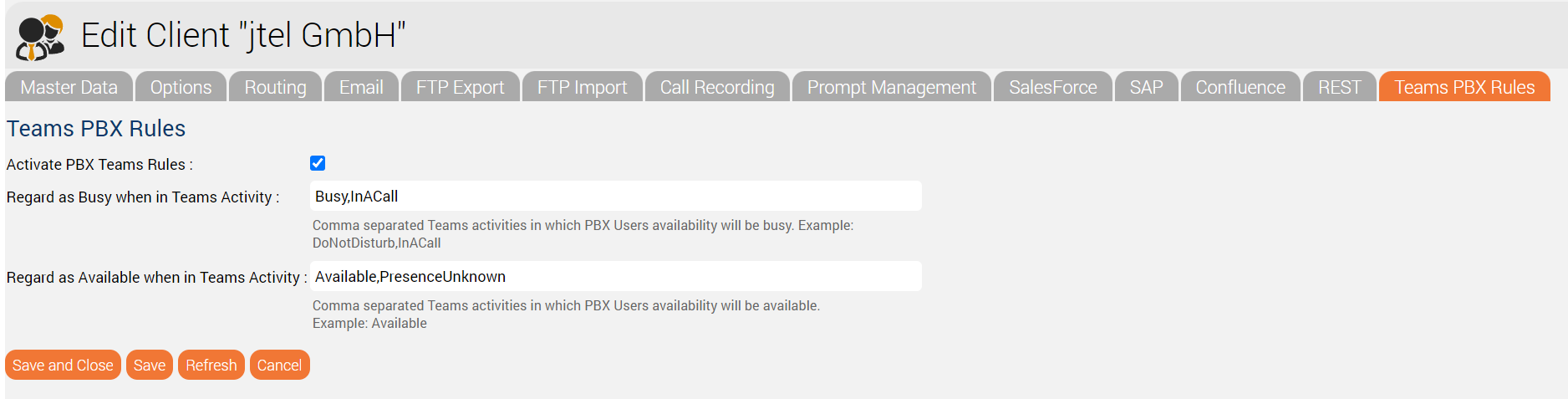
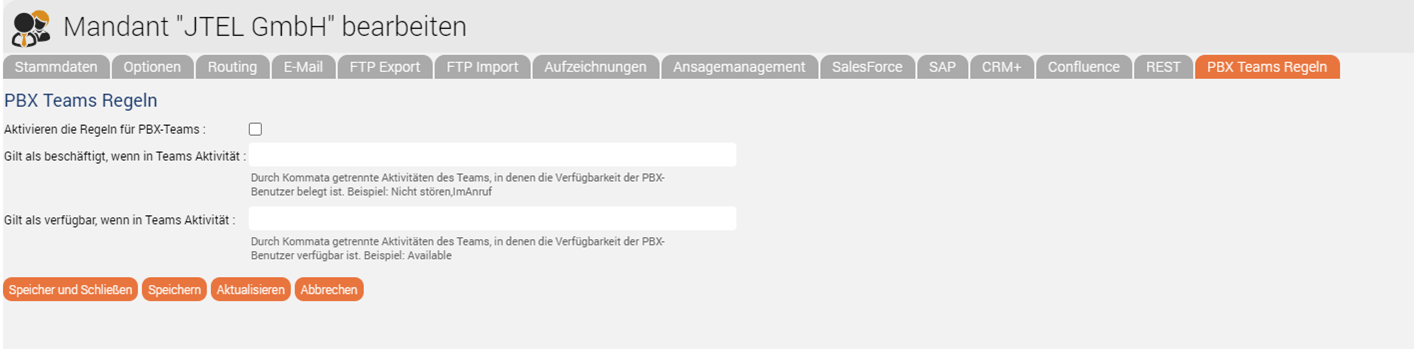
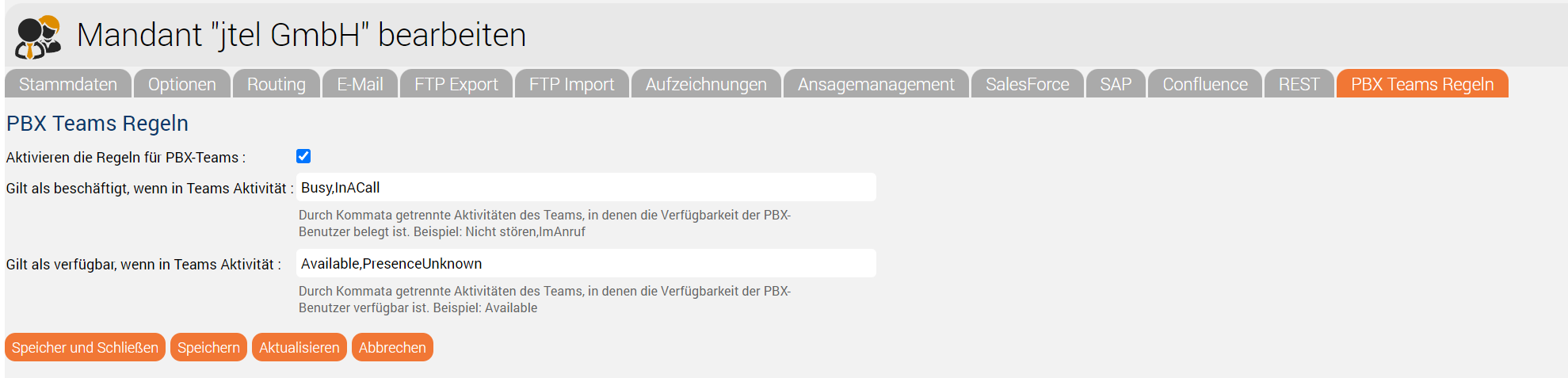
For this purpose, jtel TeamsRulesrules at client level for PBX-usersPBX users are automatically created by the jtel system from the connectors used, including those from the PBX and also teams, Note: If this is not the case, you will receive double entries for the PBX users. In order to configure this set of rules, you should first select the tab "Master data client" in the main menu under user data. 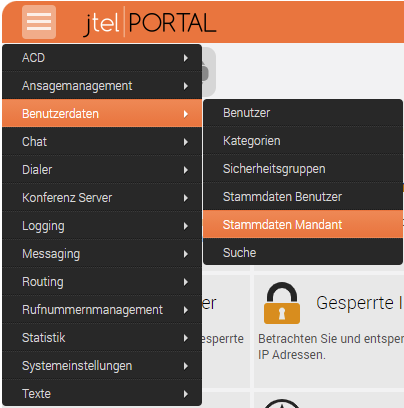 The set of rules, which can be configured at the client level, is used to assign the PBX users who are not working with the jtel ACD, but are telephoning and working in teams or the PBX, with the status in the ACD. These rule settings are used to assign statuses to the PBX user which enable or disable the transfer of calls. To do this, the teams statuses are parameterised in the two fields shown in the graphic, thus creating a set of rules for how PBX users are taken into account in call distribution. The respective presence statuses for teams are shown in the Microsoft table below. These statuses can be parameterised in these fields in a comma-separated manner and form the global setting for handling PBX users during distribution in the jtel ACD in connection with Teams. usersTo configure this set of rules, you should first select the "Client master data" tab in the main menu under User data.
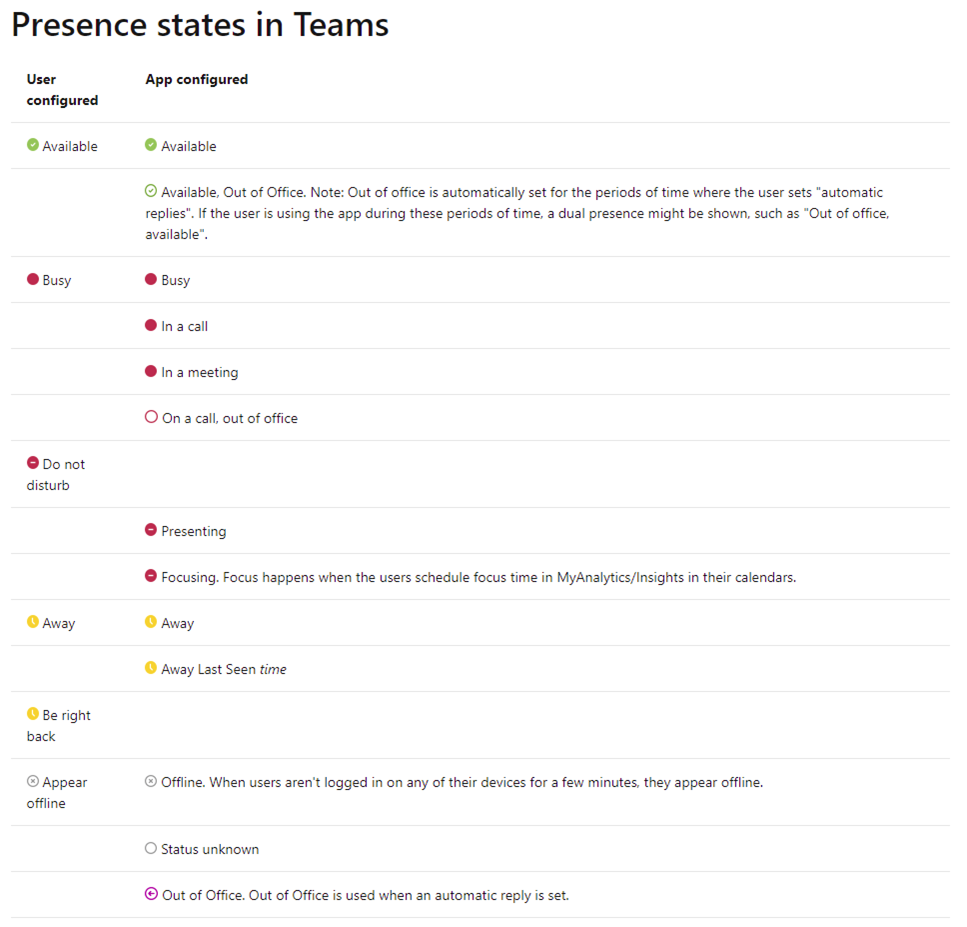
The set of rules, which can be configured at the client level, is used to aggregate the status of PBX users who do not work with the jtel ACD, but who make calls and work in Teams, with their status in the PBX. These rule settings are used to assign statuses to PBX users, which enable or disable the transfer of calls. For this purpose, the teams statuses are parameterized in the two fields shown in the screenshot, thus creating a set of rules for how PBX users are taken into account call distribution. The respective presence statuses for Teams can be seen in the table shown on the Microsoft website here: https://docs.microsoft.com/en-us/microsoftteams/presence-admins These statuses are comma-separated and can be parameterized in these fields, and define the global settings for handling PBX users during call distribution via the IVR in connection with teams.
Teams rules at ACD user levelTo configure this set of rules, first select the "User master data" tab in the main menu under User data. Here, the set of rules is configured in the "Teams" tab. You have the option to combine the teams status with the jtel agent availability. This has the advantage that the Teams status is also taken into account when distributing calls. Another advantage is that depending on the availability and status, the personally favored device can be selected automatically. Examples:
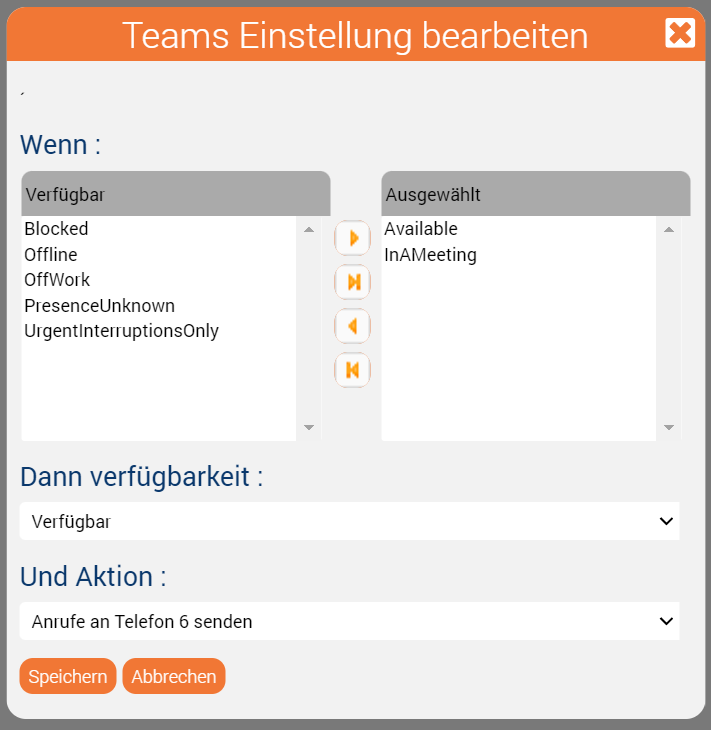
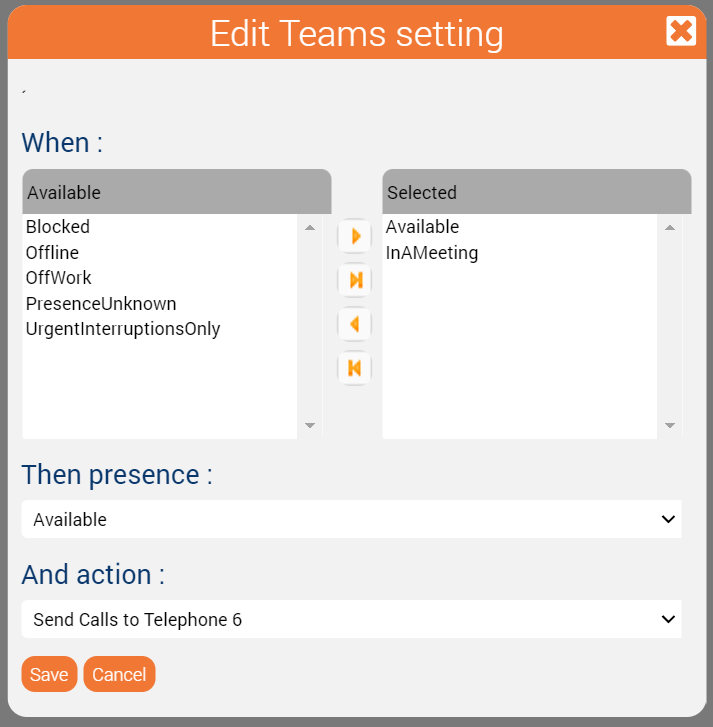
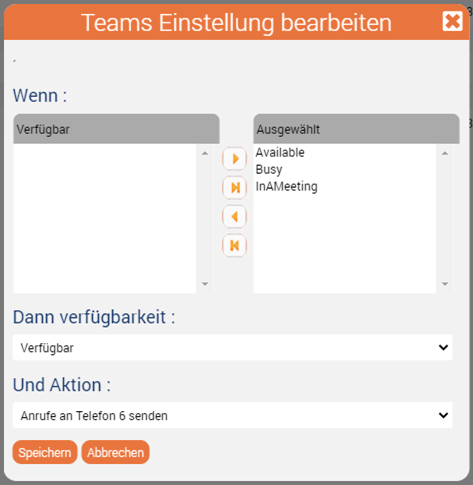
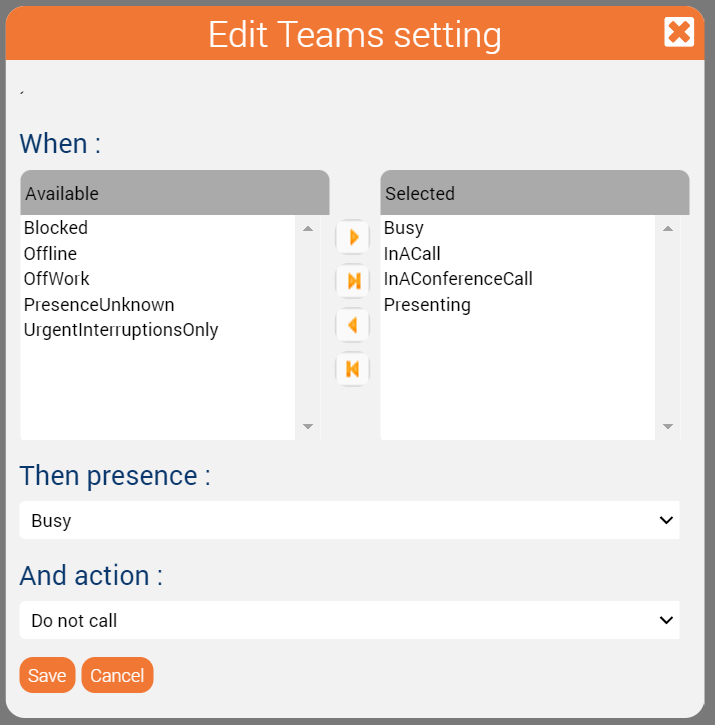
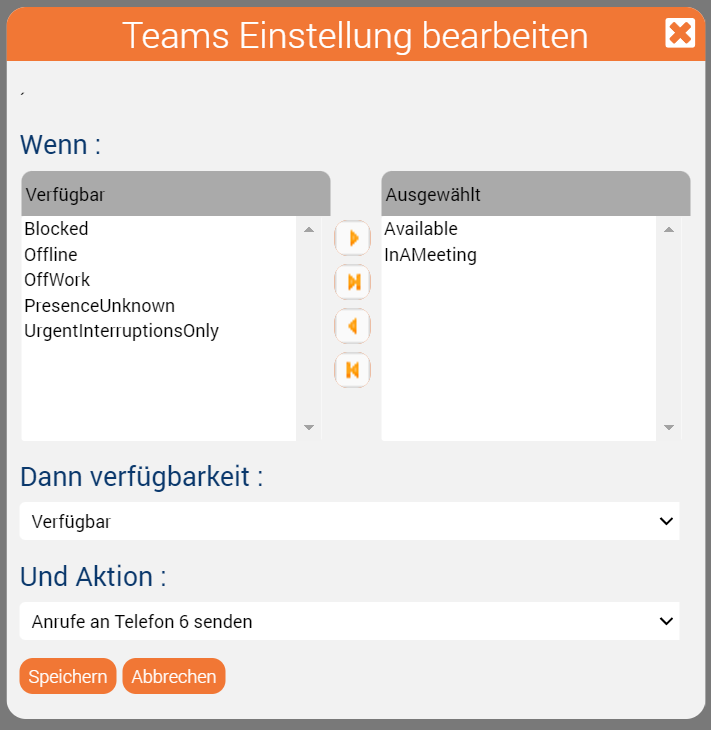
The following screenshot shows the case that despite the "busy" status in teams, the phone call should be transferred to the agent. We recommend to use "Phone 6" for the phone number in Teams. For example, the status "InAMeeting" is set by Teams when you have an appointment in Outlook. Since many people do not really maintain their appointments in Outlook correctly (busy / free / out of office), this can be useful to increase the availability by phone.
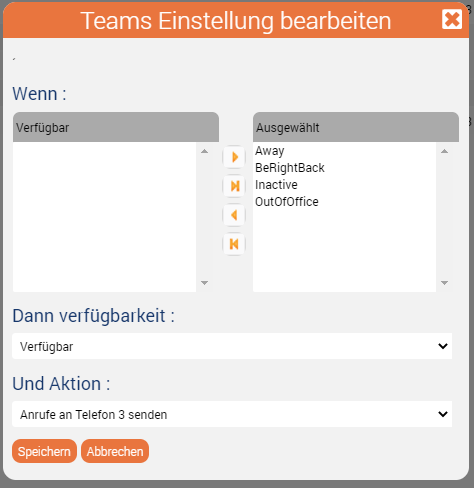
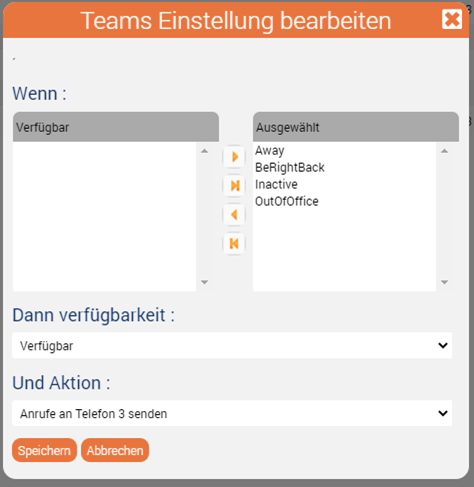
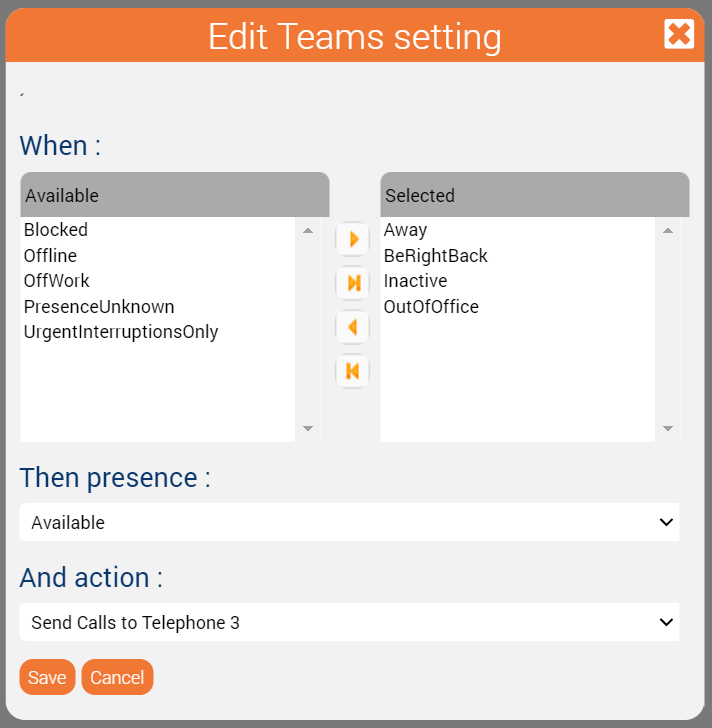
The following rule is useful when the agent is away from the PC ("Away"), or
Teams rules at ACD user levelNormal ACD users can also be provided with Teams rules. 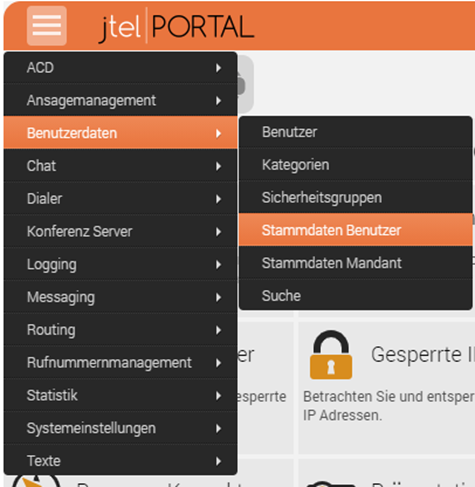 After selecting this, you can configure the set of rules in the "Teams" tab. Another advantage is that the personally favoured phone can be selected depending on availability and status.
Here the case is shown that despite a "busy" status, the telephone call should be put through to the agent.
This view describes the case where the agent has an external appointment and wants to take his calls by via a mobile phone .
for example:
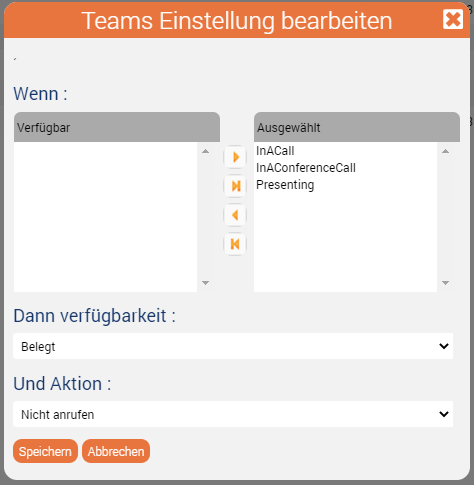
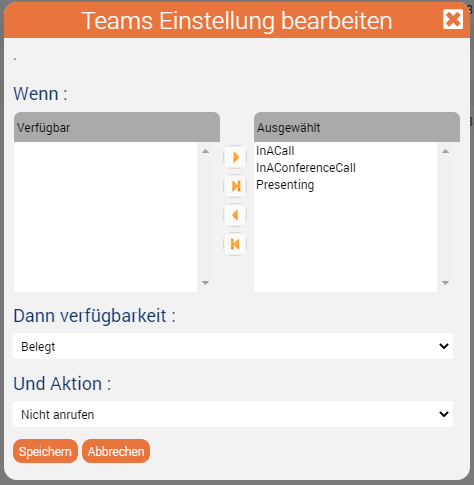
This rule covers the condition when an The example describes when the agent is in a Teams teams meeting or presenting, and cannot should not be reached contacted by phone. :
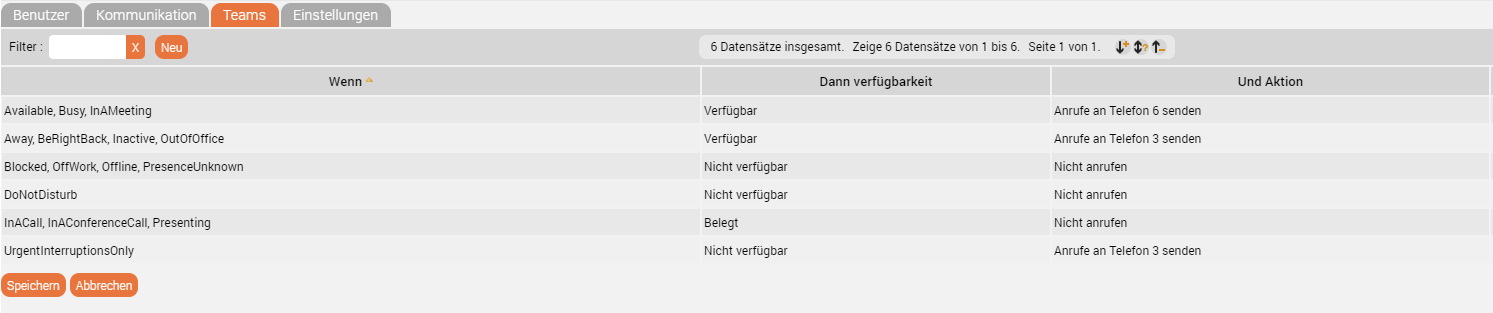
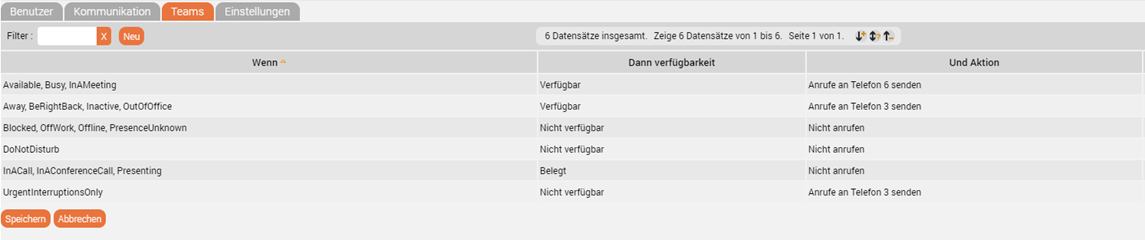
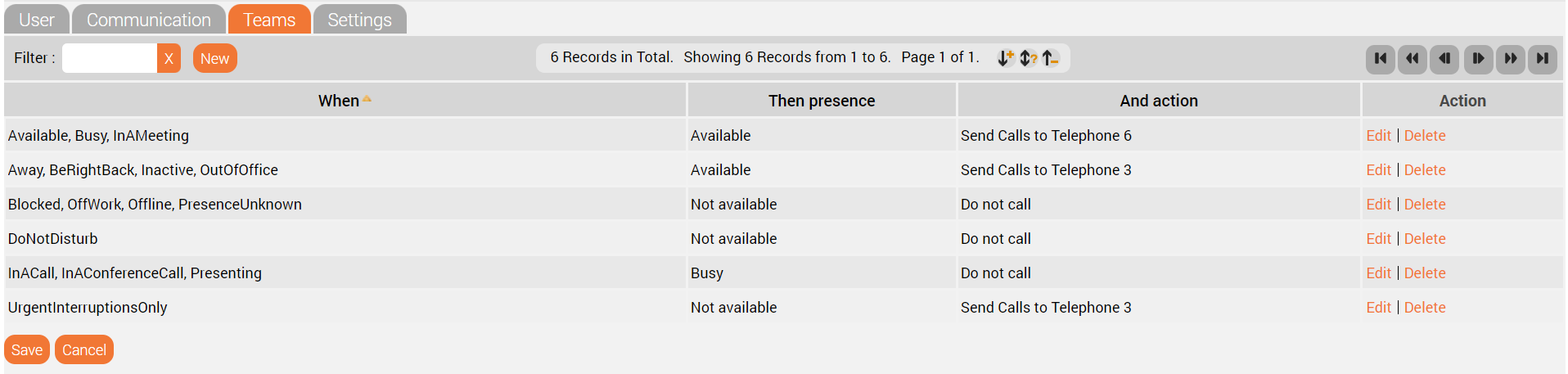
This is what a final configured set of rules in the jtel ACD for the use of with Teams rules might ultimately look like:
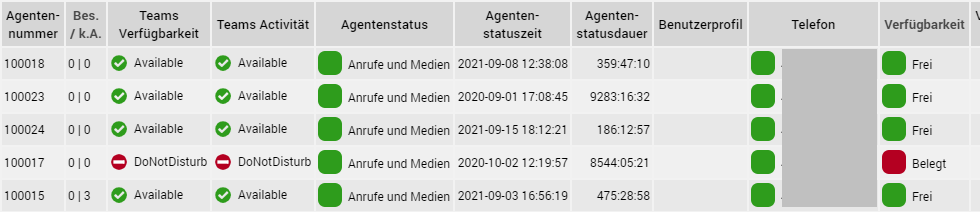
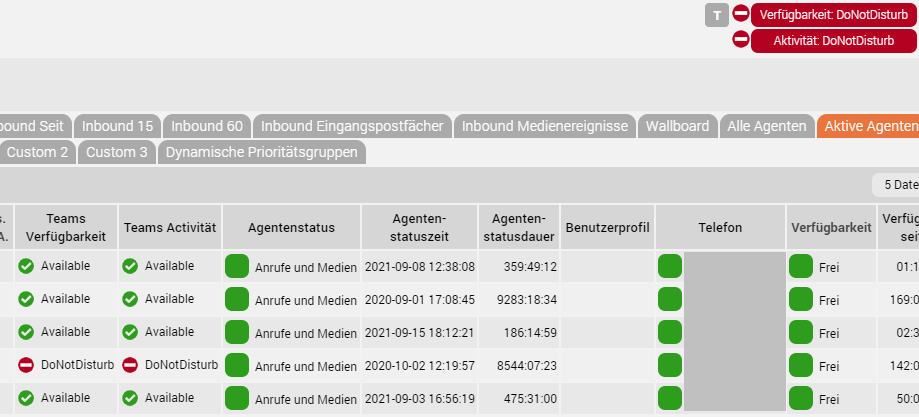
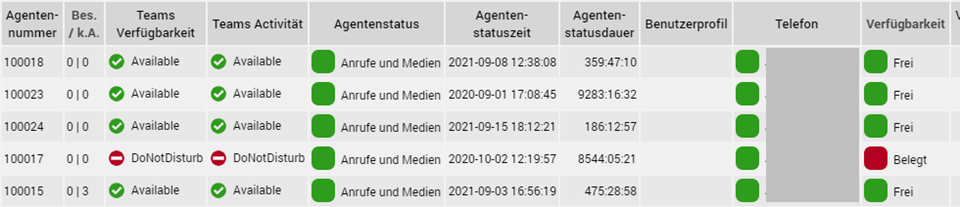
Influence ofTeams Rules:teams rulesThe influence of the Teams Team status and rules becomes visible when looking you look at the graph screenshot below.
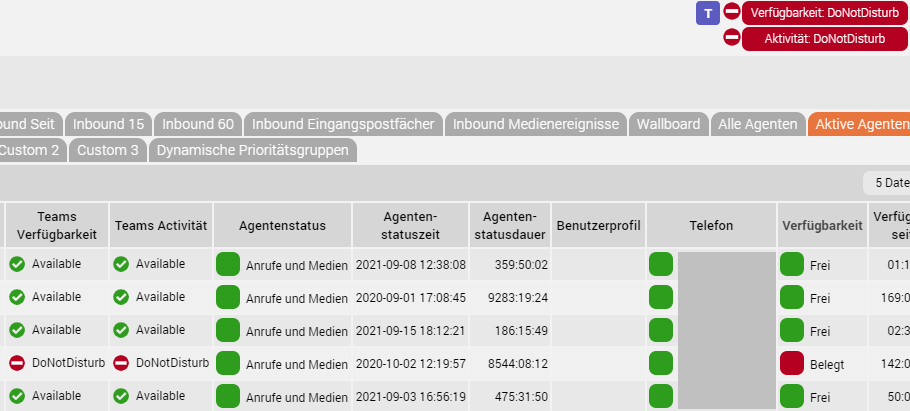
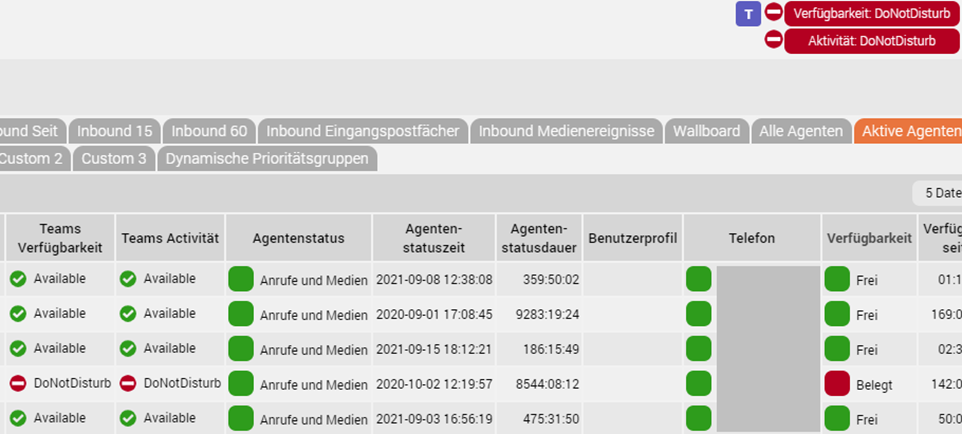
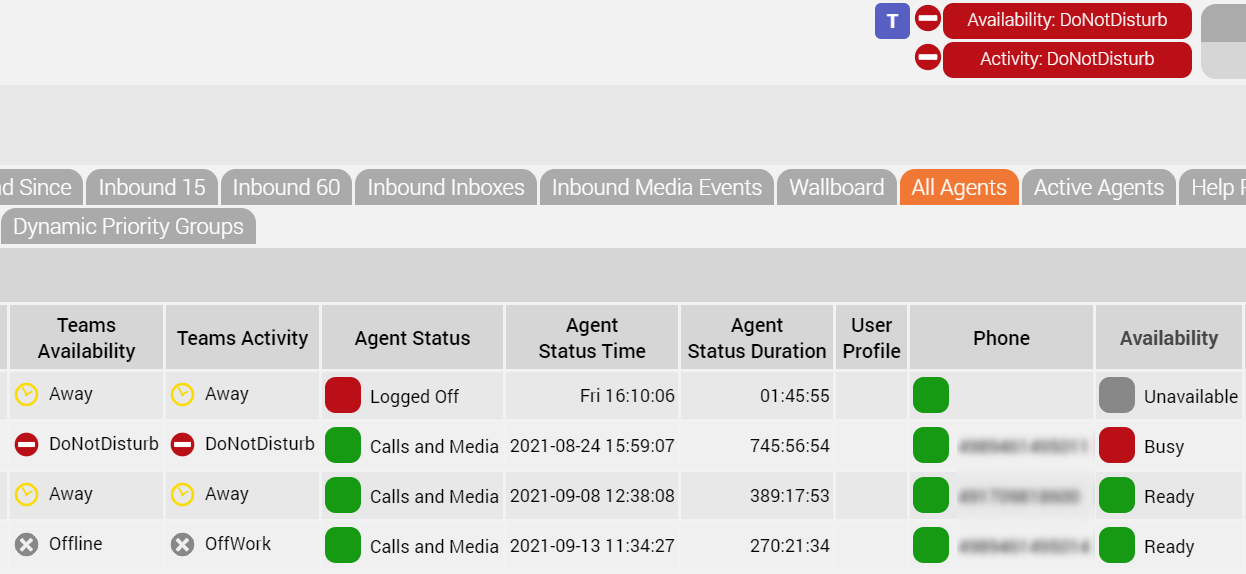
Activated Teams Rule:In order to be able to control the Teams rules as an agent, it is possible to activate and deactivate the rules via the blue "T" next to the Teams Availability.  This in turn affects the call distribution and the telephone status. In the example shown below, an activated Teams set of rules can be seen.
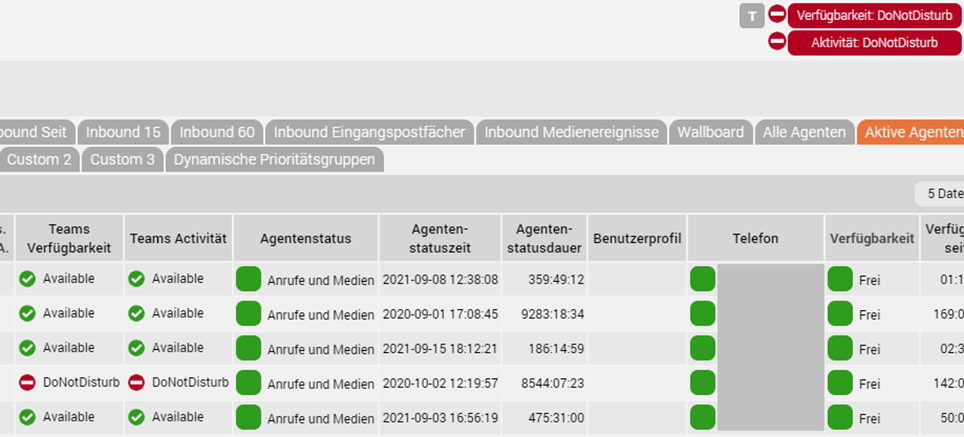
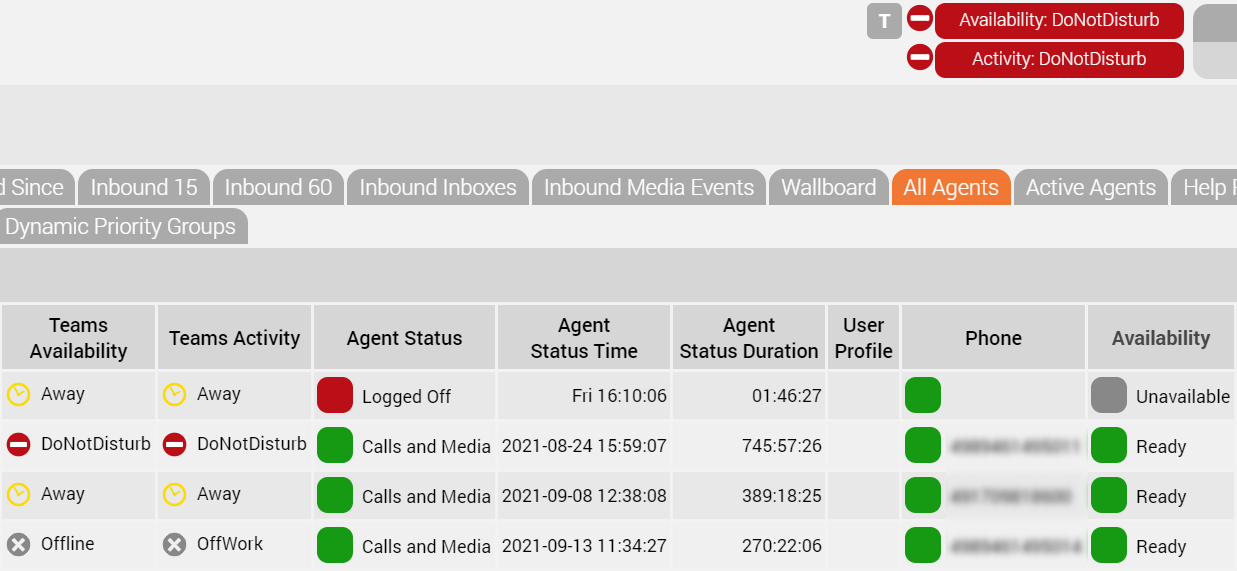
Deactivated Teams Rule:To show what this case looks like when the Teams ruleset is deactivated (i.e. the T is greyed out), you can see in the example below that the Teams status has no influence on the telephone availability
Depending on the configured status and availability, this is also displayed in the front end of the agent.
.
Activated teams rulesAgents can activate and deactivate their teams rules using the blue "T" next to the teams availability. This in turn affects the call distribution and the phone status. In the example below you can see an activated Teams ruleset - so the availability is shown with busy when the user in Teams has a status that triggers this unavailability via the ruleset.
Disabled teams rulesIf the Teams rules are deactivated, you can see in the example below that the Teams status has no influence on the availability in jtel and the user is green in the phone availability despite Teams status "Do not disturb" and thus available for call distribution. In this case the Teams rules do not take effect, the routing of the calls is done to his "active" phone.
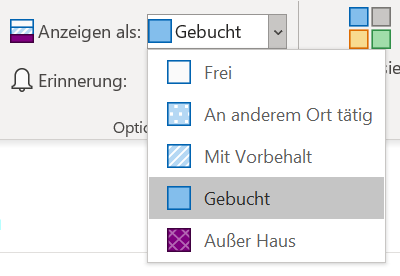
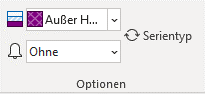
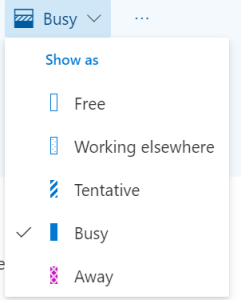
How status in teams is influenced by third-party systemssuch aslike Outlook.Third-party systems such as Outlook can have an influence on the status in Teams and thus also on the desired call distribution. By scheduling an appointment in Outlook , it is possible to influence the Teams status. In addition, the selection in the Outlook calendar,
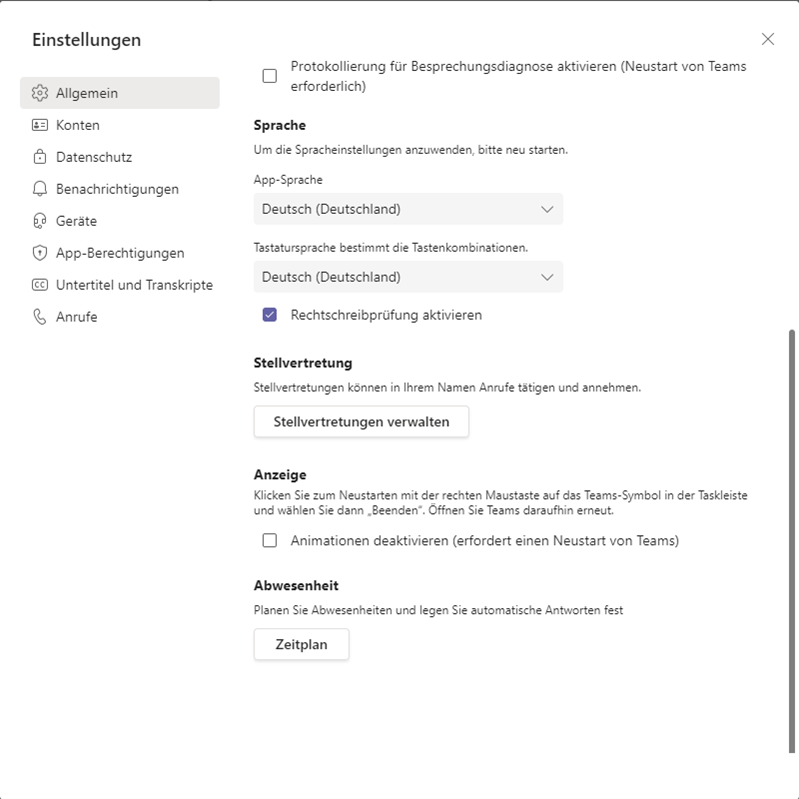
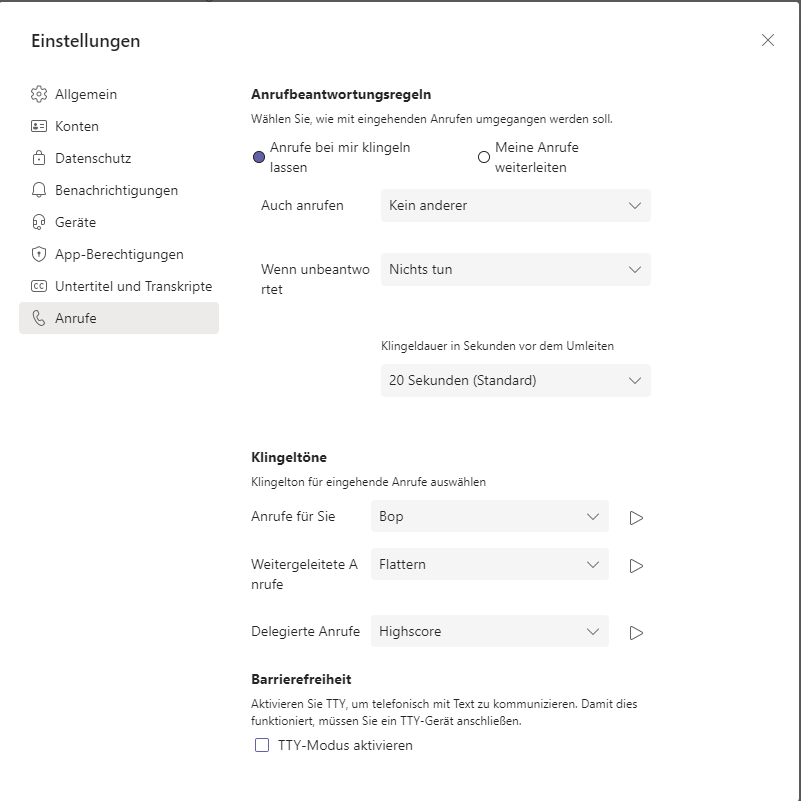
User-configured and system-based status changesThis is best illustrated by the overview provided by Microsoft, See: https://docs.microsoft.com/en-us/microsoftteams/presence-admins Specialnote:notesWhen using Using actions in the Teams Client, such as VoiceMailvoicemail, it can lead to cause routing decisions being overridden. to be overridden by voicemail answering calls. This could result in scenarios that were originally planned exit scenarios no longer being accessed routed to, and the call flow no longer not going through as it was originally planneddesigned. There Under the settings in the Teams Client, there are a large number of parameters that adversely affect settings in Teams that have a detrimental effect on the configured routing scenario in the jtel ACD and have a negative impact on the automatism. Here are a few examples: ExamplesCall delegation:
The deputy rule:If a substitute is configured here
Answering machine rules, when unanswered etcThe answering machine rules:
Also callring:
If unanswered:
Teams Client and Routing Decision in the IVR:A great advantage of using routing applications or IVR in the jtel software is that many automatisms can be mapped in it.
| ||||||||||||||||||
| Sv translation | ||||||||||||||||||
| ||||||||||||||||||
| Status | TK-Benutzer | ACD Agent | ||||||||||||||||
| Status TK-Anlage | Wird über die Rufnummer abgeglichen. Bei Match der Rufnummer wird der Status entsprechend auf Belegt, Klingelt oder Frei gesetzt. | Wird über die Rufnummer abgeglichen. Bei Match der Rufnummer (Telefon1 oder aktives Telefon) wird der Status entsprechend auf Belegt, Klingelt oder Frei gesetzt. | ||||||||||||||||
| Status Teams | Wird über die E-Mail Adresse und dann die Rufnummer abgeglichen. Bei Match wird der Status protokolliert. Die Teams Regeln in den Stammdaten des Mandanten bestimmen den Status. | Wird über die E-Mail Adresse und dann die Rufnummer abgeglichen. Bei Match wird der Status protokolliert. Die Teams Regeln in den Stammdaten des Benutzers bestimmen den Status. | Agentenstatus | Status muss:
| ACD Status | Agent darf nicht aktiv in ein ACD Gespräch involviert sein. * | ||||||||||||
| Entscheidung | Wenn Status:
wird ein Gespräch zugestellt. | Wenn Status:
wird ein Gespräch zugestellt. | ||||||||||||||||
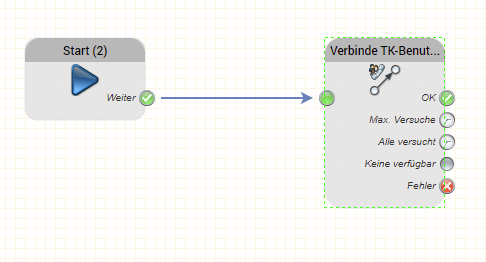
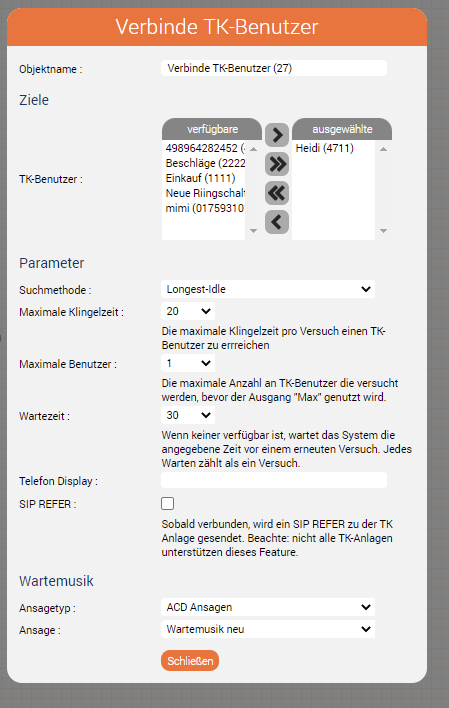
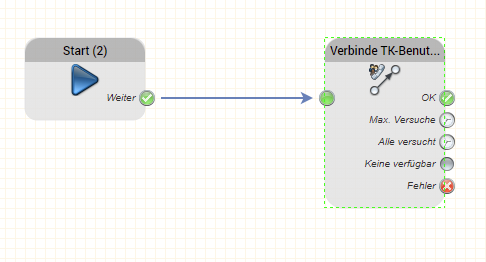
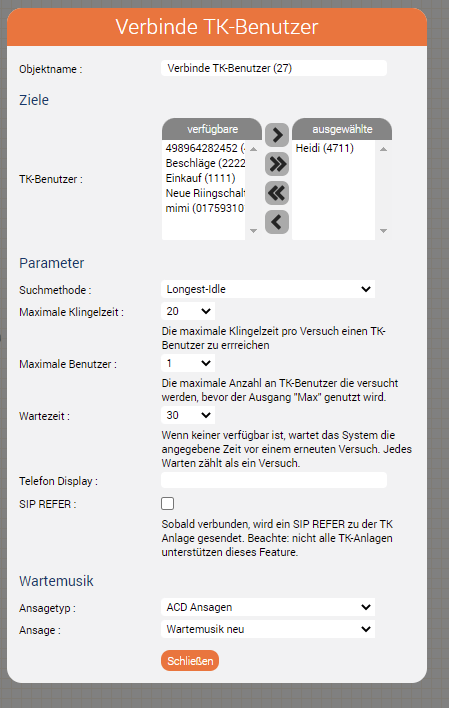
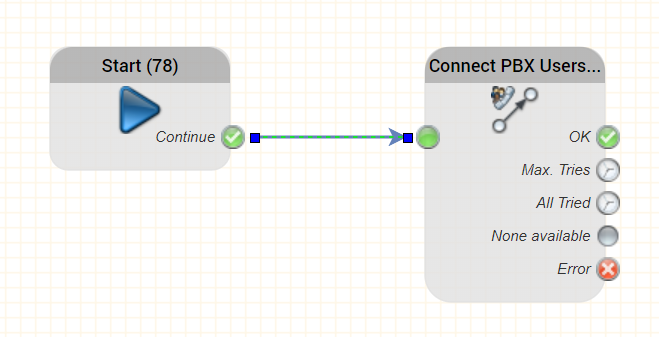
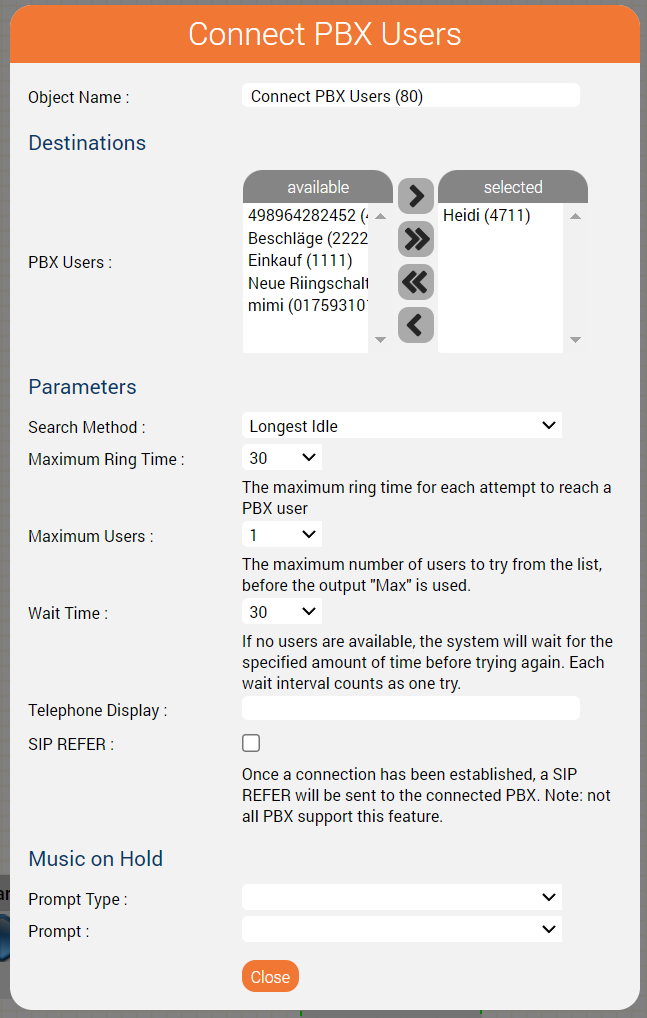
Routing decisions in the IVRA big advantage of using routing applications or IVR in the jtel software is that you can create many automatic routing scenarios. It is possible to check callers against third party systems like CRM, ERP or database systems and to base routing decisions on processes retrieved from them. If you want to route a call to a teams PBX user with such a routing decision, you can create an application with the IVR object Connect PBX Users. The caller is treated as if he were in a simple queue and can be efficiently routed to a free user.
Routing decisions in the ACDRouting decisions in the ACD are made with the users' team rules. This provides maximum flexibility and allows, for example, mobile users (sales, technicians, etc.) to be included in the distribution in the best possible way, without the user having to constantly configure or log on and off. For example, by defining time windows, the ACD determines when calls are put through. The teams rules determine, by consideration of the status "Away" or "OutOfOffice", which device should be used. For example, mobile employees are automatically called on their cell phones as soon as they leave the workplace or close their laptops Write back to Teams?Microsoft is constantly introducing new APIs - and one of them is the ability to write statuses back to Teams. The Teams presence connector can now write the status of other PBX connectors to teams. Currently supported are:
The synchronisation with teams is done depending on the telephone number in active directory. For this reason, it is best if the PBX connector reports fully qualified E.164 numbers. However, this is not always possible, and setting the monitoring prefix may be necessary in the PBX connector. Once matched, state changes reported by the PBX presence connector will be written to Microsoft Teams. Please note that:
ConclusionTeams is a really good collaboration and telephony client. However, routing phone calls through Teams leaves a lot to be desired, and while Microsoft will continue to work on it, there will always be routing scenarios and business processes where you need to find other ways. The jtel ACD offers a practical way to effectively manage routing and process integration scenarios together with the Teams integration. |


| Sv translation | ||||||||||||||||||
|---|---|---|---|---|---|---|---|---|---|---|---|---|---|---|---|---|---|---|
| ||||||||||||||||||
Teams Regeln und Routing durch die IVR oder eine ACD Gruppe – und wie es das beeinflusst?Im heutigen HowTo wollen wir erklären, wie Teams Regeln das Routing und die Zustellung von Gesprächen zu Agenten und TK-Benutzer beeinflussen. Status AggregationDas jtel System wird, um Status auszulesen und zu aggregieren, mit folgende Systeme verbunden:
Des Weiteren stehen das jtel System, bei ACD Agenten, folgende weitere Informationen zu:
Das jtel System führt eine Aggregation der Status aus den verschiedenen Richtungen durch, um eine Entscheidung über die Erreichbarkeit der TK-Benutzer und Agenten zu treffen. Dies wird in der folgenden Tabelle dargestellt:
* Dieser Zustand kann beispielsweise bestehen, wenn der Agent ein Gespräch auf den Handy empfängt. Sein Handy wird weder über die TK noch über Teams gemonitored. Gezielt AdressierenEs ist vom Vorteil auch gezielt das Endgerät adressieren zu können - beispielsweise anhand des Status zu entscheiden ob ein Gespräch auf den Teams-Client oder das Mobiltelefon geroutet wird. Damit der Teams-Client individuell adressierbar ist, wird oft im Session-Border-Controller mit ein Routing-Präfix gearbeitet. Dies dient dazu, Anrufe, die gezielt nach Teams geroutet werden sollen, dorthin zu routen. Hingegen kann über die "Normale" Rufnummer dann der Apparat in der TK-Anlage adressiert werden, oder das Mobiltelefon. Wie werden die Regeln für die Teams-Integration erstellt?HintergrundTeams Regeln sind dafür gedacht, gewisse Abläufe und Zustände automatisiert zu betrachten.
Dazu hat jtel ein Regelwerk entwickelt, wo gewisse Zustände mit Aktionen verknüpft werden. Teams Regeln auf Mandanten Ebene für PBX UserUm dieses Regelwerk zu konfigurieren, sollten sie als erstes im Hauptmenu unter Benutzerdaten den Reiter "Stammdaten Mandant" auswählen.
Das Regelwerk, welches auf der Mandantenebene konfiguriert werden kann, dient dazu, die PBX User, welche nicht mit der jtel ACD arbeiten, jedoch im Teams telefonieren und arbeiten, mit dem Status in der TK-Anlage zu assemblieren. Über diese Regeleinstellungen werden dem PBX User Status vergeben, welche eine Vermitteln von Anrufen ermöglichen oder unterbinden. Dazu werden die Teams Status in die beiden in der Grafik gezeigten Felder parametrisiert und damit ein Regelwerk geschaffen, wie PBX User bei Anrufverteilung berücksichtigt werden. Die jeweiligen Präsenz Status bei Teams sind in der unten abgebildeten Tabelle auf der Microsoft-Webseite hier ersichtlich: https://docs.microsoft.com/en-us/microsoftteams/presence-admins Diese Status (in Englisch) sind kommasepariert in diesen Feldern parametrisierbar und Bilden damit die globale Einstellung für den Umgang mit PBX User bei der Verteilung über die IVR in Verbindung mit Teams.
Teams Regeln auf ACD Benutzer EbeneUm dieses Regelwerk zu konfigurieren, wählen sie als ersten im Hauptmenu unter Benutzerdaten den Reiter "Stammdaten Benutzer" aus. Hier wird im Reiter "Teams" das Regelwerk konfiguriert. Hierbei haben Sie die Möglichkeit, den Teams Status mit der jtel Agentenverfügbarkeit zu kombinieren. Das hat den großen Vorteil, dass bei der Anrufverteilung auch der Teams Status berücksichtigt wird. Ein weiterer Vorteil ist, dass je nach Verfügbarkeit und Status das persönlich favorisierte Telefon ausgewählt werden kann. Beispiele:
Im Folgenden Screenshot ist der Fall gezeigt, dass trotz eines "belegt" Status in Teams, das Telefonat an den Agenten durchgestellt werden soll. Wir empfehlen "Telefon 6" für die Rufnummer in Teams zu verwenden. Der Status "InAMeeting" wird beispielsweise von Teams dann gesetzt, wenn Sie einen Termin in Outlook stehen haben. Da viele den Termin nicht wirklich pflegen (Belegt / Frei), kann dies nützlich sein um die telefonische Erreichbarkeit zu erhöhen.
Folgende Regel ist nützlich wenn der Agent nicht mehr am PC sitzt ("Away"), oder einen Außentermin wahrnimmt und per Mobiltelefon seine Gespräche entgegen nehmen möchte:
Diese Regel deckt den Zustand ab, wenn ein Agent in einem Teams Meeting ist oder präsentiert, und nicht per Telefon erreichbar ist:
So könnte letztendlich ein final konfiguriertes Regelwerk in der jtel ACD für die Verwendung von Teams Regeln aussehen:
Einfluss von Teams Regeln:Der Einfluss des Teams Status wird sichtbar, wenn man sich die untere Grafik anschaut. Hier sieht man, wird ein Status ausgewählt in dem man in Teams nicht verfügbar ist, hat das Auswirkungen auf die Telefonverfügbarkeit. In diesem Fall steht der User auf "Do not disturb" und ist in der jtel mit Verfügbarkeit "Belegt" gekennzeichnet.
Aktivierte Teams RegelnUm die Teams Regeln als Agent steuern zu können, ist es möglich über das blaue "T" neben der Teams Verfügbarkeit die Regeln zu aktivieren und zu deaktivieren. Dies hat wiederum Auswirkungen auf die Anrufverteilung und den Telefonstatus. In dem unten gezeigten Beispiel ist ein aktiviertes Teams Regelwerk zu sehen - damit wird die Verfügbarkeit mit belegt angezeigt, wenn der User im Teams einen Status einnimmt, der diese Nicht Verfügbarkeit über das Regelwerk auslöst.
Deaktivierte Teams RegelnWenn das Teams Regelwerk deaktiviert ist, sieht man in dem unten aufgeführten Beispiel, dass der Teams Status keinen Einfluss auf die Verfügbarkeit in der jtel hat und der User trotz Teams Status "Do not disturb" in der Telefonverfügbarkeit grün und damit für eine Anrufverteilung zur Verfügung steht. In diesen Fall greifen die Teams-Regeln nicht, das Routing der Gespräche erfolgt an sein "aktives" Telefon.
Wie der Status in Teams durch Drittsysteme wie Outlook beeinflusst wirdDrittsysteme wie Outlook können einen Einfluss auf den Status in Teams und somit auch auf die gewünschte Anrufverteilung haben. Durch Terminierungen im Outlook ist es möglich den Teams Status zu beeinflussen. Sollten Sie eine Teams Session mit anderen Kollegen oder Kunden eingestellt haben, würden Sie in diesem Fall in der Teams Verfügbarkeit, je nach Regelwerk, als "nicht verfügbar" angezeigt werden und es würden dadurch keine Anrufe zugestellt werden. Dazu hat die Auswahl im Outlook Kalender , welchen Typ sie wählen, einen Einfluss auf den Status in Teams:
Benutzer-konfigurierten und Systembasierten StatusänderungenDies wird am besten durch die von Microsoft zur Verfügung gestellte Übersicht verdeutlicht, welchen Status ein Benutzer selbstständig wählen kann und welcher Status durch das System automatisiert vergeben wird. Siehe: https://docs.microsoft.com/en-us/microsoftteams/presence-admins Besondere HinweiseVerwenden von Aktionen im Teams Client, wie zum Beispiel VoiceMail, kann dazu führen, dass Routingentscheidungen durch die Annahme in der Voice-Mail außer Kraft gesetzt werden. Das könnte zur Folge haben, dass ursprünglich geplante Ausstiegsszenarien nicht mehr angesteuert werden und der Callflow, wie er ursprünglich geplant war, nicht mehr durchläuft. Unter den Einstellungen im Teams Client gibt es eine Vielzahl von Parametern, die sich nachteilig auf das konfigurierte Routing in der jtel auswirken und den Automatismus negativ beeinflussen. BeispieleStellvertreter Regelung:
Die Anrufbeantworter Regeln, Wenn unbeantwortet usw:
Auch anrufen:
Routing Entscheidung in der IVREin großer Vorteil bei der Benutzung von Routingapplikationen oder auch IVR in der jtel Software ist, dass man viele Automatismen darin abbilden kann. Es ist möglich, Identifikationen und Qualifikation von Rufnummern gegen Drittsysteme wie CRM-, ERP- oder Datenbank-System zu prüfen und daraus Routingentscheidungen zu konfigurieren. Möchte man mit einer solchen Routingentscheidung einem Anruf zu einem Teams Benutzer leiten, kann man dies mit den IVR Objekt Connect PBX Users realisieren. Der Anrufer wird wie in einer Warteschleife behandelt und kann dementsprechend effizient zu einem freien Benutzer zugestellt werden.
Routing Entscheidungen in der ACDRouting-Entscheidungen in der ACD werden mit den Teams-Regeln der Benutzer durchgeführt. Dies stellt die maximale Flexibilität dar, und ermöglicht es beispielsweise Mobile-User (Vertrieb, Techniker usw.) bestmöglich in die Verteilung mit aufzunehmen, ohne dass der Benutzer ständig Konfigurationen oder An- und Abmeldungen vornehmen muss. Beispielsweise durch die Definition der Zeitfenster, bestimmt man in der ACD wann Anrufe durchgestellt werden. Durch die Teams-Regeln mit Berücksichtigung vom Status "Away" oder "OutOfOffice" bestimmt man an welches gerät. So werden mobile Mitarbeiter automatisch auf den Handy angerufen, sobald Sie den Arbeitsplatz verlassen, oder das Laptop zuklappen. Zurückschreiben nach Teams?Microsoft führt ständig neue APIs ein - und dazu gehört auch die Möglichkeit Status nach Teams zurückzuschreiben. Der Präsenz-Konnektor von Teams kann nun den Status anderer TK-Anlage in Teams schreiben. Derzeit werden unterstützt:
Die Synchronisation mit Teams erfolgt abhängig von der Telefonnummer im Active Directory. Aus diesem Grund ist es am besten, wenn der PBX Connector voll qualifizierte E.164 Nummern meldet. Dies ist jedoch nicht immer möglich, und die Einstellung des Überwachungspräfixes kann im PBX-Konnektor erforderlich sein. Nach dem Abgleich werden die vom PBX-Anwesenheits-Konnektor gemeldeten Statusänderungen in Microsoft Teams geschrieben. Bitte beachten Sie dies:
FazitTeams ist ein wirklich guter Kollaborations- und Telefonie-Client. Das Routen von Telefongespräche über Teams lässt jedoch viele Wünsche offen, und obwohl Microsoft daran weiter arbeiten wird, wird es immer Routing-Szenarien und Geschäftsprozessen geben, bei den man andere Wege suchen muss. Die jtel ACD bietet mit der Teams-Integration ein praktischer Weg um Routing- und Prozessintegrationsmöglichkeiten effektiv zu gestalten. | ||||||||||||||||||
| Sv translation | ||||||||||||||||||
| ||||||||||||||||||
(work in progress) |