Versions Compared

Key

  • This line was added.
  • This line was removed.
  • Formatting was changed.
Comment: Removed translated content for 'fr'
Sv translation
languageen

Table of Contents
maxLevel3
printablefalse

Beschreibung der Rolle

Die Rolle WEB wird durch eine Java-Applikation unter einen modifizierten JBOSS-AS-7.1 zur Verfügung gestellt. Der Server greift schreibend und lesend sowohl auf die Rolle STORE als auch auf die Rolle DATA zu. Der Zugriff auf das jtel Portal und die jtel SOAP Schnittstellen wird mittels HTTP auf Port 8080 und 8081 (für durch den Proxy bereitgestellte HTTPS Zugriffe) zur Verfügung gestellt. Benutzer-Sitzungen auf das Portal sind an dem jeweiligen Web-Server gebunden. Dies gilt auch für die SOAP v1 Schnittstelle. Die neue SOAP v3 Schnittstelle, die ab Version 3.06 zur Verfügung steht, erlaubt hingegen das Ausführen der SOAP-Abfragen einer Sitzung auf beliebige Web Server.

Installation der Software

Anbinden des Datenbereiches

Datenbereich anbinden, wie auf der Seite Anbindung des Datenbereiches (Alle Linux ausser STORE) beschrieben.

Installation der Software

Das Einbinden der offiziellen MySQL Software Repositores und die Installation des MySQL-Clients erfolgt mit folgenden Befehlen:

MySQL 8.x

MySQL 8.x

Description of the role

The role WEB is provided by a Java application under a modified Wildfly. The server has read and write access to both the STORE role and the DATA role. Access to the jtel portal and the jtel SOAP interfaces is provided via HTTP on port 8080 and 8081 (for HTTPS access provided by the proxy). User sessions on the portal are bound to the respective web server. This also applies to the SOAP v1 interface. The new SOAP v3 interface, which is available as of version 3.06, allows the execution of SOAP queries of a session on any web server.

Linking the data area

Linking the Data area, as descripited on the site Linking STORE (All Linux except STORE).

Installing the software - Wildfly installations

To include the official MySQL software repositories and install the MySQL client, use the following commands:

Translations Ignore


Code Block
languagebash
titleInstall the mysql client
Info
title
yum -y install https://dev.mysql.com/get/mysql80-community-release-el7-3.noarch.rpm

yum -y install mysql-community-client

MySQL 5.6


Since all access to the shared file share is via a Windows-compatible CIFS-UNC, a symbolic link must be created so that such accesses can also be made under UNIX. This is done with the following command which has to be adapted in practice according to the name of the computer for the role STORE:

Translations Ignore


Code Block
languagebash
titleCreate a symbolic link
mkdir /acd-store
ln -s /home/jtel/shared /acd-store/shared


This allows access to the files in the share with the UNC specification:

Translations Ignore


Code Block
languagebash
titleExample: Access to the share via UNC
ls -la //acd-store/shared/JTELCarrierPortal


Next, the required Java Runtime Environment is installed with the following command:

Translations Ignore


Code Block
titleInstall Java runtime environment
yum -y install https://cdn.jtel.de/downloads/java/jdk-8u202-linux-x64.rpm


Next, the customized application server can now be downloaded and installed:

Translations Ignore


Code Block
titleInstall AS: CentOS 7.7 and higher
cd /home/jtel
wget http://cdn.jtel.de/downloads/jboss/wildfly-18.0.1.Final.03.tar.gz
tar xzf wildfly-18.0.1.Final.03.tar.gz
rm -f wildfly-18.0.1.Final.03.tar.gz
mkdir -p wildfly-18.0.1.Final/standalone/deployments
chown -R jtel:jtel wildfly-18.0.1.Final
mkdir -p /home/jtel/upload
chown -R jtel:jtel /home/jtel/upload
ln -s /home/jtel/wildfly-18.0.1.Final wildfly-current
ln -s /home/jtel/wildfly-current/init.d/wildfly /etc/init.d/wildfly
ln -s /home/jtel/wildfly-current/default/wildfly /etc/default/wildfly
cd /etc/cron.daily
ln -s /home/jtel/wildfly-current/bin/jboss-logmaint.sh
ln -s /home/jtel/wildfly-current/bin/jboss-restart.sh
cd /usr/local/bin
ln -s /home/jtel/wildfly-current/bin/updatejb.sh
chkconfig wildfly on


Next, the port shares for the jboss AS service must be entered in the firewall and stored permanently:

Translations Ignore


Code Block
languagebash
titleConfigure firewall
firewall-cmd --zone=public --add-port=5701-5801/tcp --permanent
firewall-cmd --zone=public --add-port=5455/tcp --permanent
firewall-cmd --zone=public --add-port=8080-8081/tcp --permanent
firewall-cmd --zone=public --add-port=4447/tcp --permanent
firewall-cmd --zone=public --add-port=5445/tcp --permanent
firewall-cmd --zone=public --add-port=20640/udp --permanent
firewall-cmd --zone=public --add-port=20642/udp --permanent
firewall-cmd --zone=public --add-port=20644/udp --permanent
firewall-cmd --reload


Necessary adjustments of the configuration

The configuration of the jboss AS server is done via one or in case of software version >= 3.06 two configuration files. If a version of the software >= 3.06 is used, a copy of the file hazelcast.xml is also stored in the configuration directory of the jboss AS. Since this was already created during the installation of the primary DATA server and stored in the file share of the STORE, it can simply be copied to the destination:

Translations Ignore


Code Block
languagebash
titleCopy hazelcast.xml
cp /home/jtel/shared/hazelcast.xml /home/jtel/wildfly-current/standalone/configuration
chown jtel:jtel /home/jtel/wildfly-current/standalone/configuration/hazelcast.xml


Furthermore, adjustments to the configuration file standalone.xml are necessary. When installing several servers with the WEB role, it is a good idea to store this file in the file share after initial configuration to speed up the installation. If a customized version already exists there, it can be copied to the target location using the following command:

Translations Ignore


Code Block
languagebash
titleCopy the file standalone-full.xml
cp /home/jtel/shared/standalone.xml /home/jtel/wildfly-current/standalone/configuration
chown jtel:jtel /home/jtel/wildfly-current/standalone/configuration/standalone.xml


If, on the other hand, the configuration of the first WEB server is adjusted, some values in the file must be adjusted according to the database server configuration.  This can be done with the following commands - <password> replace with the appropriate password:

Translations Ignore


Code Block
languagebash
titleCustomize the standalone-full.xml
DBPRI=acd-dbm
DBSTA=acd-dbs
DBREP=acd-dbr
DBPWD=<password>
sed -i -e "s/DATA_PRIMARY/${DBPRI}/g" -e "s/DATA_STATS/${DBSTA}/g" -e "s/DATA_REPORTS/${DBREP}/g" -e "s/DB_PASSWORD/${DBPWD}/g" /home/jtel/wildfly-current/standalone/configuration/standalone.xml
unset DBPWD
unset DBREP
unset DBSTA
unset DBPRI


The values of the first 4 lines must be adjusted according to the database configuration:

  • DBPRI: Name of the primary DATA server
  • DBSTA: Name of the DATA server for real-time statistics Data
  • DBREP: Name of the DATA server for report execution
  • DBPWD: Password of the database connection

After adapting the configuration file standalone-full.xml, it can be saved to the central data share to speed up the configuration of the other WEB servers:

Translations Ignore


Code Block
languagebash
titleProvision of the file standalone-full.xml for the installation of additional WEB servers
cp -a /home/jtel/wildfly-current/standalone/configuration/standalone.xml /home/jtel/shared


Starting the WEB application server

At this point the Web Server can be started. Entering the following command updates the to be executed web application and starts the web server:

Translations Ignore


Code Block
languagebash
titleStart the web server - CentOS 7.6 and less
updatejb.sh


A correct start can be checked in the log file of the web server. There you should be able to find the following messages after about 45 seconds from the start:

Translations Ignore


Code Block
titleSuccess media in /home/jtel/jboss-as-7.1.1.FINAL/standalone/log/server.log
08:07:38,249 INFO  [org.jboss.as.server] (DeploymentScanner-threads - 2) JBAS018559: Deployed "SMSReceiver.war"
08:07:38,250 INFO  [org.jboss.as.server] (DeploymentScanner-threads - 2) JBAS018559: Deployed "CarrierPortal.war"
08:07:38,250 INFO  [org.jboss.as.server] (DeploymentScanner-threads - 2) JBAS018559: Deployed "jasper-utils-0.0.1-SNAPSHOT.jar"


Furthermore, in case of software version >= 3.06 the status of the hazelcast-cluster can be recognized by messages like this

Translations Ignore


Code Block
titleStatus of the hazelcast cluster
08:07:24,705 INFO  [com.hazelcast.cluster.ClusterService] (hz._hzInstance_1_jtel-cluster-test5.generic-operation.thread-1) [192.168.1.32]:5701 [jtel-cluster-example] [3.5]

Members [3] {
        Member [192.168.1.21]:5701
        Member [192.168.1.31]:5701
        Member [192.168.1.32]:5701 this
}

08:07:26,713 INFO  [com.hazelcast.core.LifecycleService] (MSC service thread 1-1) [10.42.13.65]:5701 [jtel-cluster-example] [3.5] Address[192.168.1.32]:5701 is STARTED


These messages appear every time a node of the cluster is added or removed. In the portal, the parameter "ACD.UDP.Webserver.Use.Hazelcast" must be activated, i.e. set to the value 1, so that the web servers use Hazelcast/UDPListener.

The final test to show that the web server has started properly is of course the call directly from the browser. Assuming that the second WEB server has just been installed, the application can be reached in the browser by entering the following URL:                        http://acd-jb2.example.com:8080/CarrierPortal/sysadmin/login

If everything works, you will be welcomed by the login mask:
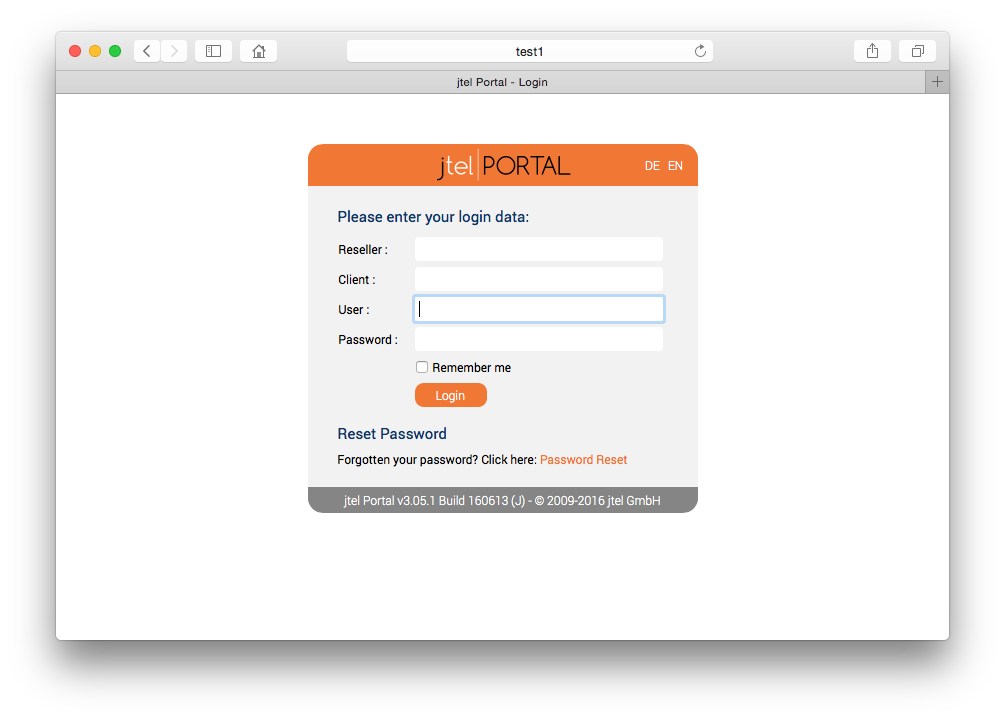
Image Added

Installing the software - JBOSS installations

To include the official MySQL software repositories and install the MySQL client, use the following commands:

MySQL 8.x

Translations Ignore


Code Block
languagebash
titleInstall the mysql client
yum -y install https://dev.mysql.com/get/mysql80-community-release-el7-3.noarch.rpm
yum -y install mysql-community-client


MySQL 5.6

Translations Ignore


Code Block
languagebash
titleInstall the mysql client
yum -y install http://dev.mysql.com/get/mysql-community-release-el6-5.noarch.rpm
yum -y install mysql-community-client


Beide Varianten

Since all access to the common file share takes place via a Windows-compatible CIFS-UNC, a symbolic link must be created so that such accesses can also take place under UNIX. This is done with the following command which has to be adapted in practice according to the name of the computer for the role STORE:

Translations Ignore


Code Block
languagebash
titleCreate a symbolic link
mkdir /acd-store
ln -s /home/jtel/shared /acd-store/shared


This allows access to the files in the share with the UNC specification:

Translations Ignore


Code Block
languagebash
titleExample: Access to the share via UNC
ls -la //acd-store/shared/JTELCarrierPortal


Next, the required Java Runtime Environment is installed with the following command:

Translations Ignore


Code Block
languagebash
titleInstall Java runtime environment
yum -y install http://cdn.jtel.de/downloads/java/jdk-7u79-linux-x64.rpm


Next, the customized application server can now be downloaded and installed:

Translations Ignore


Code Block
languagebash
titleInstall AS: CentOS 7.7 and higher
cd /home/jtel
wget http://cdn.jtel.de/downloads/jboss/jboss-as-7.1.1.FINAL.15.tar.gz
tar xzf jboss-as-7.1.1.FINAL.15.tar.gz
rm -f jboss-as-7.1.1.FINAL.15.tar.gz
mkdir -p jboss-as-7.1.1.FINAL/standalone/deployments
cp jboss-as-7.1.1.FINAL/jboss /etc/init.d
chown -R jtel:jtel jboss-as-7.1.1.FINAL
chkconfig jboss on


Translations Ignore


Code Block
languagebash
titleInstall AS: CentOS 7.6 and less
cd /home/jtel
wget http://cdn.jtel.de/downloads/jboss/jboss-as-7.1.1.FINAL.14.tar.gz
tar xzf jboss-as-7.1.1.FINAL.14.tar.gz
rm -f jboss-as-7.1.1.FINAL.14.tar.gz
mkdir -p jboss-as-7.1.1.FINAL/standalone/deployments
cp jboss-as-7.1.1.FINAL/jboss /etc/init.d
chown -R jtel:jtel jboss-as-7.1.1.FINAL
chkconfig jboss on
mkdir /home/jtel/upload
chown -R jtel:jtel /home/jtel/upload


Next, the port shares for the jboss AS service must be entered in the firewall and stored permanently:

Translations Ignore


Code Block
languagebash
titleConfigure firewall
firewall-cmd --zone=public --add-port=5701-5801/tcp --permanent
firewall-cmd --zone=public --add-port=5455/tcp --permanent
firewall-cmd --zone=public --add-port=8080-8081/tcp --permanent
firewall-cmd --zone=public --add-port=4447/tcp --permanent
firewall-cmd --zone=public --add-port=5445/tcp --permanent
firewall-cmd --zone=public --add-port=20640/udp --permanent
firewall-cmd --zone=public --add-port=20642/udp --permanent
firewall-cmd --zone=public --add-port=20644/udp --permanent
firewall-cmd --reload


Next, the daily maintenance scripts are now registered in the cron service:

Translations Ignore


Code Block
languagebash
titleEnable daily maintenance scripts
cd /etc/cron.daily
ln -s /home/jtel/jboss-as-7.1.1.FINAL/bin/jboss-logmaint.sh
ln -s /home/jtel/jboss-as-7.1.1.FINAL/bin/jboss-restart.sh


To simplify the update of the portal software in the jboss AS service, a corresponding script is now created:

Translations Ignore


Code Block
languagebash
titleCreate the update script
cat <<EOFF>/usr/local/bin/updatejb.sh
#!/bin/bash
systemctl stop jboss.service
rm -rf /home/jtel/jboss-as-7.1.1.FINAL/standalone/deployments/*
rm -rf /home/jtel/jboss-as-7.1.1.FINAL/standalone/lib/*
rm -rf /home/jtel/jboss-as-7.1.1.FINAL/standalone/tmp/*
rm -rf /home/jtel/jboss-as-7.1.1.FINAL/standalone/data/*
cp /home/jtel/shared/JTELCarrierPortal/deploy/*ar /home/jtel/jboss-as-7.1.1.FINAL/standalone/deployments
chown jtel:jtel /home/jtel/jboss-as-7.1.1.FINAL/standalone/deployments/*
systemctl start jboss.service
EOFF
chmod +x /usr/local/bin/updatejb.sh


Necessary adjustments of the configuration

The configuration of the jboss AS server is done via one or in case of software version >= 3.06 two configuration files. If a version of the software >= 3.06 is used, a copy of the file hazelcast.xml is also stored in the configuration directory of the jboss AS. Since this was already created during the installation of the primary DATA server and stored in the file share of the STORE, it can simply be copied to the destination:

Translations Ignore


Code Block
languagebash
titleCopy hazelcast.xml
cp /home/jtel/shared/hazelcast.xml /home/jtel/jboss-as-7.1.1.FINAL/standalone/configuration
chown jtel:jtel /home/jtel/jboss-as-7.1.1.FINAL/standalone/configuration/hazelcast.xml


Furthermore, adjustments to the configuration file standalone-full.xml are necessary. When installing several servers with the WEB role, it is a good idea to store this file in the file share after initial configuration to speed up the installation. If a customized version already exists there, it can be copied to the target location using the following command:

Translations Ignore


Code Block
languagebash
titleCopy the file standalone-full.xml
cp /home/jtel/shared/standalone-full.xml /home/jtel/jboss-as-7.1.1.FINAL/standalone/configuration
chown jtel:jtel /home/jtel/jboss-as-7.1.1.FINAL/standalone/configuration/standalone-full.xml


However, if you adjust the configuration of the first WEB server, some values in the file must be adjusted according to the database server configuration. This can be done with the following commands - <password> replace with the appropriate password:

Translations Ignore


Code Block
languagebash
titleCustomize the standalone-full.xml
DBPRI=acd-dbm
DBSTA=acd-dbs
DBREP=acd-dbr
DBPWD=<password>
sed -i -e "s/DATA_PRIMARY/${DBPRI}/g" -e "s/DATA_STATS/${DBSTA}/g" -e "s/DATA_REPORTS/${DBREP}/g" -e "s/DB_PASSWORD/${DBPWD}/g" /home/jtel/jboss-as-7.1.1.FINAL/standalone/configuration/standalone-full.xml
unset DBPWD
unset DBREP
unset DBSTA
unset DBPRI


The values of the first 4 lines must be adjusted according to the database configuration:

  • DBPRI: Name of the primary DATA server
  • DBSTA: Name of the DATA server for real-time statistics Data
  • DBREP: Name of the DATA server for report execution
  • DBPWD: Password of the database connection

After adapting the configuration file standalone-full.xml, it can be saved to the central data share to speed up the configuration of the other WEB servers:

Translations Ignore


Code Block
languagebash
titleProvision of the file standalone-full.xml for the installation of additional WEB servers
cp -a /home/jtel/jboss-as-7.1.1.FINAL/standalone/configuration/standalone-full.xml /home/jtel/shared


Starting the WEB application server

If the Centos version is 7.7, you have to apply the following patch before you start jboss

Translations Ignore


Code Block
languagebash
titleStart the web server - CentOS 7.7 and higher
bash /home/jtel/shared/JTELCarrierPortal/Update/jboss-restart-patch.sh
updatejb.sh


At this point the Web Server can be started. Entering the following command updates the to be executed web application and starts the web server:

Translations Ignore


Code Block
languagebash
titleStart the web server - CentOS 7.6 and less
updatejb.sh


A correct start can be checked in the log file of the web server. There you should be able to find the following messages after about 45 seconds from the start:

Translations Ignore


Code Block
titleSuccess media in /home/jtel/jboss-as-7.1.1.FINAL/standalone/log/server.log
08:07:38,249 INFO  [org.jboss.as.server] (DeploymentScanner-threads - 2) JBAS018559: Deployed "SMSReceiver.war"
08:07:38,250 INFO  [org.jboss.as.server] (DeploymentScanner-threads - 2) JBAS018559: Deployed "CarrierPortal.war"
08:07:38,250 INFO  [org.jboss.as.server] (DeploymentScanner-threads - 2) JBAS018559: Deployed "jasper-utils-0.0.1-SNAPSHOT.jar"


Furthermore, in case of software version >= 3.06 the status of the hazelcast-cluster can be recognized by messages like this

Translations Ignore


Code Block
titleStatus of the hazelcast cluster
08:07:24,705 INFO  [com.hazelcast.cluster.ClusterService] (hz._hzInstance_1_jtel-cluster-test5.generic-operation.thread-1) [192.168.1.32]:5701 [jtel-cluster-example] [3.5]

Members [3] {
        Member [192.168.1.21]:5701
        Member [192.168.1.31]:5701
        Member [192.168.1.32]:5701 this
}

08:07:26,713 INFO  [com.hazelcast.core.LifecycleService] (MSC service thread 1-1) [10.42.13.65]:5701 [jtel-cluster-example] [3.5] Address[192.168.1.32]:5701 is STARTED


These messages appear every time a node of the cluster is added or removed. In the portal, the parameter "ACD.UDP.Webserver.Use.Hazelcast" must be activated, i.e. set to the value 1, so that the web servers use Hazelcast/UDPListener.

The final test to show that the web server has started properly is of course the call directly from the browser. Assuming that the second WEB server has just been installed, the application can be reached in the browser by entering the following URL:                        http://acd-jb2.example.com:8080/CarrierPortal/sysadmin/login

If everything works, you will be welcomed by the login mask:

Image Added


mysql Client installierenSymbolischen Link erstellenBeispiel: Zugriff auf die Freigabe über
Sv translation
languagede

Table of Contents
maxLevel3
printablefalse

Beschreibung der Rolle

Die Rolle WEB wird durch eine Java-Applikation unter einen modifizierten Wildfly zur Verfügung gestellt. Der Server greift schreibend und lesend sowohl auf die Rolle STORE als auch auf die Rolle DATA zu. Der Zugriff auf das jtel Portal und die jtel SOAP Schnittstellen wird mittels HTTP auf Port 8080 und 8081 (für durch den Proxy bereitgestellte HTTPS Zugriffe) zur Verfügung gestellt. Benutzer-Sitzungen auf das Portal sind an dem jeweiligen Web-Server gebunden. Dies gilt auch für die SOAP v1 Schnittstelle. Die neue SOAP v3 Schnittstelle, die ab Version 3.06 zur Verfügung steht, erlaubt hingegen das Ausführen der SOAP-Abfragen einer Sitzung auf beliebige Web Server.

Anbinden des Datenbereiches

Datenbereich anbinden, wie auf der Seite Anbindung des Datenbereiches (Alle Linux ausser STORE) beschrieben.

Installation der Software - Wildfly Installationen

Das Einbinden der offiziellen MySQL Software Repositores und die Installation des MySQL-Clients erfolgt mit folgenden Befehlen:

Translations Ignore


Code Block
languagebash
titleInstall the mysql client
yum -y install https://dev.mysql.com/get/mysql80-community-release-el7-3.noarch.rpm
yum -y install mysql-community-client


Da alle Zugriffe auf die gemeinsame Dateifreigabe über einen Windows-kompatiblen CIFS-UNC erfolgen, muss ein symbolischer Link erzeugt werden, so dass derartige Zugriffe auch unter UNIX erfolgen können. Dies erfolgt über folgenden Befehl der in der Praxis entsprechend des Namens des Rechners für die Rolle STORE anzupassen ist:

Translations Ignore


Code Block
languagebash
titleCreate a symbolic link
mkdir /acd-store
ln -s /home/jtel/shared /acd-store/shared


Dies ermöglicht den Zugriff auf die Dateien in der Freigabe mit der UNC Angabe:

Translations Ignore


Code Block
languagebash
titleExample: Access to the share via UNC
ls -la //acd-store/shared/JTELCarrierPortal


Als nächstes wird die benötigte Java Laufzeitumgebung mit folgendem Befehl installiert:

Translations Ignore


Code Block
titleInstall Java runtime environment
yum -y install https://cdn.jtel.de/downloads/java/jdk-8u202-linux-x64.rpm


Als nächstes kann nun der angepasste Application Server heruntergeladen und installiert werden:

Translations Ignore


Code Block
titleInstall AS: CentOS 7.7 and higher
cd /home/jtel
wget http://cdn.jtel.de/downloads/jboss/wildfly-18.0.1.Final.02.tar.gz
tar xzf wildfly-18.0.1.Final.02.tar.gz
rm -f wildfly-18.0.1.Final.02.tar.gz
mkdir -p wildfly-18.0.1.Final/standalone/deployments
chown -R jtel:jtel wildfly-18.0.1.Final
mkdir -p /home/jtel/upload
chown -R jtel:jtel /home/jtel/upload
ln -s /home/jtel/wildfly-18.0.1.Final wildfly-current
ln -s /home/jtel/wildfly-current/init.d/wildfly /etc/init.d/wildfly
ln -s /home/jtel/wildfly-current/default/wildfly /etc/default/wildfly
cd /etc/cron.daily
ln -s /home/jtel/wildfly-current/bin/jboss-logmaint.sh
ln -s /home/jtel/wildfly-current/bin/jboss-restart.sh
cd /usr/local/bin
ln -s /home/jtel/wildfly-current/bin/updatejb.sh
chkconfig wildfly on


Als nächstes müssen in der Firewall die Port-Freigaben für den jboss AS Dienst eingetragen und persistent gespeichert werden:

Translations Ignore


Code Block
languagebash
titleConfigure firewall
firewall-cmd --zone=public --add-port=5701-5801/tcp --permanent
firewall-cmd --zone=public --add-port=5455/tcp --permanent
firewall-cmd --zone=public --add-port=8080-8081/tcp --permanent
firewall-cmd --zone=public --add-port=4447/tcp --permanent
firewall-cmd --zone=public --add-port=5445/tcp --permanent
firewall-cmd --zone=public --add-port=20640/udp --permanent
firewall-cmd --zone=public --add-port=20642/udp --permanent
firewall-cmd --zone=public --add-port=20644/udp --permanent
firewall-cmd --reload


Erforderliche Anpassungen der Konfiguration

Die Konfiguration des jboss AS Servers erfolgt über eine bzw. im Falle von Software Version >= 3.06 zwei Konfigurationsdateien. Wird eine Version der Software >= 3.06 verwendet, ist auch im Konfigurationsverzeichnis des jboss AS eine Kopie der Datei hazelcast.xml hinterlegt. Da diese bereits im Zuge der Installation des primären DATA-Servers erstellt wurde und in der Dateifreigabe vom STORE hinterlegt wurde, kann sie einfach zum Zielort kopiert werden:

Translations Ignore


Code Block
languagebash
titleCopy hazelcast.xml
cp /home/jtel/shared/hazelcast.xml /home/jtel/wildfly-current/standalone/configuration
chown jtel:jtel /home/jtel/wildfly-current/standalone/configuration/hazelcast.xml


Des weiteren sind Anpassungen an der Konfigurationsdatei standalone.xml notwendig. Bei installation mehrerer Server mit der WEB-Rolle bietet es sich an, nach initialer Konfiguration, diese Datei auch in die Dateifreigabe abzulegen, um die Installation zu beschleunigen. Ist eine angepasste Version dort bereits vorhanden, kann sie mit folgendem Befehl zum Zielort kopiert werden:

Translations Ignore


Code Block
languagebash
titleCopy the file standalone-full.xml
cp /home/jtel/shared/standalone.xml /home/jtel/wildfly-current/standalone/configuration
chown jtel:jtel /home/jtel/wildfly-current/standalone/configuration/standalone.xml


Passt man hingegen die Konfiguration des ersten WEB-Servers an, so müssen einige Werte in der Datei entsprechend der Datenbankserverkonfiguration angepasst werden. Dies kann mit folgenden Befehlen erfolgen - <password> mit den entsprechenden Passwort ersetzen:

Translations Ignore


Code Block
languagebash
titleCustomize the standalone-full.xml
DBPRI=acd-dbm
DBSTA=acd-dbs
DBREP=acd-dbr
DBPWD=<password>
sed -i -e "s/DATA_PRIMARY/${DBPRI}/g" -e "s/DATA_STATS/${DBSTA}/g" -e "s/DATA_REPORTS/${DBREP}/g" -e "s/DB_PASSWORD/${DBPWD}/g" /home/jtel/wildfly-current/standalone/configuration/standalone.xml
unset DBPWD
unset DBREP
unset DBSTA
unset DBPRI


Die Werte der ersten 4 Zeilen müssen entsprechend der Datenbankkonfiguration entsprechend angepasst werden:

  • DBPRI: Name des primären DATA-Servers
  • DBSTA: Name des DATA Servers für die Echtzeitstatistik Daten
  • DBREP: Name des DATA Servers für die Ausführung der Berichte
  • DBPWD: Passwort der Datenbankverbindung

Nach der Anpassung der Konfigurationsdatei standalone-full.xml, kann diese in die zentrale Datenfreigabe gespeichert werden, um die Konfiguration der weiteren WEB-Server zu beschleunigen:

Translations Ignore


Code Block
languagebash
titleProvision of the file standalone-full.xml for the installation of additional WEB servers
cp -a /home/jtel/wildfly-current/standalone/configuration/standalone.xml /home/jtel/shared


Starten des WEB Applikations-Servers

An diesem Punkt kann der Web Server gestartet werden. Die Eingabe des folgenden Befehls aktualisiert die auszuführende Web-Applikation und startet den Webserver:

Translations Ignore


Code Block
languagebash
titleStart the web server - CentOS 7.6 and less
updatejb.sh


Ein ordnungsgemäßer Start kann in der Protokolldatei des Web-Servers geprüft werden. Dort sollten sich nach ca 45 Sekunden ab dem Start folgende Meldungen finden lassen:

Translations Ignore


Code Block
titleSuccess media in /home/jtel/jboss-as-7.1.1.FINAL/standalone/log/server.log
08:07:38,249 INFO  [org.jboss.as.server] (DeploymentScanner-threads - 2) JBAS018559: Deployed "SMSReceiver.war"
08:07:38,250 INFO  [org.jboss.as.server] (DeploymentScanner-threads - 2) JBAS018559: Deployed "CarrierPortal.war"
08:07:38,250 INFO  [org.jboss.as.server] (DeploymentScanner-threads - 2) JBAS018559: Deployed "jasper-utils-0.0.1-SNAPSHOT.jar"


Der weiteren kann im Falle von Software-Version >= 3.06 der Status des hazelcast-Clusters an Meldungen wie dieser erkennt werden:

Translations Ignore


Code Block
titleStatus of the hazelcast cluster
08:07:24,705 INFO  [com.hazelcast.cluster.ClusterService] (hz._hzInstance_1_jtel-cluster-test5.generic-operation.thread-1) [192.168.1.32]:5701 [jtel-cluster-example] [3.5]

Members [3] {
        Member [192.168.1.21]:5701
        Member [192.168.1.31]:5701
        Member [192.168.1.32]:5701 this
}

08:07:26,713 INFO  [com.hazelcast.core.LifecycleService] (MSC service thread 1-1) [10.42.13.65]:5701 [jtel-cluster-example] [3.5] Address[192.168.1.32]:5701 is STARTED


Diese Meldungen erscheinen jedes Mal, wenn ein Knoten des Clusters hinzugekommen, oder weggefallen ist. Im Portal muss der Parameter "ACD.UDP.Webserver.Use.Hazelcast" aktiviert werden, d.h. auf den Wert 1 gesetzt werden, damit die WebServer Hazelcast/UDPListener nutzen.

Der endgültige Test um zu zeigen, dass der Webserver ordnungsgemäß gestartet ist, ist natürlich der Aufruf direkt aus dem Browser. Unter der Annahme, dass gerade der zweite WEB-Server installiert wurde, kann man im Browser die Applikation durch Aufruf der folgenden URL erreichen: http://acd-jb2.example.com:8080/CarrierPortal/sysadmin/login

Wenn alles funktioniert, wird man von der Login-Maske begrüßt:

Image Added

Installation der Software - JBOSS Installationen

Das Einbinden der offiziellen MySQL Software Repositores und die Installation des MySQL-Clients erfolgt mit folgenden Befehlen:

MySQL 8.x

Translations Ignore


Code Block
languagebash
titleInstall the mysql client
yum -y install https://dev.mysql.com/get/mysql80-community-release-el7-3.noarch.rpm
yum -y install mysql-community-client


MySQL 5.6

Translations Ignore


Code Block
languagebash
titleInstall the mysql client
Code Block
languagebash
title
yum -y install http://dev.mysql.com/get/mysql-community-release-el6-5.noarch.rpm
yum -y install mysql-community-client


Beide Varianten

Da alle Zugriffe auf die gemeinsame Dateifreigabe über einen Windows-kompatiblen CIFS-UNC erfolgen, muss ein symbolischer Link erzeugt werden, so dass derartige Zugriffe auch unter UNIX erfolgen können. Dies erfolgt über folgenden Befehl der in der Praxis entsprechend des Namens des Rechners für die Rolle STORE anzupassen ist:

Translations Ignore


Code Block
languagebash
title
Create a symbolic link
mkdir /acd-store
ln -s /home/jtel/shared /acd-store/shared


Dies ermöglicht den Zugriff auf die Dateien in der Freigabe mit der UNC Angabe:

Translations Ignore


Code Block
languagebash
title
Example: Access to the share via UNC
ls -la //acd-store/shared/JTELCarrierPortal


Als nächstes wird die benötigte Java Laufzeitumgebung mit

...

folgendem Befehl installiert:

Translations Ignore


Code Block
languagebash
titleInstall Java runtime environment
yum -y install http://cdn.jtel.de/downloads/java/jdk-7u79-linux-x64.rpm


Als nächstes kann nun der angepasste Application Server heruntergeladen und installiert werden:

Translations Ignore


Code Block
languagebash
title
Java Laufzeitumgebung installieren
yum -y install http://cdn.jtel.de/downloads/java/jdk-7u79-linux-x64.rpm

...

jboss AS installierenFirewall konfigurierenAktivieren der täglichen Wartungs-Skripte
Install AS: CentOS 7.7 and higher
cd /home/jtel
wget http://cdn.jtel.de/downloads/jboss/jboss-as-7.1.1.FINAL.15.tar.gz
tar xzf jboss-as-7.1.1.FINAL.15.tar.gz
rm -f jboss-as-7.1.1.FINAL.15.tar.gz
mkdir -p jboss-as-7.1.1.FINAL/standalone/deployments
cp jboss-as-7.1.1.FINAL/jboss /etc/init.d
chown -R jtel:jtel jboss-as-7.1.1.FINAL
chkconfig jboss on


Translations Ignore


Code Block
languagebash
title
Install AS: CentOS 7.6 and less
cd /home/jtel
wget http://cdn.jtel.de/downloads/jboss/jboss-as-7.1.1.FINAL.
13
14.tar.gz
tar xzf jboss-as-7.1.1.FINAL.
12
14.tar.gz
rm -f jboss-as-7.1.1.FINAL.
12
14.tar.gz
mkdir -p jboss-as-7.1.1.FINAL/standalone/deployments
cp jboss-as-7.1.1.FINAL/jboss /etc/init.d
chown -R jtel:jtel jboss-as-7.1.1.FINAL
chkconfig jboss on
mkdir /home/jtel/upload
chown -R jtel:jtel /home/jtel/upload


Als nächstes müssen in der Firewall die Port-Freigaben für den jboss AS Dienst eingetragen und persistent gespeichert werden:

Translations Ignore


Code Block
languagebash
title
Configure firewall
firewall-cmd --zone=public --add-port=5701-5801/tcp --permanent
firewall-cmd --zone=public --add-port=5455/tcp --permanent
firewall-cmd --zone=public --add-port=8080-8081/tcp --permanent
firewall-cmd --zone=public --add-port=4447/tcp --permanent
firewall-cmd --zone=public --add-port=5445/tcp --permanent
firewall-cmd --zone=public --add-port=20640/udp --permanent
firewall-cmd --zone=public --add-port=20642/udp --permanent
firewall-cmd --zone=public --add-port=20644/udp --permanent
firewall-cmd --reload


Als nächstes werden nun die täglichen Wartungs-Skripte im cron-Dienst angemeldet:

Translations Ignore


Code Block
languagebash
title
Enable daily maintenance scripts
cd /etc/cron.daily
ln -s /home/jtel/jboss-as-7.1.1.FINAL/bin/jboss-logmaint.sh
ln -s /home/jtel/jboss-as-7.1.1.FINAL/bin/jboss-restart.sh


Um die Aktualisierung der Portal-Software im jboss AS Dienstes zu vereinfachen, wird nun noch ein entsprechendes Skript erstellt

...

Erstellen des Aktualisierungsscripts

:

Translations Ignore


Code Block
languagebash
title
Create the update script
cat <<EOFF>/usr/local/bin/updatejb.sh
#!/bin/bash
service
systemctl stop jboss
stop
.service
rm -rf /home/jtel/jboss-as-7.1.1.FINAL/standalone/deployments/*
rm -rf /home/jtel/jboss-as-7.1.1.FINAL/standalone/lib/*
rm -rf /home/jtel/jboss-as-7.1.1.FINAL/standalone/tmp/*
rm -rf /home/jtel/jboss-as-7.1.1.FINAL/standalone/data/*
cp /home/jtel/shared/JTELCarrierPortal/deploy/*ar /home/jtel/jboss-as-7.1.1.FINAL/standalone/deployments
chown jtel:jtel /home/jtel/jboss-as-7.1.1.FINAL/standalone/deployments/*
service
systemctl start jboss
start
.service
EOFF
chmod +x /usr/local/bin/updatejb.sh


Erforderliche Anpassungen der Konfiguration

Die Konfiguration des jboss AS Servers erfolgt über eine bzw. im Falle von Software Version >= 3.06 zwei Konfigurationsdateien. Wird eine Version der Software >= 3.06 verwendet, ist auch im Konfigurationsverzeichnis des jboss AS eine Kopie der

...

Datei hazelcast.xml

...

Kopieren von

 hinterlegt. Da diese bereits im Zuge der Installation des primären DATA-Servers erstellt wurde und in der Dateifreigabe vom STORE hinterlegt wurde, kann sie einfach zum Zielort kopiert werden:

Translations Ignore


Code Block
languagebash
title
Copy hazelcast.xml
cp /home/jtel/shared/hazelcast.xml /home/jtel/jboss-as-7.1.1.FINAL/standalone/configuration
chown jtel:jtel /home/jtel/jboss-as-7.1.1.FINAL/standalone/configuration/hazelcast.xml


Des weiteren sind Anpassungen an der

...

Konfigurationsdatei standalone-full.xml

...

Kopieren der Datei Anpassen der

 notwendig. Bei installation mehrerer Server mit der WEB-Rolle bietet es sich an, nach initialer Konfiguration, diese Datei auch in die Dateifreigabe abzulegen, um die Installation zu beschleunigen. Ist eine angepasste Version dort bereits vorhanden, kann sie mit folgendem Befehl zum Zielort kopiert werden:

Translations Ignore


Code Block
languagebash
title
Copy the file standalone-full.xml
cp /home/jtel/shared/standalone-full.xml /home/jtel/jboss-as-7.1.1.FINAL/standalone/configuration
chown jtel:jtel /home/jtel/jboss-as-7.1.1.FINAL/standalone/configuration/standalone-full.xml


Passt man hingegen die Konfiguration des ersten WEB-Servers an, so müssen einige Werte in der Datei entsprechend der Datenbankserverkonfiguration angepasst werden. Dies kann mit folgenden Befehlen erfolgen - <password> mit den entsprechenden Passwort ersetzen:

Translations Ignore


Code Block
languagebash
title
Customize the standalone-full.xml
DBPRI=acd-dbm
DBSTA=acd-dbs
DBREP=acd-
dbs
dbr
DBPWD=<password>
sed -i -e "s/DATA_PRIMARY/${DBPRI}/g" -e "s/DATA_STATS/${DBSTA}/g" -e "s/DATA_REPORTS/${DBREP}/g" -e "s/DB_PASSWORD/${DBPWD}/g" /home/jtel/jboss-as-7.1.1.FINAL/standalone/configuration/standalone-full.xml
unset DBPWD
unset DBREP
unset DBSTA
unset DBPRI


Die Werte der ersten 4 Zeilen müssen entsprechend der Datenbankkonfiguration entsprechend angepasst werden:

  • DBPRI: Name des primären DATA-Servers
  • DBSTA: Name des DATA Servers für die Echtzeitstatistik Daten
  • DBREP: Name des DATA Servers für die Ausführung der Berichte
  • DBPWD: Passwort der Datenbankverbindung

Nach der Anpassung der

...

Bereitstellen der Datei für die Installation weiterer WEB-Server

Konfigurationsdatei standalone-full.xml, kann diese in die zentrale Datenfreigabe gespeichert werden, um die Konfiguration der weiteren WEB-Server zu beschleunigen:

Translations Ignore


Code Block
languagebash
title
Provision of the file standalone-full.xml
for the installation of additional WEB servers
cp -a /home/jtel/jboss-as-7.1.1.FINAL/standalone/configuration/standalone-full.xml /home/jtel/shared


Starten des WEB Applikations-Servers

Wenn die Centos-Version 7.7 ist, müssen Sie den folgenden Patch ausführen, bevor Sie jboss starten

Translations Ignore


Code Block
languagebash
titleStart the web server - CentOS 7.7 and higher
bash /home/jtel/shared/JTELCarrierPortal/Update/jboss-restart-patch.sh
updatejb.sh


An diesem Punkt kann der Web Server gestartet werden. Die Eingabe des folgenden Befehls aktualisiert die auszuführende Web-Applikation und startet den

...

Starten des Web ServersErfolgsmedlungen des -Clusters

Webserver:

Translations Ignore


Code Block
languagebash
title
Start the web server - CentOS 7.6 and less
updatejb.sh


Ein ordnungsgemäßer Start kann in der Protokolldatei des Web-Servers geprüft werden. Dort sollten sich nach ca 45 Sekunden ab dem Start folgende Meldungen finden lassen:

Translations Ignore


Code Block
title
Success media in /home/jtel/jboss-as-7.1.1.FINAL/standalone/log/server.log
08:07:38,249 INFO  [org.jboss.as.server] (DeploymentScanner-threads - 2) JBAS018559: Deployed "SMSReceiver.war"
08:07:38,250 INFO  [org.jboss.as.server] (DeploymentScanner-threads - 2) JBAS018559: Deployed "CarrierPortal.war"
08:07:38,250 INFO  [org.jboss.as.server] (DeploymentScanner-threads - 2) JBAS018559: Deployed "jasper-utils-0.0.1-SNAPSHOT.jar"


Der weiteren kann im Falle von Software-Version >= 3.06 der Status des hazelcast-Clusters an Meldungen wie dieser erkennt werden:

Translations Ignore


Code Block
titleStatus
of the hazelcast
cluster
08:07:24,705 INFO  [com.hazelcast.cluster.ClusterService] (hz._hzInstance_1_jtel-cluster-test5.generic-operation.thread-1) [192.168.1.32]:5701 [jtel-cluster-example] [3.5]

Members [3] {
        Member [192.168.1.21]:5701
        Member [192.168.1.31]:5701
        Member [192.168.1.32]:5701 this
}

08:07:26,713 INFO  [com.hazelcast.core.LifecycleService] (MSC service thread 1-1) [10.42.13.65]:5701 [jtel-cluster-example] [3.5] Address[192.168.1.32]:5701 is STARTED


Diese Meldungen erscheinen jedes Mal, wenn ein Knoten des Clusters hinzugekommen, oder weggefallen ist. Im Portal muss der Parameter "ACD.UDP.Webserver.Use.Hazelcast" aktiviert werden, d.h. auf den Wert 1 gesetzt werden, damit die WebServer Hazelcast/UDPListener nutzen.

Der endgültige Test um zu zeigen, dass der Webserver ordnungsgemäß gestartet ist, ist natürlich der Aufruf direkt aus dem Browser. Unter der Annahme, dass gerade der zweite WEB-Server installiert wurde, kann man im Browser die Applikation durch Aufruf der folgenden URL erreichen: http://acd-jb2.example.com:8080/CarrierPortal/sysadmin/login

Wenn alles funktioniert, wird man von der Login-Maske begrüßt:

Image Modified

...

Note
titleWichtiger Hinweis bei Version >= 3.06

Falls eine Version >= 3.06 installiert wird, muss der Paramter "ACD.UDP.Webserver.Address" auf "localhost" gesetzt werden.