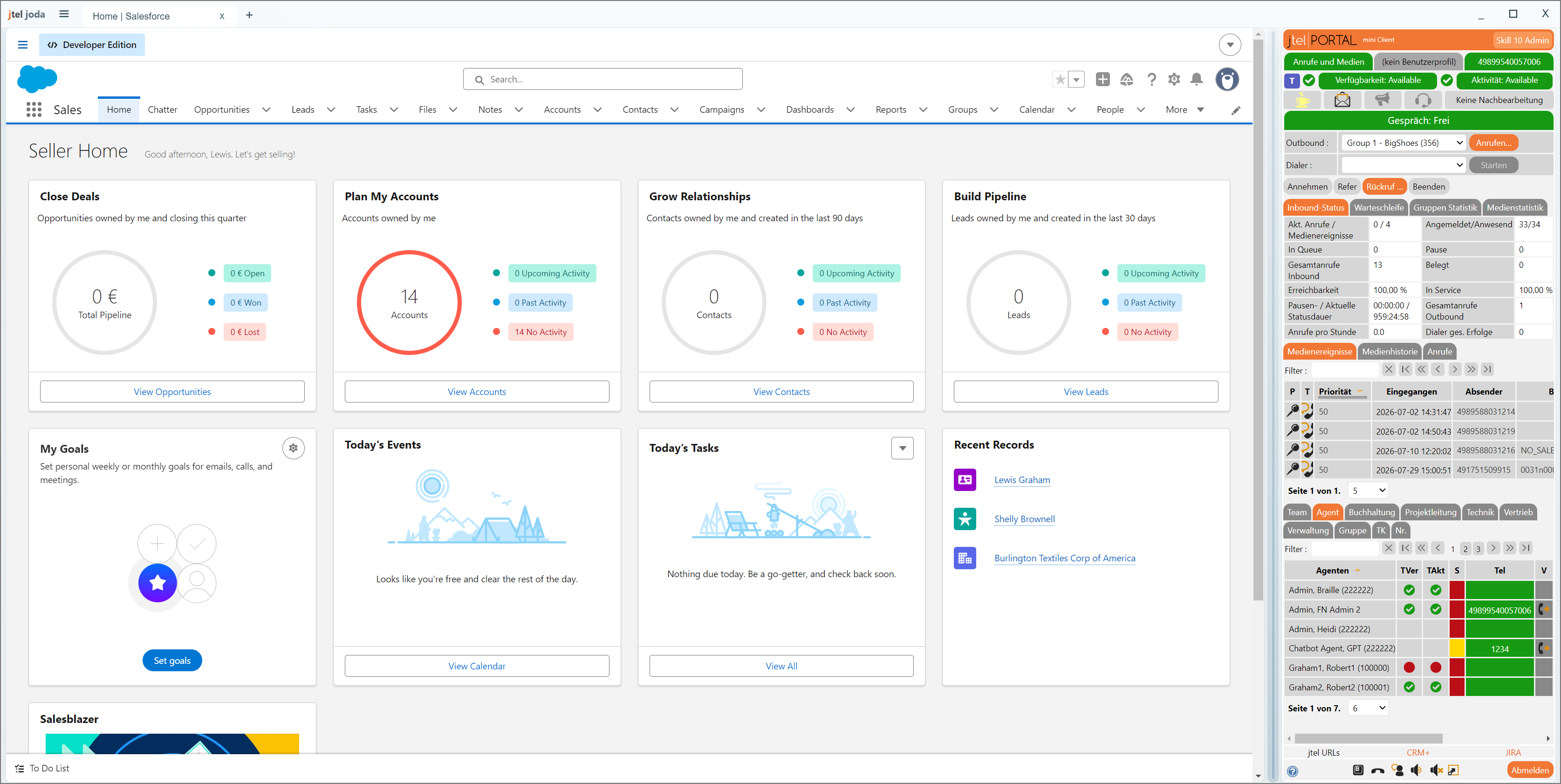
jtel joda is a Windows desktop application for users who work with both Salesforce and the jtel Portal mini client. It provides an alternative desktop workflow for integrations that previously depended on Salesforce OpenCTI.
The application presents two web workspaces in one window:
jtel joda connects the two systems in both directions:
Before installation, confirm that the user has:
jtel joda does not implement its own Salesforce or jtel authentication. Users sign in to the normal web login pages displayed inside the application.
The installer is per-user by default. Each Windows user receives an independent application profile and configuration.
On first start, jtel joda creates a runtime configuration for the current Windows user. If required URLs are missing or still contain placeholder values, Settings opens automatically.
Recommended first-start sequence:
Salesforce and jtel use separate persistent sessions. Session cookies normally survive an application restart, but users may still be asked to sign in again because of logout, expiry, multi-factor authentication, or organizational security policy.
Open Settings in either of these ways:
| Setting | Details | Example Value |
|---|---|---|
jtel System URL | This is the address of the jtel Portal mini client displayed in the right pane. | https://my_jtel_system_url/CarrierPortal/mclogin/ |
Right Pane Width Percent | This controls how much of the main window is assigned to the jtel pane.
| 20 % |
Incoming Call Sound | Users can:
When a custom sound is selected, jtel joda copies it into the user's application profile. The original file does not need to remain in its original location. |
| Setting | Details | Example Value |
|---|---|---|
Salesforce Home URL | This is the page loaded when jtel joda starts or when the user opens a new Salesforce tab. | https://your-org.lightning.force.com/lightning |
Record URL Template | This template is used when jtel supplies a Salesforce record ID. It must contain {recordId}. At runtime, jtel joda replaces {recordId} with the record received from the jtel system. | https://your-org.lightning.force.com/{recordId} |
Search URL Template | This template is used when no record ID is available and jtel joda must search Salesforce using a telephone number or another search term. {searchState} is recommended because jtel joda generates the encoded Salesforce Lightning search navigation state automatically. {searchTerm} can be used only when the Salesforce organization has a working direct search route that accepts the encoded term in the URL. | https://your-org.lightning.force.com/one/one.app#{searchState} |
The URL Tester validates the values currently displayed in Settings, including unsaved edits.
Available test types:
Recommended test procedure:
Configuration and session data belong to the current Windows user. This has several practical consequences:
The runtime file is normally located at: %APPDATA%\jtel-joda\app-config.json
Use Help > Open Settings Folder to open the exact active location. Editing the file manually is normally unnecessary because all supported settings are available in the application.
Note: currently every call creates a new Salesforce tab, even when the same customer calls again or a tab with the same original URL already exists.
If this workflow opens the wrong Salesforce page, an administrator should test and correct the Search URL Template.
Salesforce Setup pages and other Salesforce links that request a new window are opened as jtel joda tabs where possible.
Keyboard refresh and zoom commands apply to the browser pane that currently has focus.
For an explicit target, use the View menu. Refresh, force refresh, zoom, and developer tools can target:
| Shortcut | Action |
|---|---|
| Ctrl+T | Open a new Salesforce tab |
| Ctrl+W | Close the active Salesforce tab or active jtel child window |
| Ctrl+Tab | Select the next Salesforce tab |
| Ctrl+Shift+Tab | Select the previous Salesforce tab |
| Ctrl+PageDown / Ctrl+PageUp | Select the next / previous Salesforce tab |
| Ctrl+1 through Ctrl+8 | Select a numbered Salesforce tab |
| Ctrl+9 | Select the last Salesforce tab |
| F5 / Ctrl+R | Refresh the focused browser pane |
| Ctrl+F5 / Ctrl+Shift+R | Force-refresh the focused browser pane |
| Ctrl++ / Ctrl+- | Zoom the focused browser pane in / out |
| Ctrl+0 | Reset zoom for the focused browser pane |
| Alt+Left / Alt+Right | Navigate back / forward in the focused pane |
| Ctrl+, | Open Settings |
| F11 | Toggle full-screen mode |
| F12 | Toggle developer tools for the focused pane |
Open the application menu and use the Help section to:
The log records incoming-call detection, Salesforce tab creation, click-to-dial metadata, jtel handoff results, navigation, and loading errors.
One or more URLs are missing or still use placeholder values. Complete both Settings tabs and select Save and Reload.
Check the jtel System URL, network/VPN connectivity, DNS, and whether the URL opens in an approved browser on the same computer.
Use the Salesforce URL Tester with a known number. The Search URL Template should normally use {searchState} for Salesforce Lightning.
Confirm that the jtel mini client is displaying the call and supplying a Salesforce URL through M:CRMLinkAcdGroup. Copy the Debug Log immediately after the test.
Confirm that the Salesforce number is a clickable `tel:` link and that the jtel client is loaded and signed in. The Debug Log should show both the dial request and the jtel handoff result.
Session cookies are persistent, but Salesforce or jtel can require a new login after logout, cookie expiry, multi-factor authentication, or a security-policy change. jtel joda does not store or autofill passwords.
Open General Settings, confirm that sound is enabled, and select Test. Restore Luna to check whether a custom file is unavailable or unsupported.